
1. Creating Discount Coupons #
Coupons are one of WooCommerce’s most straightforward yet powerful tools to attract and reward customers.
How to Create a Coupon #
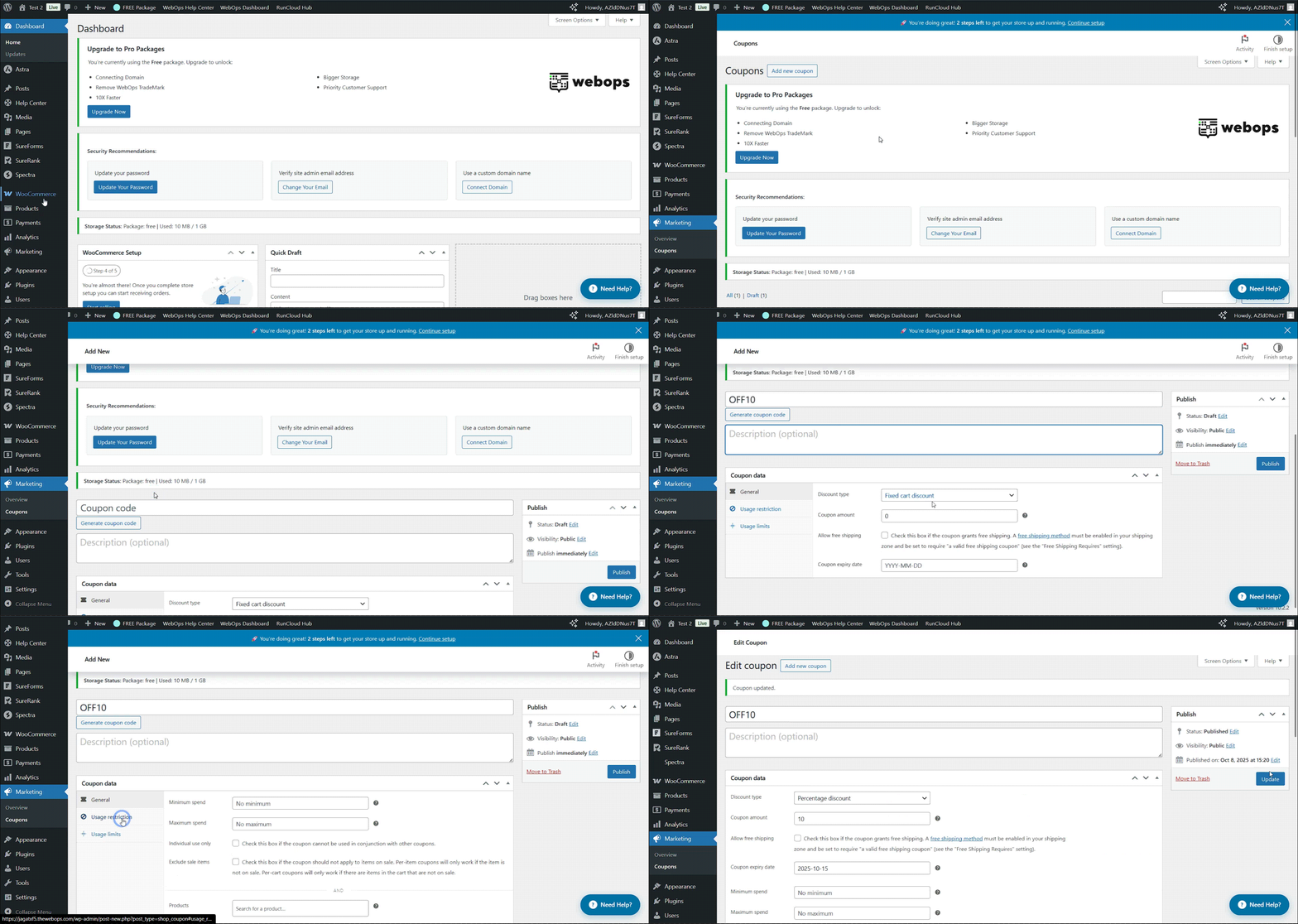
- In your WordPress dashboard, go to WooCommerce → Coupons.
- Click Add Coupon.
- Enter a Coupon Code (e.g., WELCOME10) — this is what customers will type at checkout.
- (Optional) Add a Description to remind yourself what the coupon is for.
Set Coupon Data #
Under Coupon Data, configure the rules:
- Discount Type:
- Percentage discount (e.g., 10% off)
- Fixed cart discount (e.g., $10 off total)
- Fixed product discount (e.g., $5 off per item)
- Coupon Amount: The discount value.
- Allow Free Shipping: Tick if it should apply.
- Expiry Date: Optional — useful for limited promotions.
Usage Restrictions #
You can limit coupons by:
- Minimum or maximum spend
- Specific products or categories
- Individual use only (cannot be combined)
- Specific emails or user roles
Click on Publish to activate the coupon.
2. Running Flash Sales and Promotions #
Flash sales and timed promotions drive urgency and excitement — perfect for clearing stock or celebrating holidays.
Option 1: Manual Sale Price #
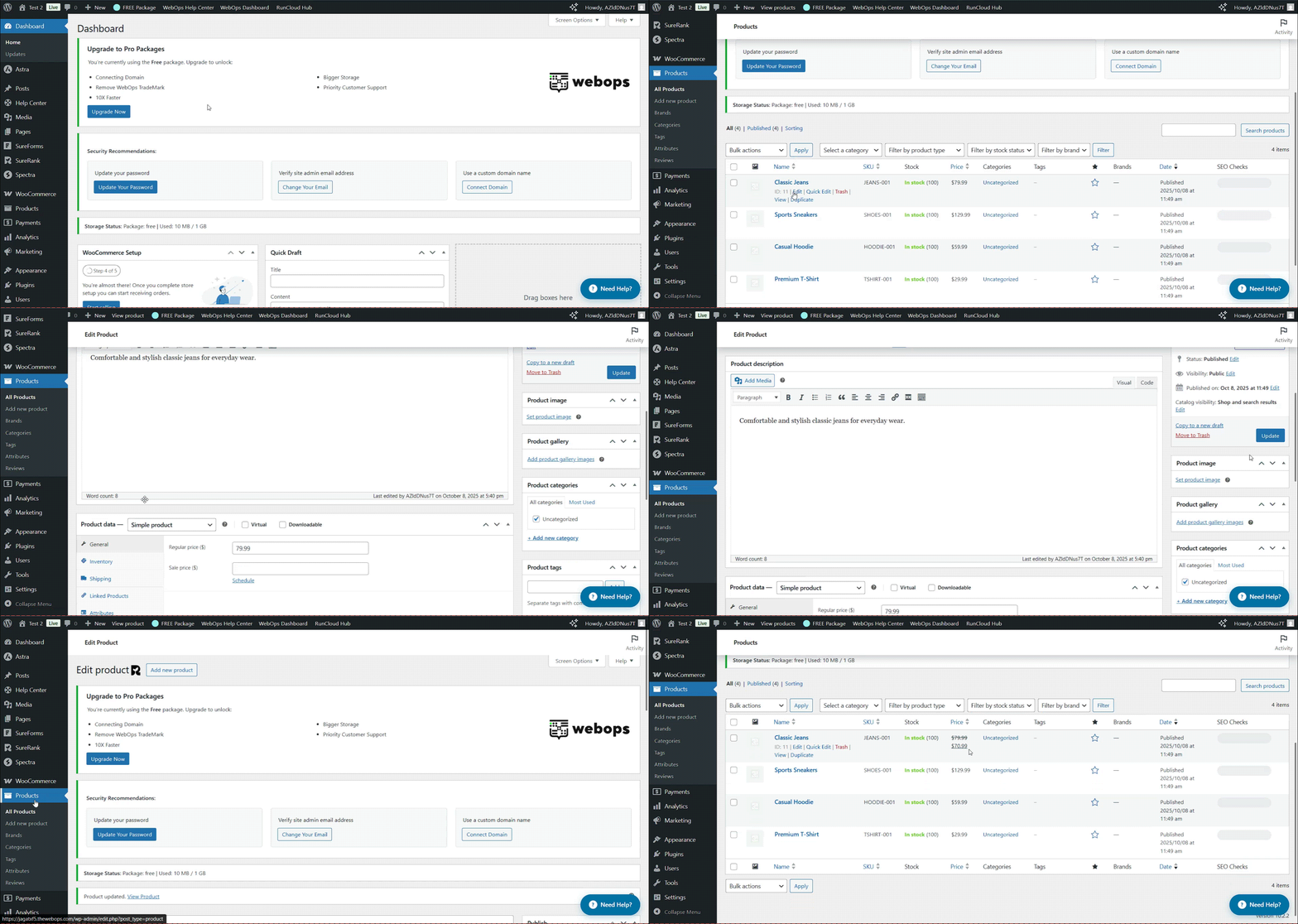
- Edit any product.
- Under Product Data → General, set a Sale Price lower than the regular price.
- (Optional) Click Schedule to define sale start and end dates.
- Click Update.
WooCommerce will automatically show the discounted price and a “Sale” badge on the product.
Option 2: Flash Sale Plugin (Recommended) #
For countdowns, banners, urgency timers, and automated percentage discounts, use a plugin like Discount Rules for WooCommerce.
Other plugin options:
-
Discount Rules for WooCommerce (recommended)
- YITH WooCommerce Countdown Timer
- WooCommerce Smart Coupons
Steps to Create a 10% Flash Sale Discount (Discount Rules for WooCommerce) #
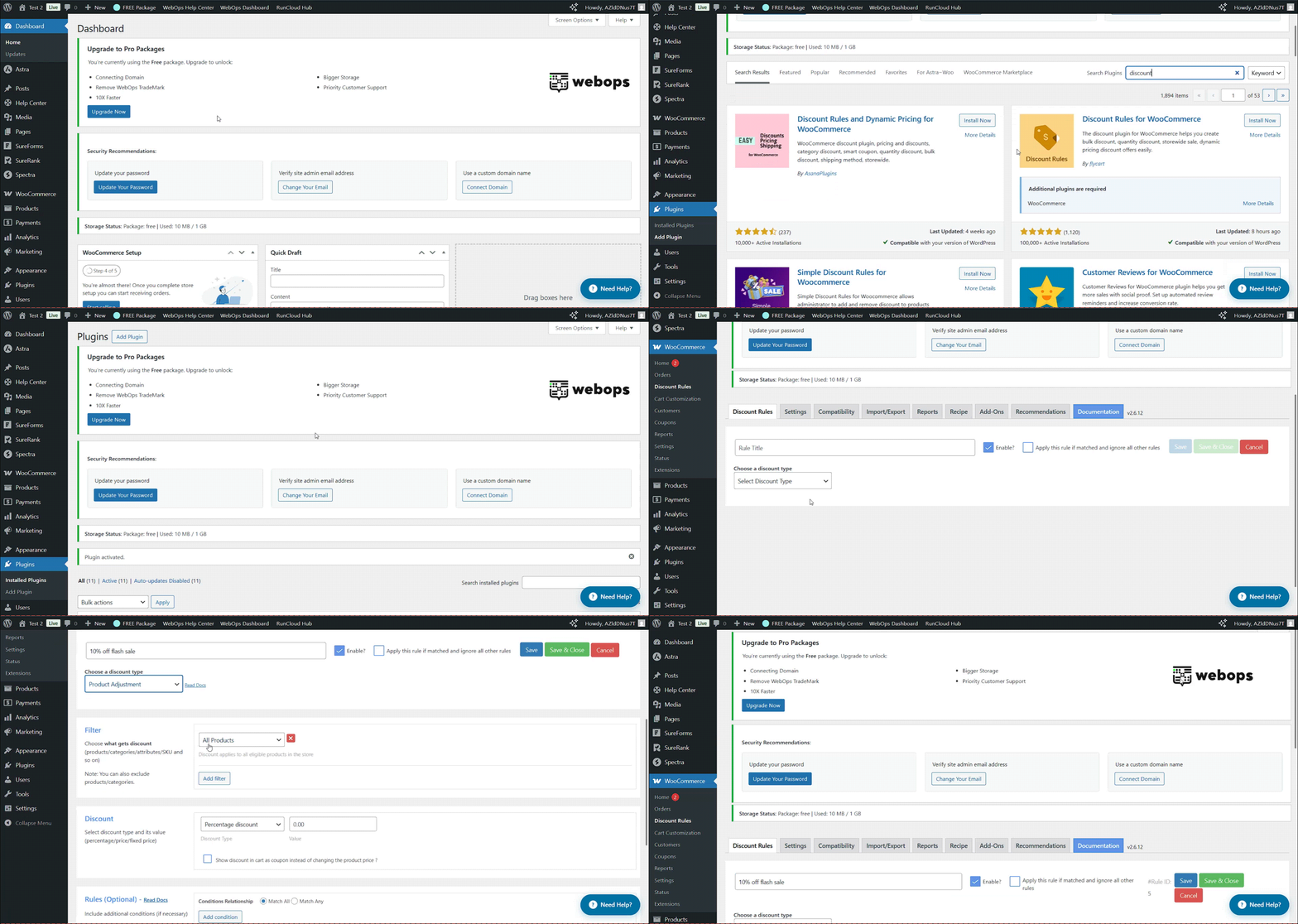
- Install and activate the Discount Rules for WooCommerce plugin.
- Go to WooCommerce → Woo Discount Rules → Add New Rule.
- Under Rule Name, enter something like “10% Flash Sale”.
- In Discount Type, choose Product Adjustment → Percentage Discount.
- Set the Discount Value to 10.
- Under Filter → Products, select “All Products” (or choose specific ones if needed).
- Click Save and Enable Rule.
3. Setting Up Upsells and Cross-Sells #
Upsells and cross-sells increase your average order value by suggesting relevant products at the right time.
Upsells #
Shown on product pages, encouraging customers to buy higher-end alternatives.
Example: “Upgrade to the Premium Version.”
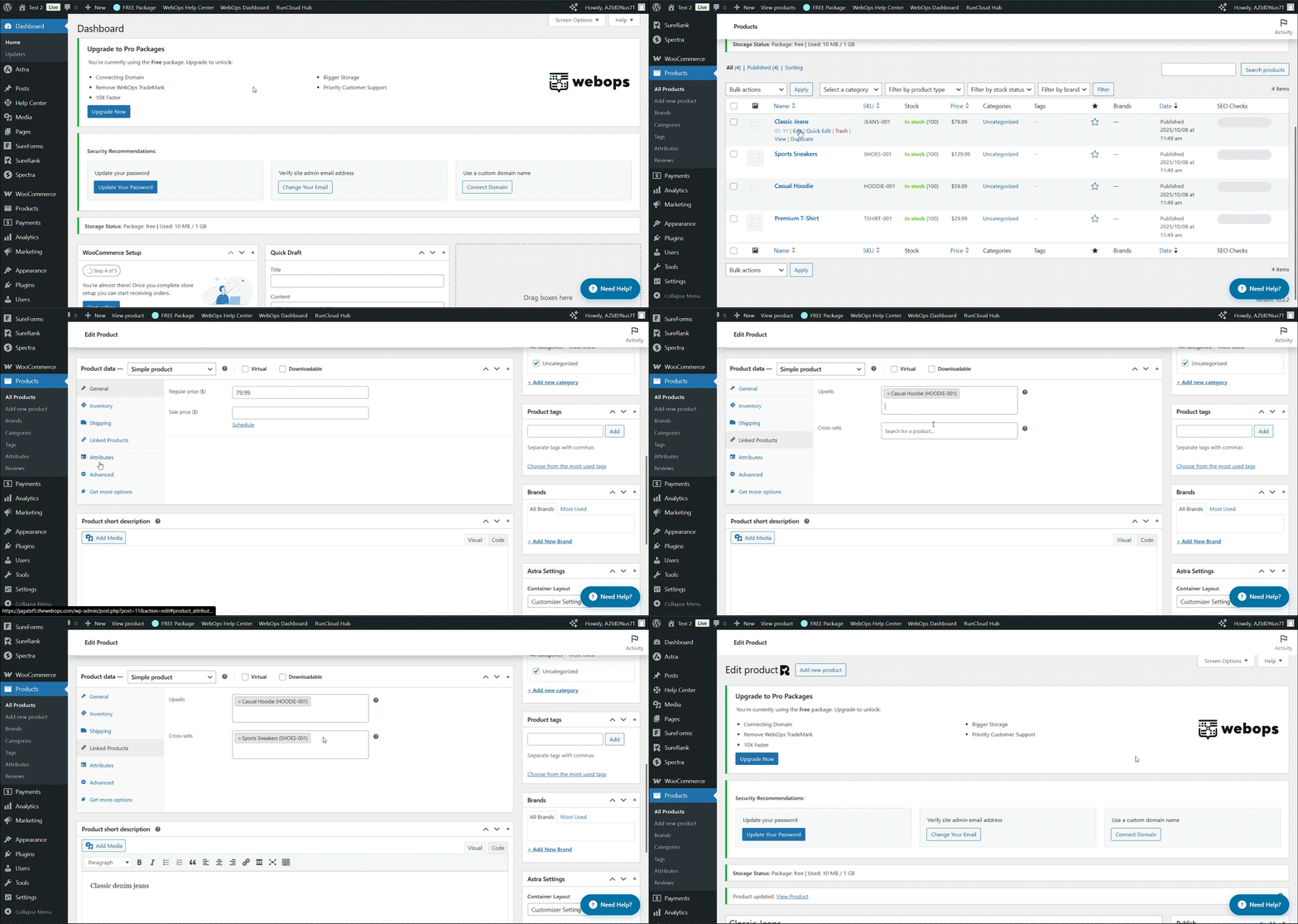
- Edit a product → Scroll to Product Data → Linked Products.
- Under Upsells, search and add related products.
Cross-sells #
Displayed on the Cart page, promoting complementary products.
Example: “Add matching accessories.”
- In the same Linked Products section, add items under Cross-sells.
- Click Update to save changes — these will show during checkout.
💡 Pro Tip: Keep recommendations subtle and relevant. Irrelevant upsells can feel pushy.
4. Connecting WooCommerce with Email Marketing Tools (Using MailPoet) #
Email is one of the most powerful tools to bring customers back, recover carts, and promote new offers.
MailPoet integrates directly with WooCommerce and is super easy to set up.
Step-by-Step: Setting Up MailPoet with WooCommerce #
Step 1 – Install MailPoet #
- Go to your WordPress dashboard.
- Click Plugins → Add New.
- Search for MailPoet.
- Click Install Now, then Activate.
Step 2 – Connect MailPoet with WooCommerce #
- After activation, go to MailPoet → Settings.
- Open the WooCommerce tab.
- Check the options for:
- “Send a welcome email when someone makes their first purchase.”
- “Enable abandoned cart emails.”
- Click Save Settings.
Step 3 – Create a Welcome Automation Email #
- Go to MailPoet → Emails → Add New.
- Choose Welcome Email → “When someone makes their first purchase”.
- Pick a template or start from scratch.
- Edit the subject (e.g., “Welcome to Our Store – Here’s 10% Off!”).
- Add your content and include your coupon code (like WELCOME10).
- Click Next → Activate.
Step 4 – Test Your Email #
- Make a test order on your website using a different email address.
- Confirm that the welcome email with your discount is received.
Conclusion #
Smart marketing doesn’t mean complicated setups.
With WooCommerce’s built-in features and integrations, you can attract new buyers, convert visitors into customers, and keep them coming back with personalized offers and automated campaigns.
Start simple — one coupon, one upsell, one newsletter — and build momentum as you grow.
The best store isn’t just the one that looks good; it’s the one that keeps customers coming back.