
1. Shipping Zones and Rates #
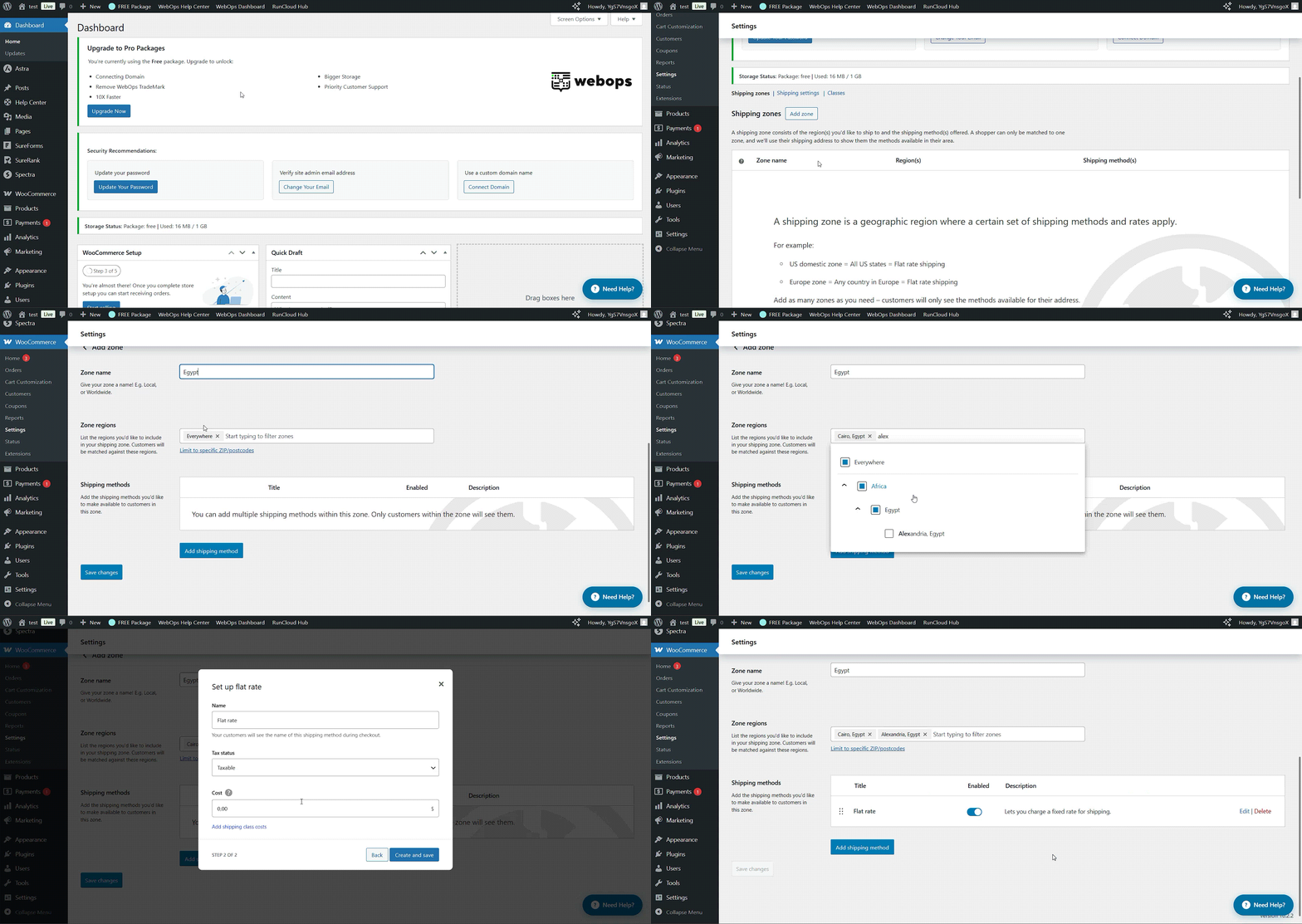
WooCommerce gives you full control over where and how you ship your products. Each shipping zone represents a geographic area (like a country, region, or city). Inside each zone, you can assign shipping methods and rates.
Example:
- Zone 1: Egypt – Flat Rate 50 EGP
- Zone 2: Europe – Flat Rate €20
- Zone 3: Rest of World – Free Shipping over $100
How to set it up:
- Go to WooCommerce → Settings → Shipping → Shipping Zones
- Click Add shipping zone
- Add your Zone Name, select Regions, and then click Add shipping method
- Choose between Flat rate, Free shipping, or Local pickup
Tip: You can use plugins like Table Rate Shipping to set more complex conditions — for example, charging based on weight, product category, or order total.
2. Free Shipping vs Flat Rate #
Choosing between these two options depends on your pricing strategy.
Free Shipping #
Customers love it — and it often boosts conversion rates. You can:
- Offer it on all orders
- Offer it for orders above a certain amount (e.g., “Free shipping on orders over $75”)
- Restrict it to certain zones
Setup: In WooCommerce → Settings → Shipping → Shipping Zones, add Free shipping and choose a requirement (like a coupon or minimum order amount).
Flat Rate Shipping #
You define a fixed cost per order or per item — simple and predictable. You can even use shortcodes inside the cost field for more flexibility:
10→ charges $10 flat per order[qty] * 5→ charges $5 per item in the cart
Strategy tip: Combine both! Offer flat rate for small orders and free shipping for larger ones.
3. Local Pickup #
If you have a physical store or local customers, Local Pickup lets them collect their orders directly.
Setup steps:
- Add a Local Pickup method to your shipping zone.
- Optionally, add a small handling fee or mark it free.
- Customize your pickup instructions under WooCommerce → Settings → Shipping → Local Pickup (e.g., pickup hours, address).
This method is perfect for small local businesses or restaurants offering “click and collect.”
4. Taxes #
We touched on tax basics in the first WooCommerce article, but now let’s configure them properly.
Enable Taxes #
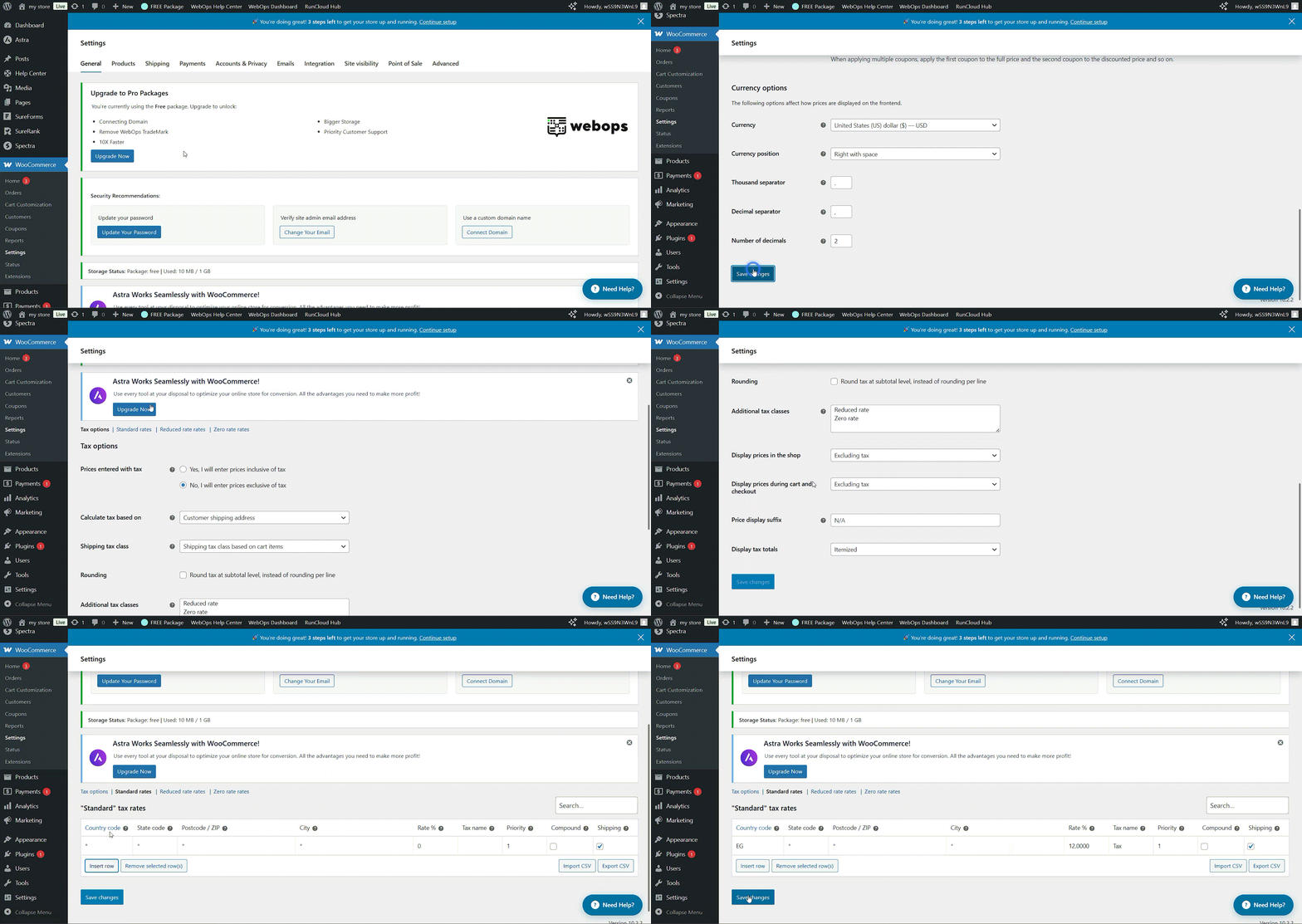
Go to WooCommerce → Settings → General, and make sure Enable taxes is checked. Once active, a new Tax tab appears in your WooCommerce settings.
Tax Classes #
WooCommerce supports multiple tax classes, like:
- Standard Rate (default)
- Reduced Rate
- Zero Rate
You can even create custom ones (e.g., “Luxury Items”) and assign them to specific products.
Configuring Tax Rates #
Under WooCommerce → Settings → Tax, click Standard rates to add new rows:
- Country Code (e.g., US)
- State Code
- Rate % (e.g., 10)
- Tax Name (e.g., Sales Tax)
- Priority (if multiple rates apply)
You can upload large rate tables via CSV if you sell internationally.
Display Settings #
WooCommerce lets you control how taxes appear:
- Prices entered with or without tax
- Displayed including or excluding tax on the shop and cart
- Show line-item taxes or totals only
Pro Tip: If you’re in the EU, consider using a plugin like EU VAT Assistant for automated VAT calculations based on the customer’s location.
5. Practical Scenarios #
- Local business: Flat rate for your city, Local Pickup for nearby customers, and simple 14% VAT.
- International store: Multiple zones (EU, US, Rest of World), free shipping above $100, and region-specific tax tables.
Conclusion #
Shipping and taxes may not be the most exciting parts of running an online store, but they’re crucial for customer trust and legal compliance. With WooCommerce’s flexible setup — plus the right combination of free shipping, flat rates, and clear tax rules — you’ll create a shopping experience that’s fair, fast, and frustration-free.