
1. Managing Orders #
All your store orders appear under WooCommerce → Orders in your WordPress dashboard. Here you can view, edit, and update every order placed on your site.
Order Statuses #
WooCommerce automatically assigns each order a status based on where it is in the purchase process:
| Status | Meaning |
| Pending Payment | Order received but not paid for yet |
| Processing | Payment received; order being prepared |
| On Hold | Waiting for payment or confirmation |
| Completed | Order fulfilled and finished |
| Cancelled | Order cancelled by admin or customer |
| Refunded | Order refunded to the customer |
| Failed | Payment failed or was declined |
💡 Tip: You can filter orders by date, status, or customer to quickly find what you need.
Editing an Order #
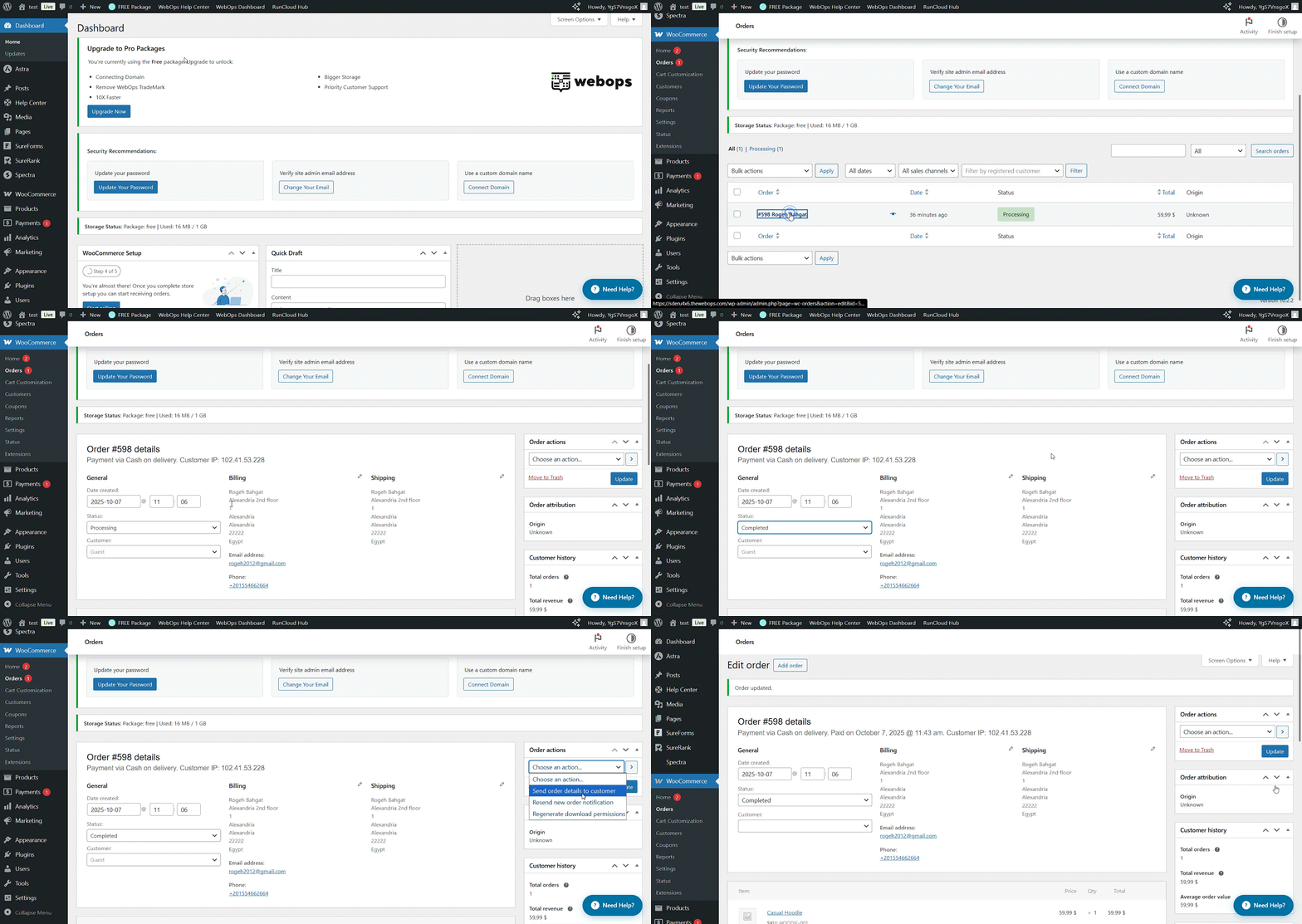
Click any order to open its details. From there, you can:
- Update the order status (e.g., from Processing → Completed)
- Resend order emails to the customer
- Click on update.
This flexibility makes WooCommerce suitable for both physical and digital products.
2. Processing Refunds & Cancellations #
Sometimes, refunds happen — and WooCommerce makes them straightforward.
Manual Refunds #
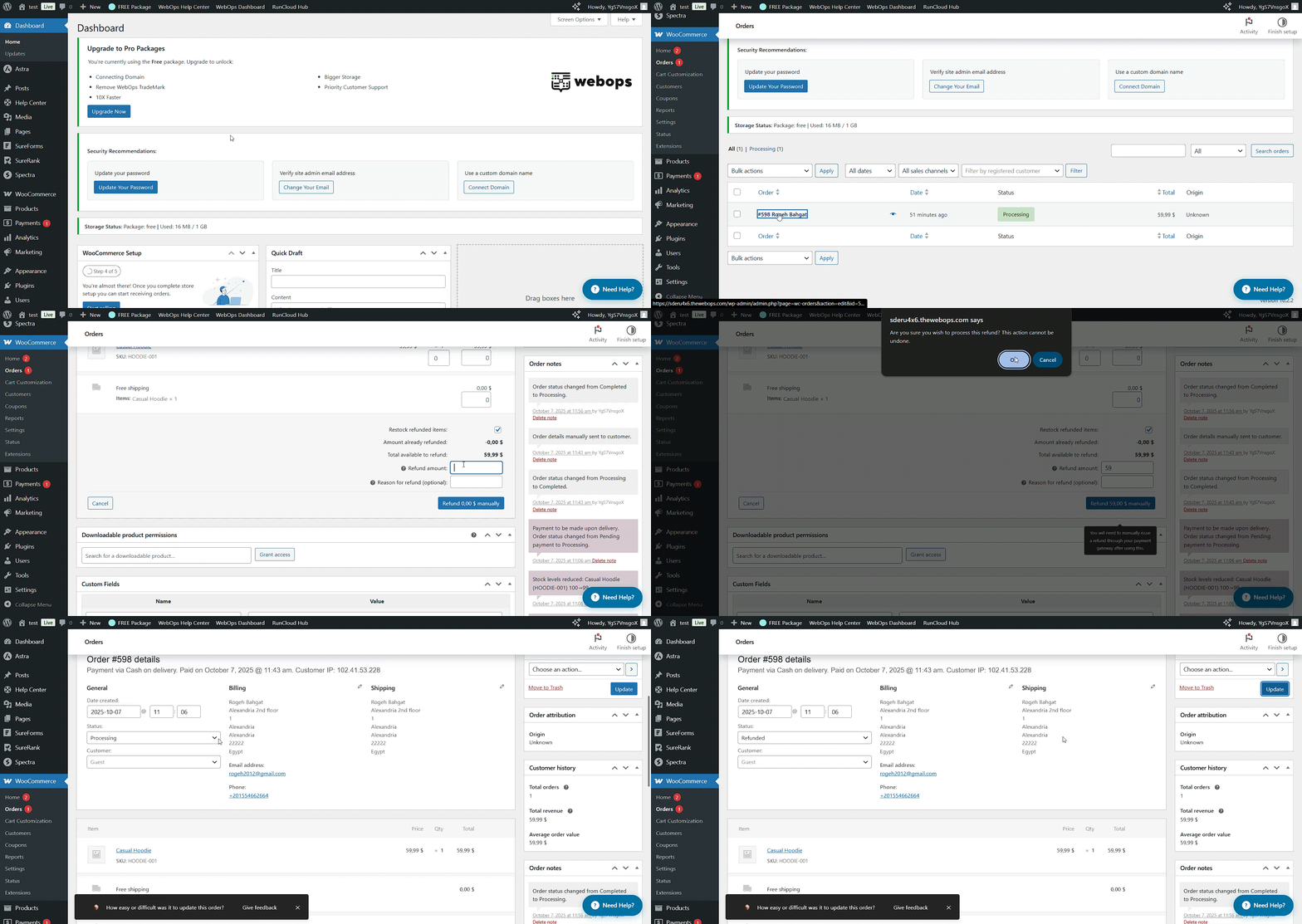
To issue a manual refund:
- Go to WooCommerce → Orders
- Open the order you want to refund
- Click Refund
- Enter the amount (full or partial) and optionally add a note
- Click Refund manually
- Update the order status to: refunded
This records the refund in your system but doesn’t automatically send money back — you’ll need to process it through your payment gateway (like Stripe).
Automatic Refunds #
If your payment gateway supports it (such as Stripe, or WooCommerce Payments), you can process the refund directly from WooCommerce:
- Click Refund via [Gateway Name]
- WooCommerce sends the refund through the payment processor automatically
- The order status changes to Refunded
💡 Pro Tip: Always update the customer with a short note explaining the reason for the refund or cancellation — clear communication prevents misunderstandings.
Cancellations #
You can cancel orders manually from the Orders page, or allow customers to cancel pending/unpaid orders automatically using plugins like Order Cancel for WooCommerce.
3. Order Email Notifications #
WooCommerce automatically sends a series of emails for different order events — both to customers and the store admin.
Default Email Types #
| Email Type | Recipient |
| New Order | Admin |
| Cancelled Order | Admin |
| Failed Order | Admin |
| Order on Hold | Customer |
| Processing Order | Customer |
| Completed Order | Customer |
| Refunded Order | Customer |
| Customer Invoice / Note | Customer |
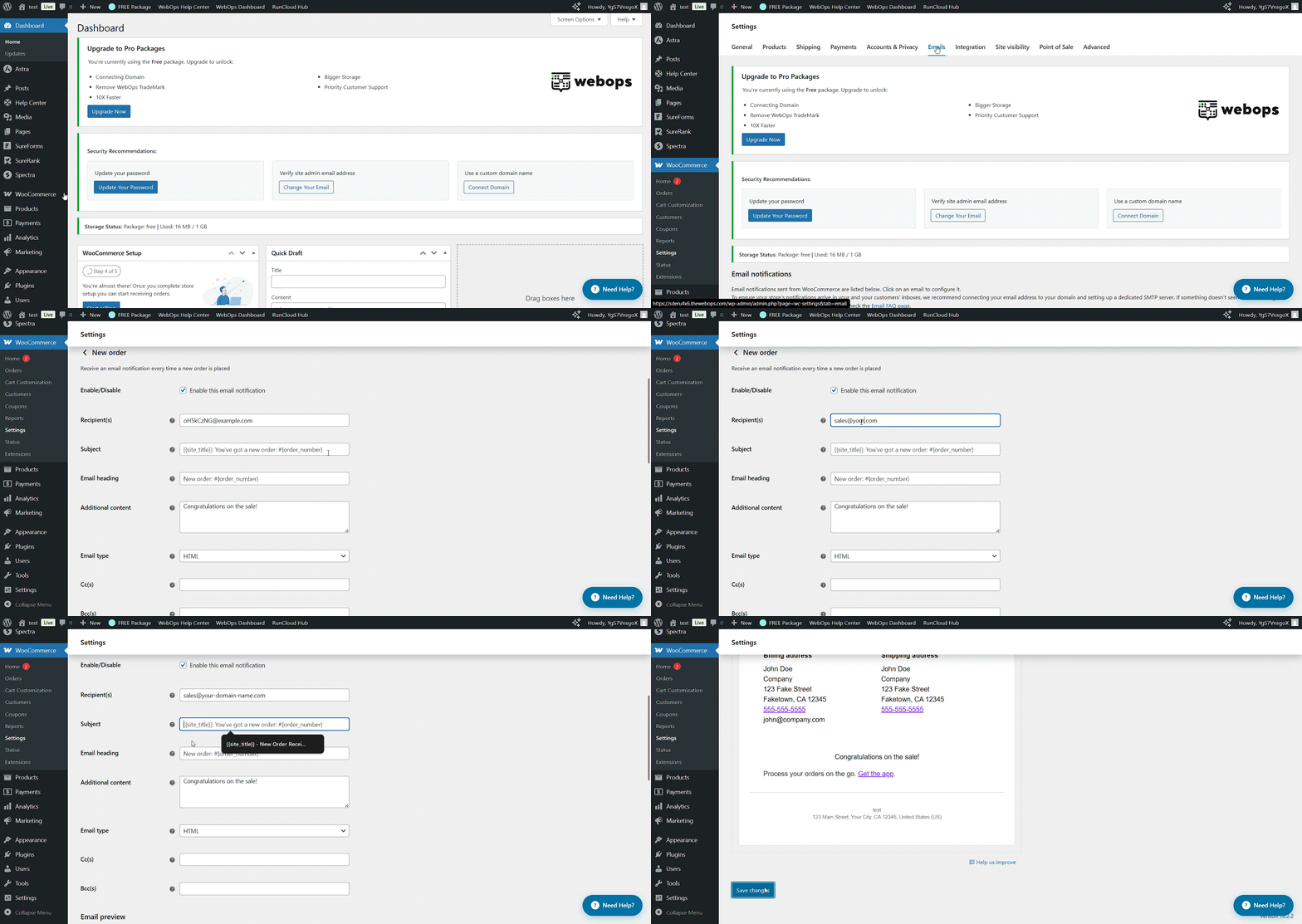
You can customize these under WooCommerce → Settings → Emails.
Customization Options #
- Click on manage
- Enable/disable any email type
- Edit subject lines and content to match your brand voice
- Change email recipients
- Check the Email preview
- Click on Save Changes
💡 Design Tip: Use a plugin like Kadence WooCommerce Email Designer or Email Customizer for WooCommerce to style your emails without coding.
4. Best Practices #
- Keep statuses updated so customers always know what’s happening.
- Set clear refund policies and display them on your website.
- Respond quickly to refund or cancellation requests.
- Automate notifications so you don’t miss important updates.
Conclusion #
Managing orders and refunds might sound like the “back office” part of eCommerce, but it’s actually where customer satisfaction is built. By staying organized, communicating clearly, and using WooCommerce’s built-in tools effectively, you’ll turn even refund requests into opportunities to show professionalism and care.