
1. Customizing Your WooCommerce Shop Page #
Your Shop Page is the front window of your online store — where customers browse your products.
You can easily design it to match your brand and layout preferences.
Accessing the Shop Page #
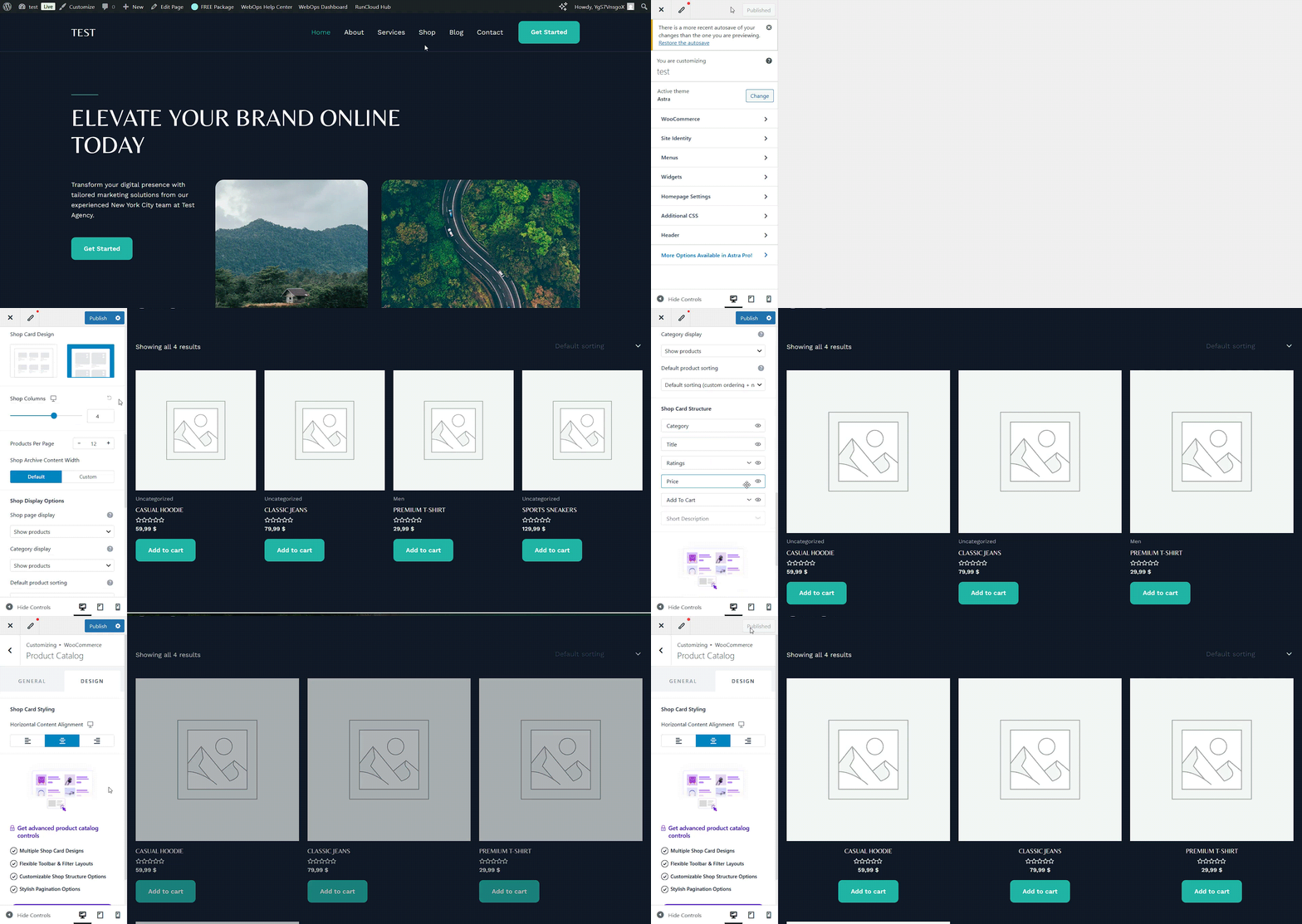
- Navigate to the shop page
- Click on Customize on the top bar
- You can change the number of columns and the number of products on the page
- Toggle visibility for product title, price, rating, “Add to Cart” button, and more
- Click Publish
Useful Customization Options #
- Product Grid Layout: It lets you control how many products appear per row or page. (Customizer → WooCommerce → Product Catalog)
- Shop Page Elements: Toggle visibility for product title, price, rating, “Add to Cart” button, and more.
- Sidebar & Filters Layout: Choose a sidebar layout (left/right/no sidebar) to display filters and categories easily.
- Typography & Colors: Under Customizer → Global → Typography / Colors, adjust fonts and palette to match your branding.
2. Adding Product Sorting Options #
Default Sorting #
WooCommerce includes a basic “Sort by” dropdown on your shop and category pages.
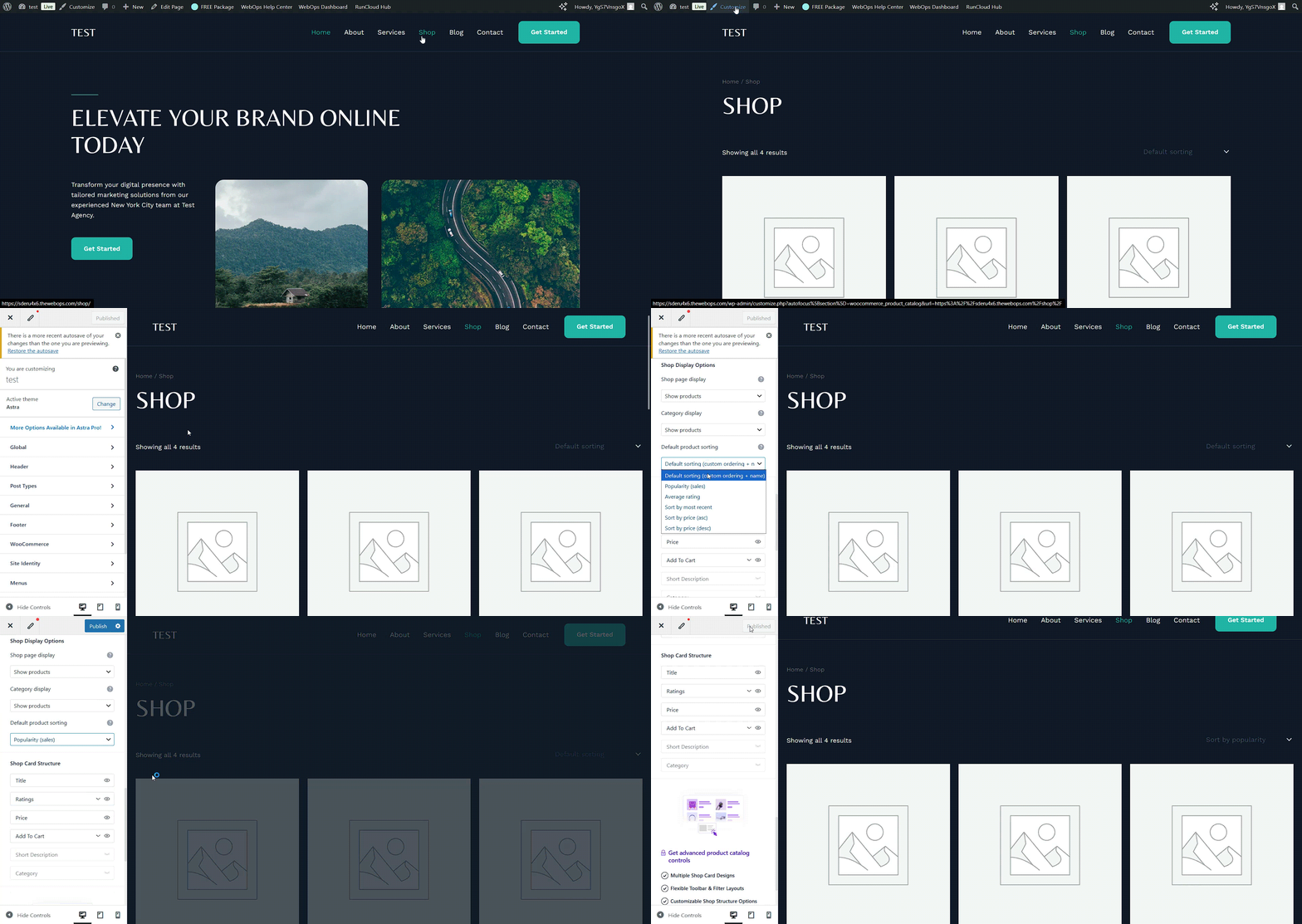
You can customize the sorting options under:
- Navigate to the shop page
- Click on Customize on the top bar
- Click Publish
Typical sorting options include:
- Default sorting (custom ordering + name)
- Sort by popularity
- Sort by average rating
- Sort by latest
- Sort by price (low → high or high → low)
3. Displaying Related Products #
WooCommerce includes category filters on your shop page. Filters help customers narrow down products by category.
Adding the Default Filtering #
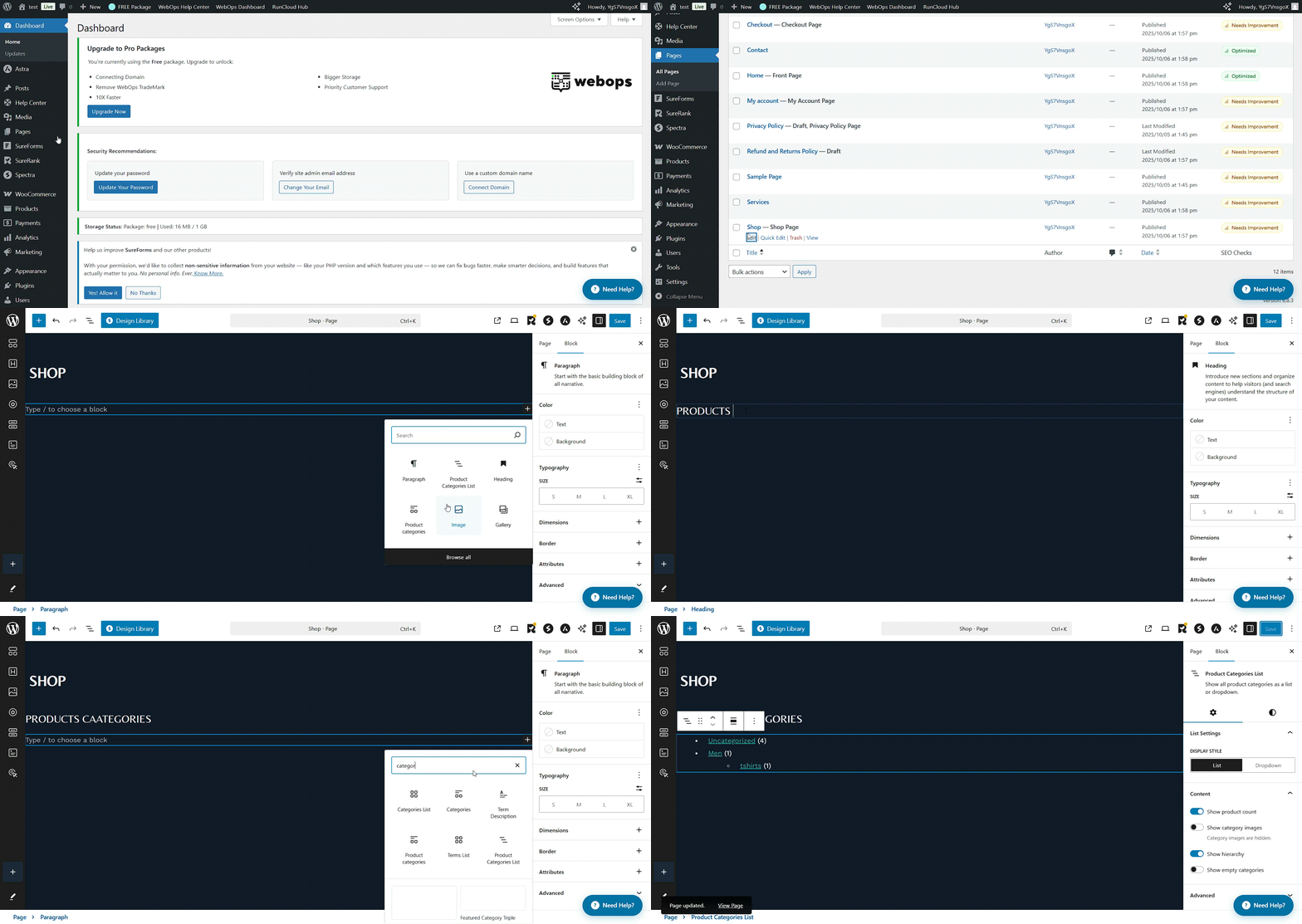
- Go to Pages → All Pages → Shop
- Click Edit
- Add a Products Category List widget
- Click Publish
4. Best Practices for Better UX #
- Use consistent product images and aspect ratios
- Keep filters and sorting visible without scrolling
- Test your design on mobile devices
Conclusion #
A smooth, visually appealing shopping experience can make the difference between a quick bounce and a successful sale. With Spectra Builder and Astra Theme, you can transform WooCommerce’s default layout into a modern, user-friendly storefront — customized to your exact brand and customer journey.
Take time to refine the flow, simplify navigation, and make discovery effortless. Your customers (and your sales) will thank you for it.