
Who is this for?
Merchants, site-builders, and support agents helping customers configure a new WooCommerce store.
Prerequisites #
- WordPress is installed and accessible.
- WooCommerce plugin installed and activated.
- Admin access to the WordPress dashboard.
Quick checklist (what we’ll configure) #
- Run WooCommerce Setup Wizard (onboarding screen)
- Store details: name, address, country, postcode
- Currency and currency position
- Business details: industry, product types
- Shipping zones and methods
- Taxes (enable/disable + basic VAT/Tax settings)
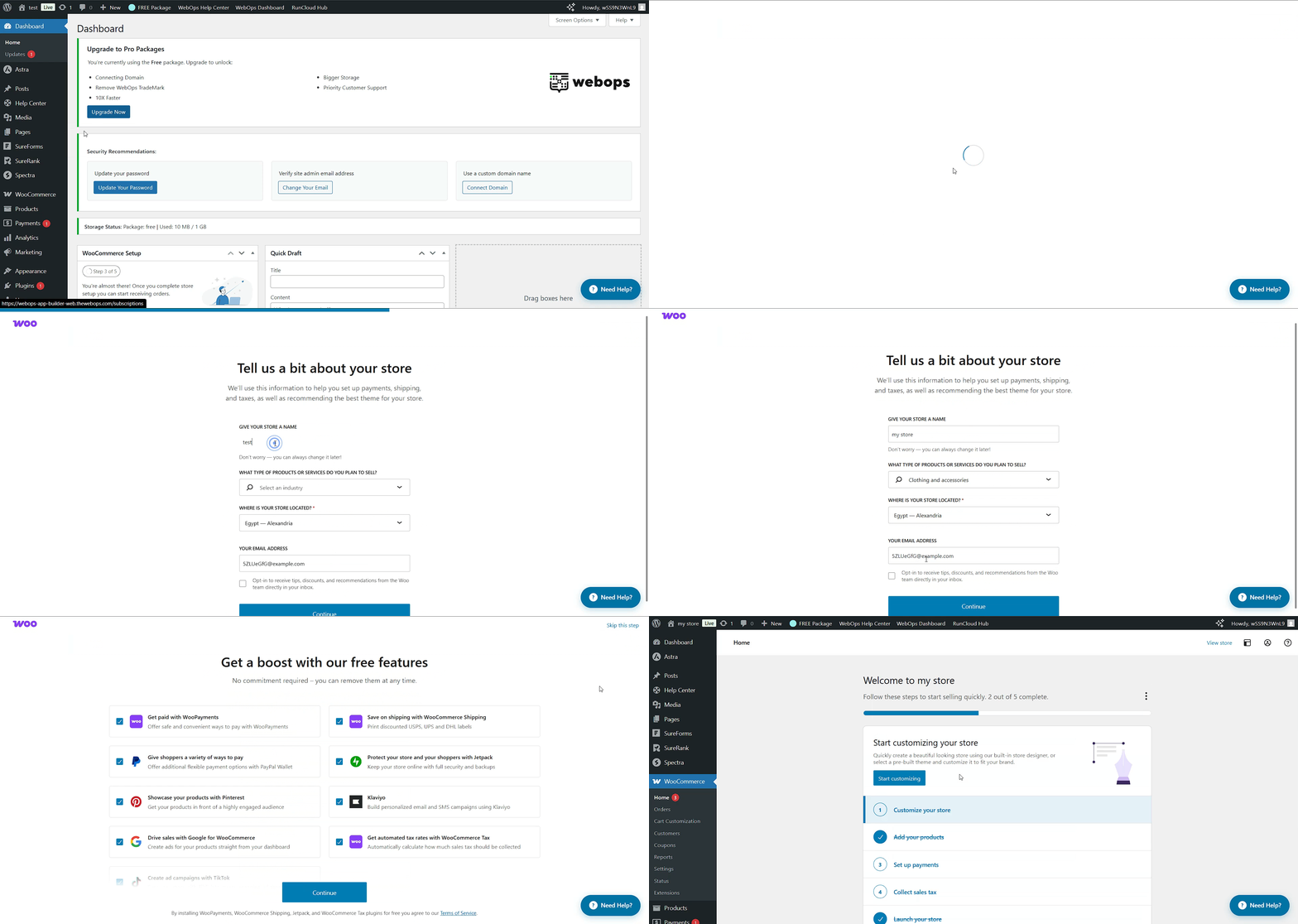
1) Start: Run the WooCommerce Setup Wizard (Onboarding screen) #
- Go to WooCommerce → Home in the WordPress admin.
- You’ll be prompted to start the Setup Wizard. Click Set up your store.
- If you skipped it earlier, reopen at any time: WooCommerce → Help → Setup Wizard (or WooCommerce → Home → Set up).
Tip: The wizard covers the essentials quickly — use it to capture store address, currency, shipping, and payments. You can refine settings later under WooCommerce → Settings.
2) Store Details (Onboarding step) #
Complete these fields during the wizard or later at WooCommerce → Settings → General:
- Store address/location: country, state, city, postcode. Important for tax and shipping calculations.
- Store name: appears on invoices and in some emails (also set in WordPress → Settings → General site title).
- Selling/Shipping locations: choose where you sell and ship to (all countries, specific countries, disabled).
Best practice: Use the legal business address for accurate tax/shipping calculations; use an international format if you ship worldwide.
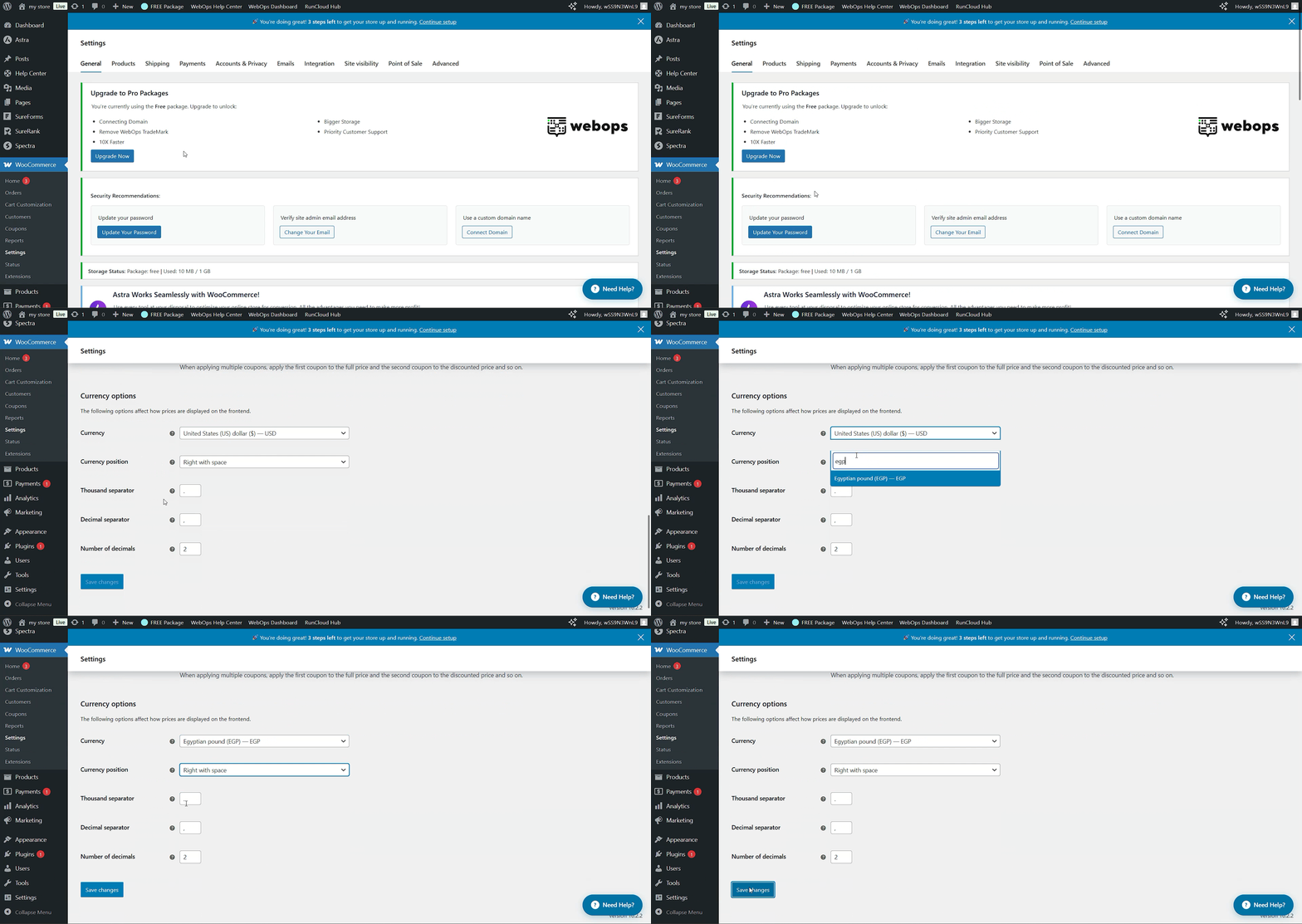
3) Currency & Currency Settings #
Set in WooCommerce → Settings → General:
- Currency: choose the store currency (e.g., USD, EGP).
- Currency position: left ($10) / right (10$) etc.
- Thousand separator / Decimal separator / Number of decimals
Note for multi-currency stores: Use a currency switcher plugin (e.g., WooCommerce Multi-Currency) or a hosted payment provider supporting multiple currencies.
4) Taxes #
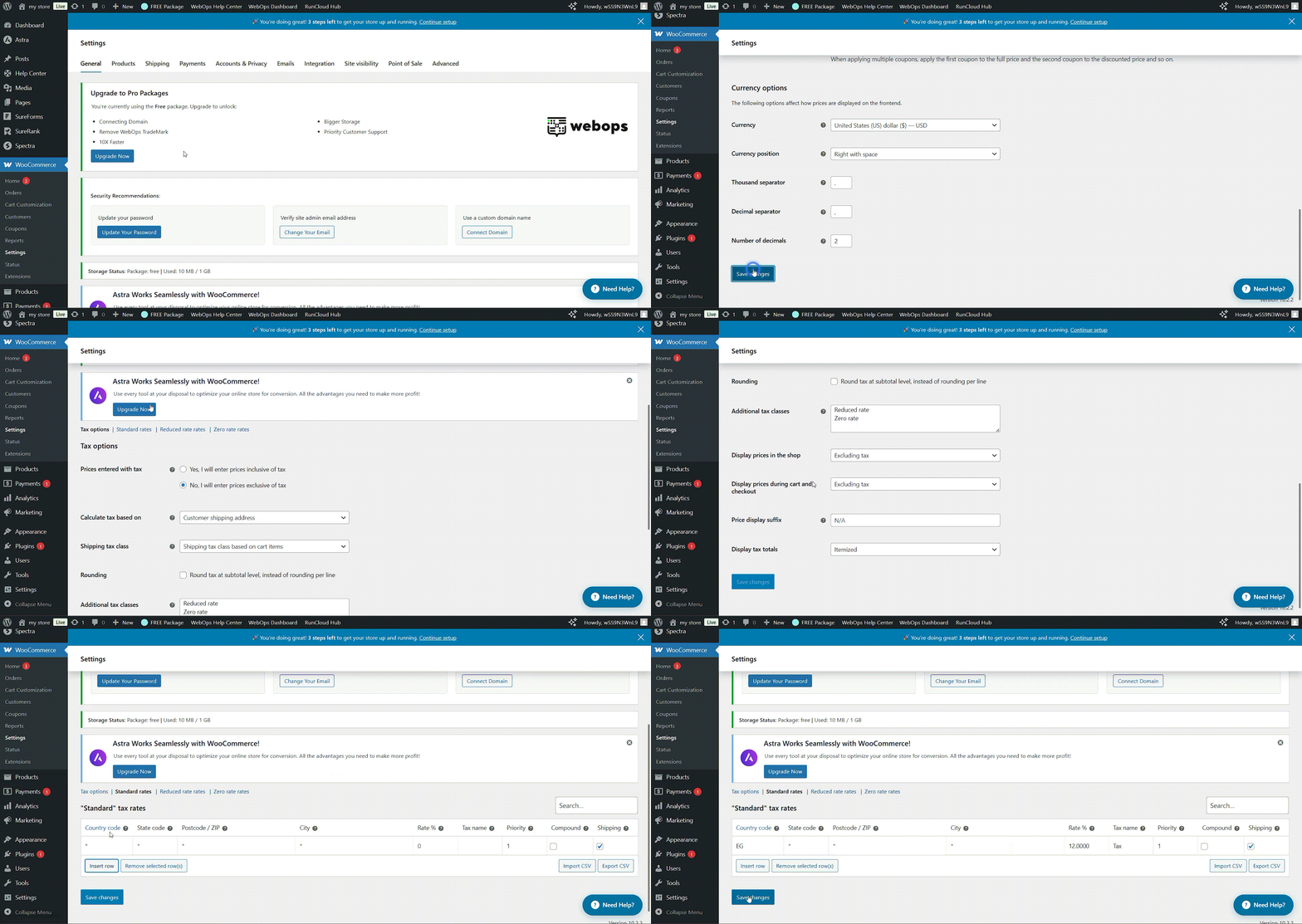
WooCommerce can calculate taxes automatically (requires additional plugins/services) or manually configure standard tax rates.
- Enable taxes: WooCommerce → Settings → General → Enable taxes.
- Configure tax options: WooCommerce → Settings → Tax (standard rates, reduced, zero-rate).
Quick tax checklist:
- Turn on taxes if you must charge VAT/sales tax.
- Add standard tax rates or import rates via CSV if needed.
- Confirm whether product prices include or exclude tax.
5) Shipping #
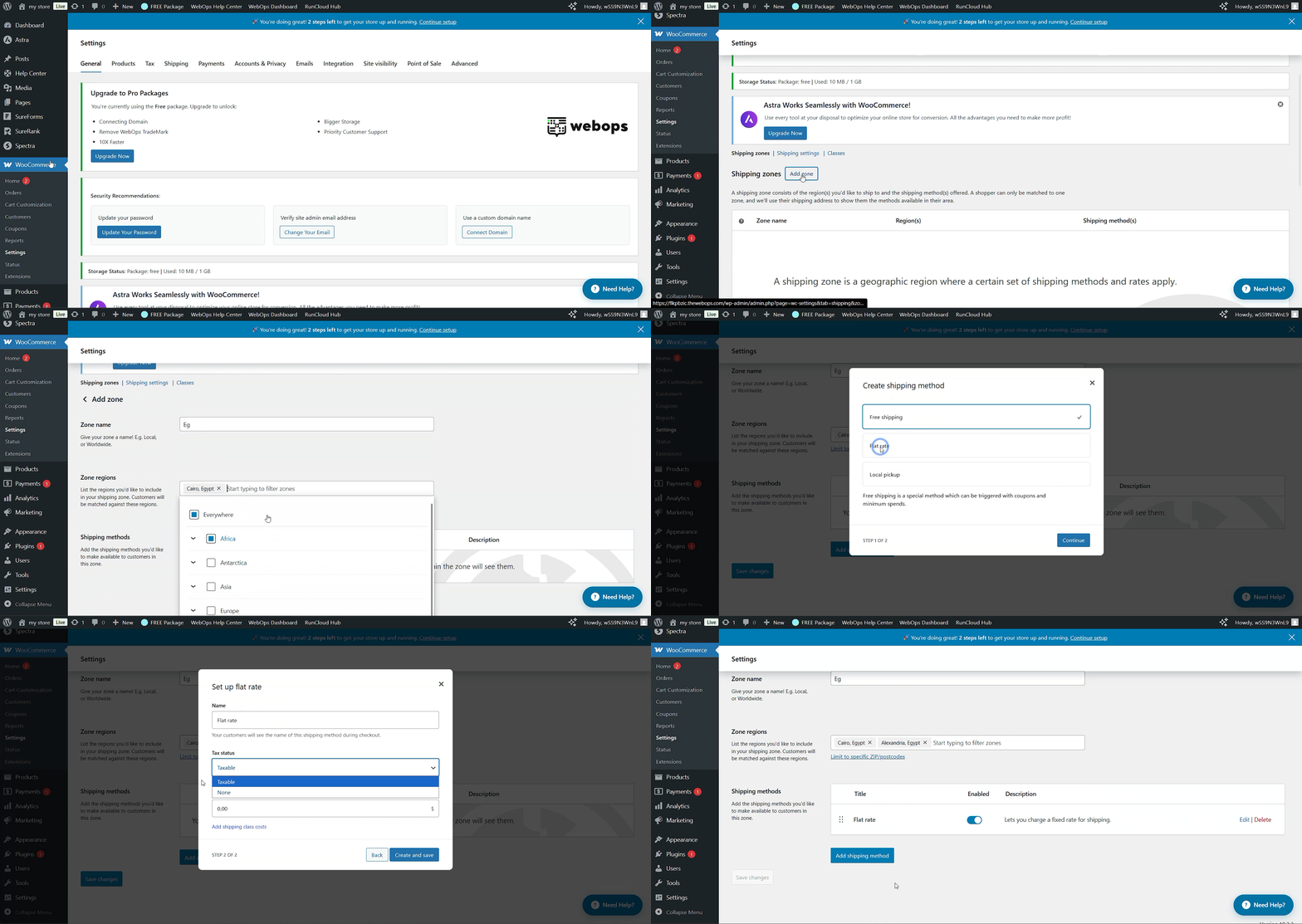
Shipping setup happens across WooCommerce → Settings → Shipping and during the wizard.
- Shipping Zones: region-based zones (e.g., Egypt, EU).
- Shipping Methods: Flat rate, Free shipping, Local pickup.
- Shipping classes: group products with similar shipping costs.
Pro tip: Start with simple flat rates per zone and add a carrier-specific plugin later for real-time rates (e.g., Aramex, DHL, FedEx plugins).
6) Recommended plugins & extensions (starter list) #
- WooCommerce Admin (improved analytics/dashboard — often bundled).
- Payment gateways: Stripe, PayPal, local payment plugins.
- Shipping integrations: carrier plugins for real-time rates.
- Checkout and UX: Checkout blocks, Cart & Checkout optimization plugins.
7) Common troubleshooting & tips #
- Currency not changing: Check theme overrides or currency plugins that may lock the display.
- Taxes incorrect: Verify store address and whether product prices include tax.
8) Short FAQs #
Q: Can I change currency later?
A: Yes — but changing currency after taking orders or having existing prices can create inconsistencies. Prefer setting the correct store currency from the start.
Q: Do I need a plugin for shipping rates?
A: For advanced carrier rates (live DHL, FedEx, Aramex), yes — use a dedicated shipping plugin for real-time quotes.