
What Is the Media Library? #
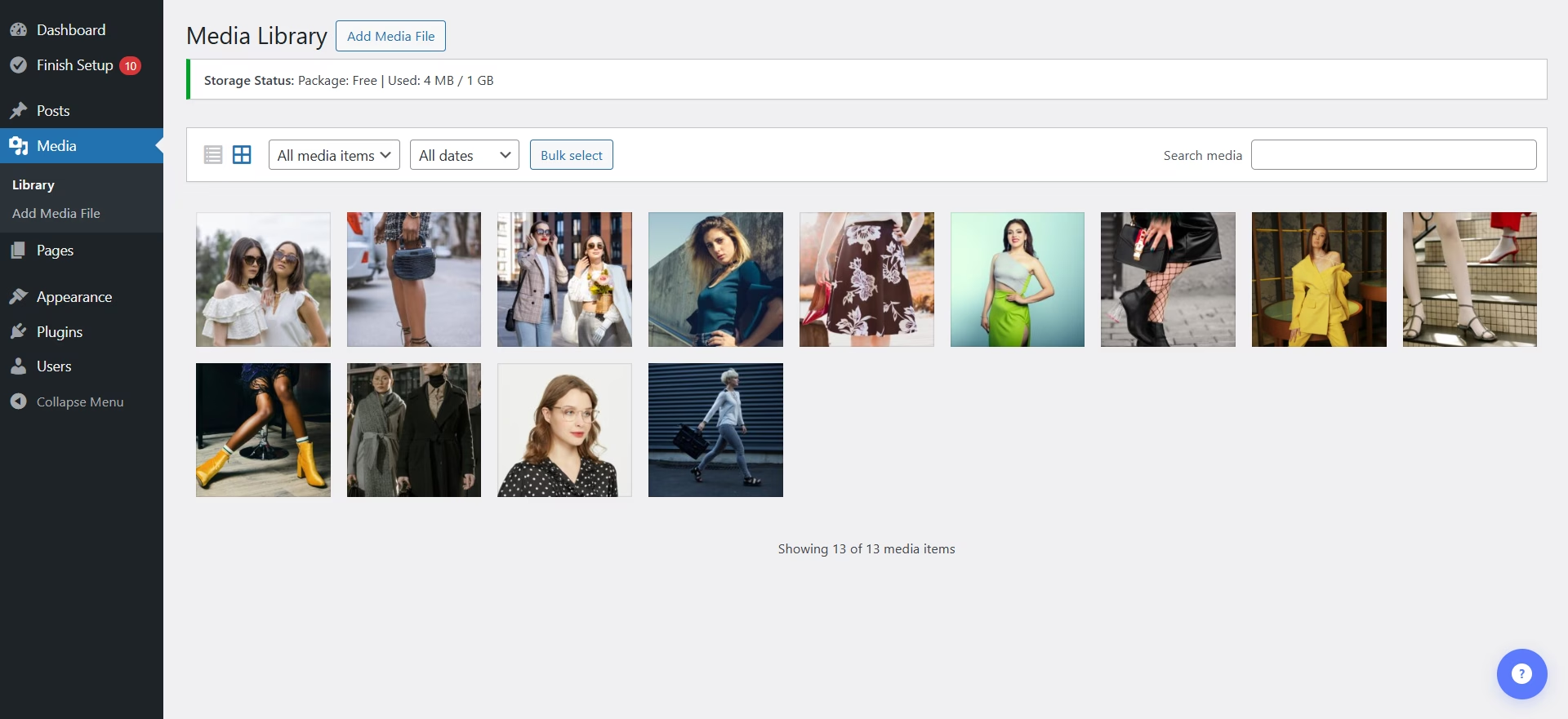
The WordPress Media Library is your central hub for managing all the files you upload to your website, including images, videos, and documents.
Whether you’re adding an image, embedding a video, or linking to a PDF, all your media files are stored and managed in one place.
Uploading Files to the Media Library #
You can upload media files in two main ways:
- From the WordPress Dashboard
- While editing a page (Elementor or Spectra)
Option 1: Upload from the WordPress Dashboard #
- Log in to your WordPress Dashboard.
- Click Media → Library in the left-hand menu.
- Click Add New Media File.
- Select files from your computer.
Your files will be uploaded and saved in the Media Library.
Option 2: Upload While Editing a Page #
You can upload files directly while editing your website.
Using Elementor #
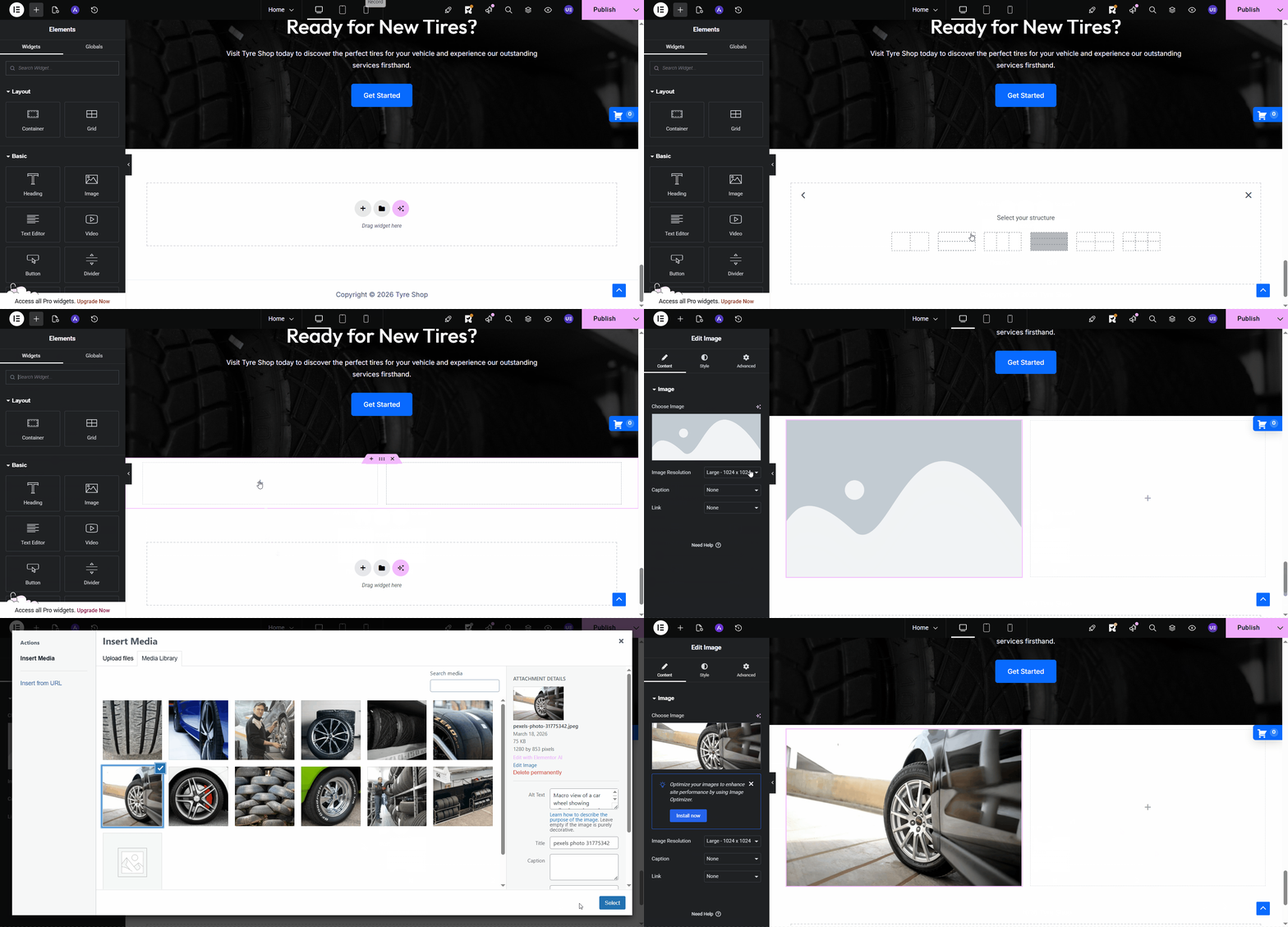
- Open the page you want to edit.
- Click Edit with Elementor.
- Click on the element where you want to add your file (e.g., Image, Video, Button, or File Download).
- In the settings panel, click Choose Image, Insert Media, or Select File.
- Upload a new file or choose one from the Media Library.
- Click Insert to add it to your page.
Using Spectra #
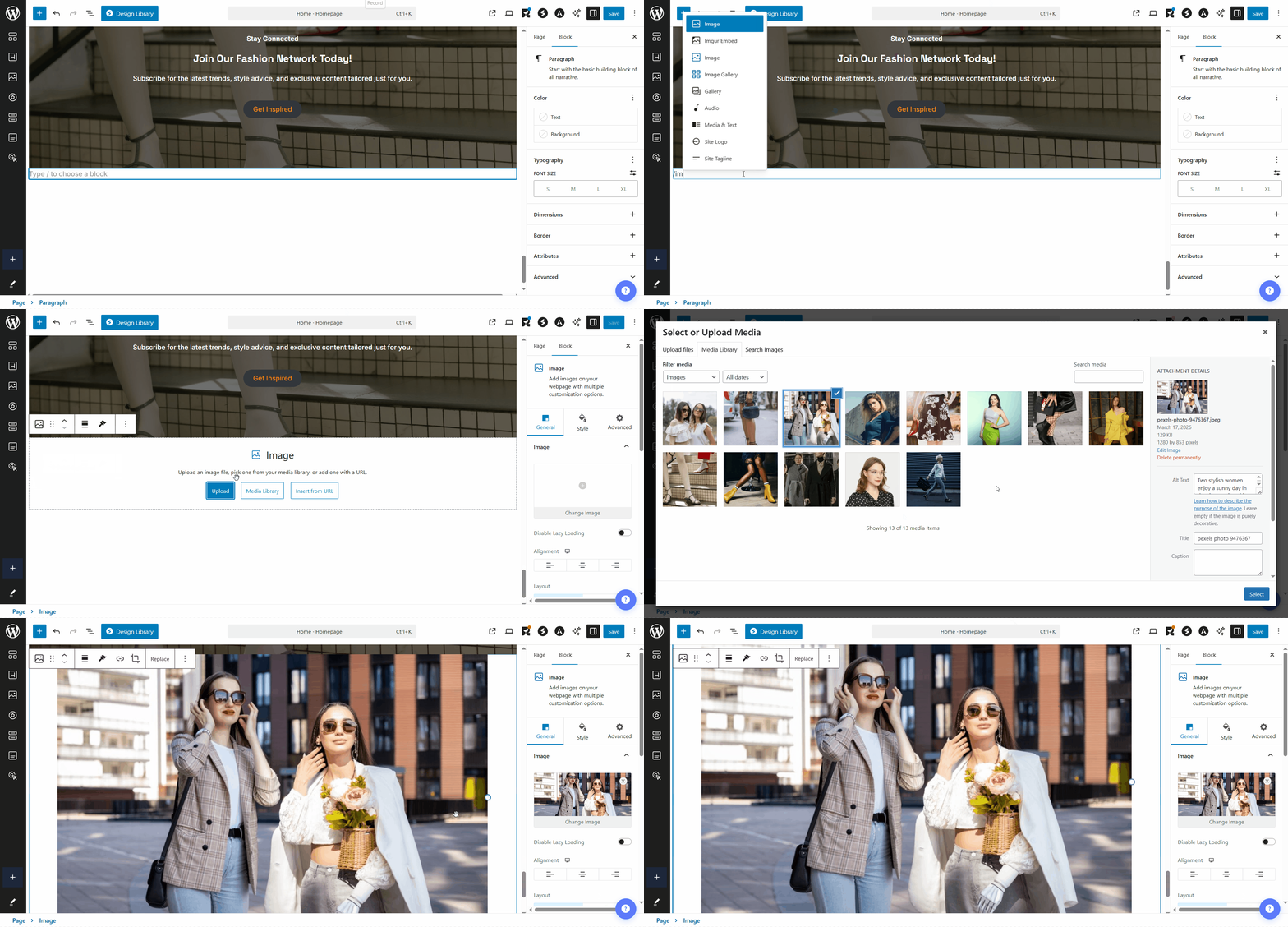
- Open the page you want to edit.
- Click Edit to open the WordPress Block Editor.
- Click on a block (e.g., Image, Video, File, or Button).
- Click Upload or select a file from the Media Library.
Your file will be added directly to the page.
Managing Uploaded Files #
To manage your files:
Go to Media → Library in your WordPress Dashboard.
Click on any file to edit its details.
Edit File Details #
You can update:
- Title
- Caption
- Alt Text (important for accessibility and SEO)
- Description
Adding alt text helps screen readers and search engines understand your images.
Best Practices for Each File Type #
Images #
- Resize images before uploading
- Compress images to improve loading speed
Videos #
- Host videos on platforms like YouTube or Vimeo
- Embed them into your website instead of uploading directly
This improves performance and saves storage space.
PDFs #
- Upload PDFs to the Media Library
- Link them using buttons or text on your page
- Keep file sizes small for faster downloads
Conclusion #
The WordPress Media Library makes it easy to upload, organize, and manage your media files.
Whether you’re using Elementor or Spectra, you can quickly add images, videos, and documents to your website and keep everything organized.