Skip to content
In this Article #
- Install and activate the GA Google Analytics plugin
- Locate your Measurement ID in Google Analytics, add it to wordpress
- Verify tracking is working
1. Install and Activate the GA Google Analytics Plugin #
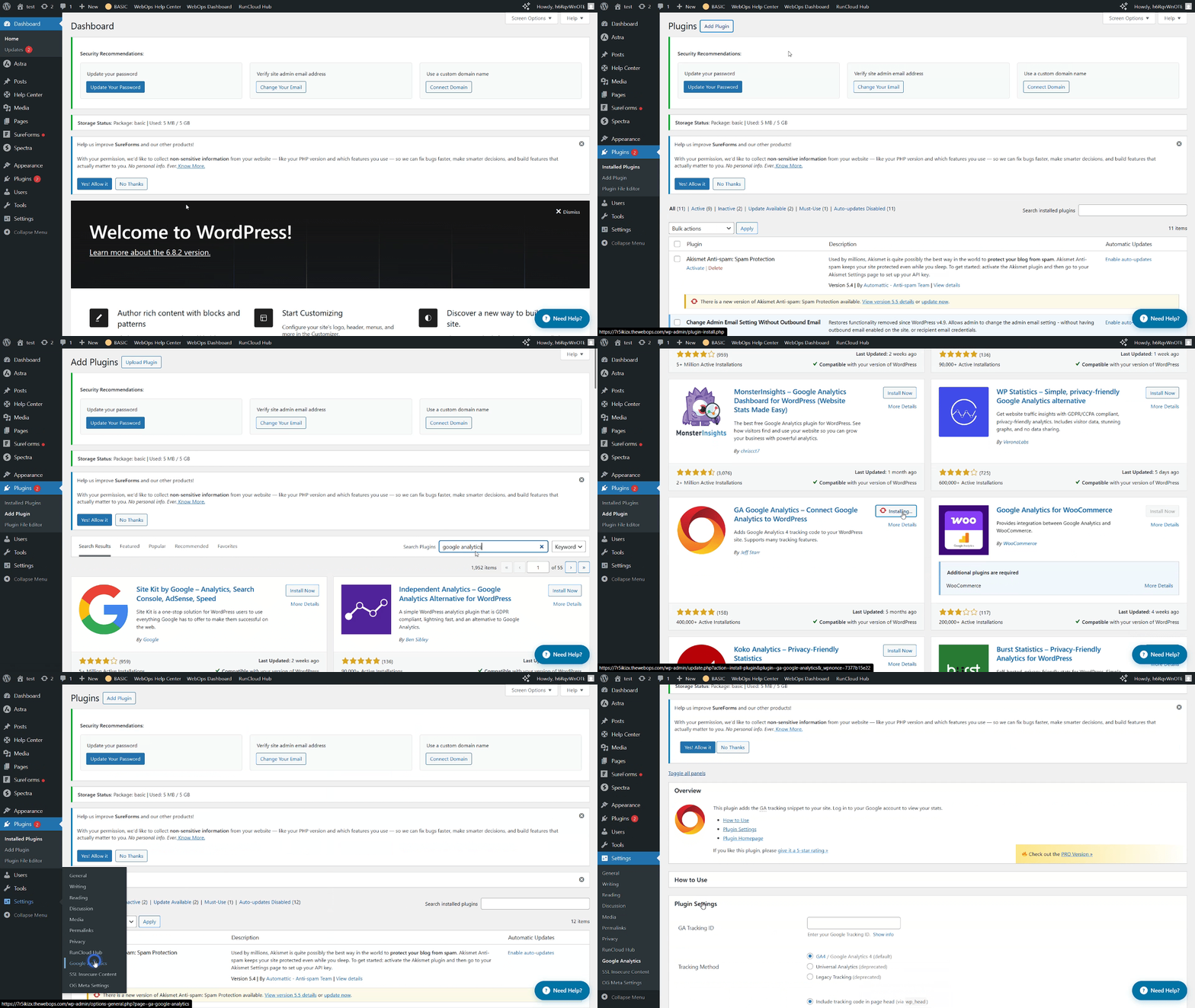
- In your WordPress dashboard, go to Plugins > Add New.
- Search for GA Google Analytics – Connect Google Analytics to WordPress.
- Click Install Now, then Activate.
- Navigate to Settings > Google Analytics.
- Click on the tab “Plugin Settings”.
2. Locate Your Measurement ID in Google Analytics #
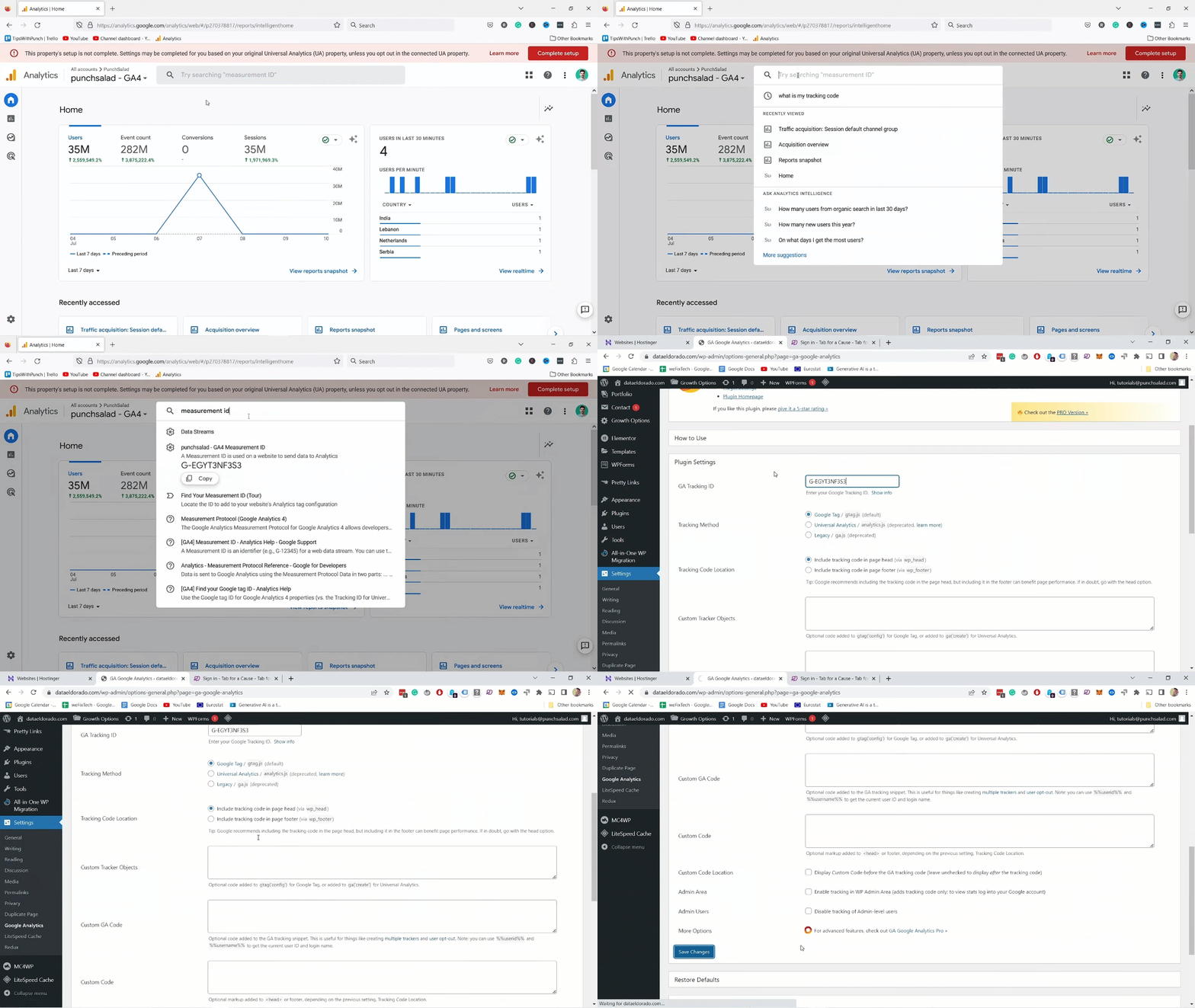
- Log in to Google Analytics.
- Make sure you are using a GA4 property.
- In the Search bar above search for “Measurement ID“.
- You’ll see a Measurement ID starting with
G-XXXXXXX.
- Copy this ID.
- Go back to your WordPress dashboard.
- Paste your Measurement ID into the field provided.
- Save changes.
3. Verify Tracking Is Working #
- In Google Analytics, open the Realtime report.
- Visit your website in another tab.
- If tracking is connected correctly, you should see your visit appear in the report within seconds.
Quick Recap #
- Step 1: Install and activate the GA Google Analytics plugin.
- Step 2: Copy your Measurement ID from GA4 paste it in wordpress.
- Step 3: Verify using the Realtime report in Analytics.
Pro Tips #
- Always double-check you’re in the right GA property (GA4, not the old UA).
- If Realtime doesn’t show your visit immediately, wait a few minutes or clear your cache.
- Keep the plugin updated to avoid compatibility issues.