Skip to content
Why Use SureForms + Spectra Builder #
- Forms without code–glorious.
- Keeps your flow smooth: build once, reuse forever.
1. Open SureForms and Create a New Form #
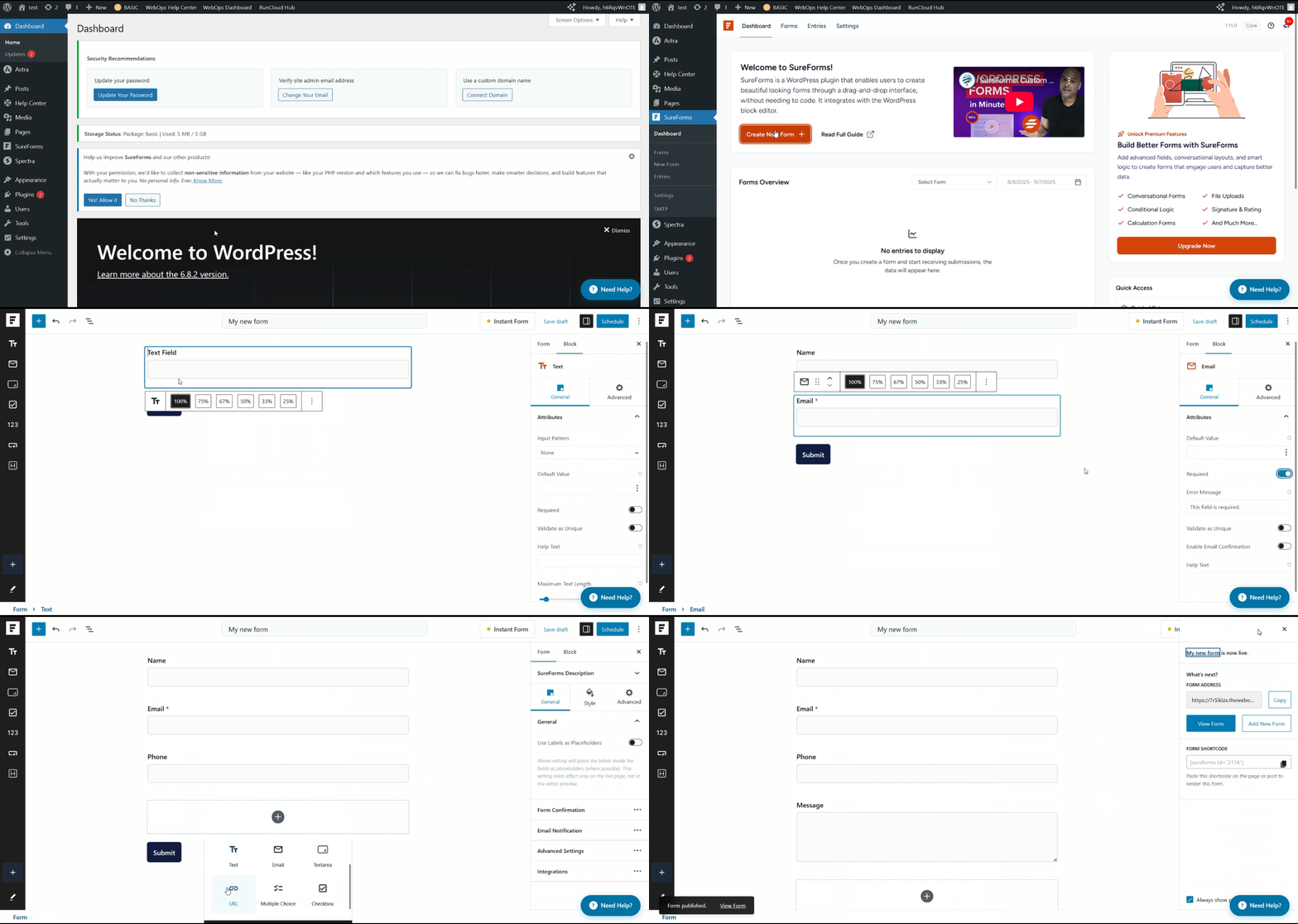
- From your WordPress dashboard, go to SureForms.
- If it’s your first time opening, you’ll see the Guided Setup screen. Click Exit Guided Setup in the bottom-right corner to continue.
- Once in the SureForms dashboard, click Create New Form.
- Choose a template or start with a blank form.
- Add fields (Name, Email, Message, etc.).
- For each field, you can mark it as Required so users can’t skip it (for example, make “Email” required).
- Give your form a clear title (e.g., Contact Form – Home).
- Click on publish or schedule, or save to save your edits.
2. Configure Form Settings and Email Notifications #
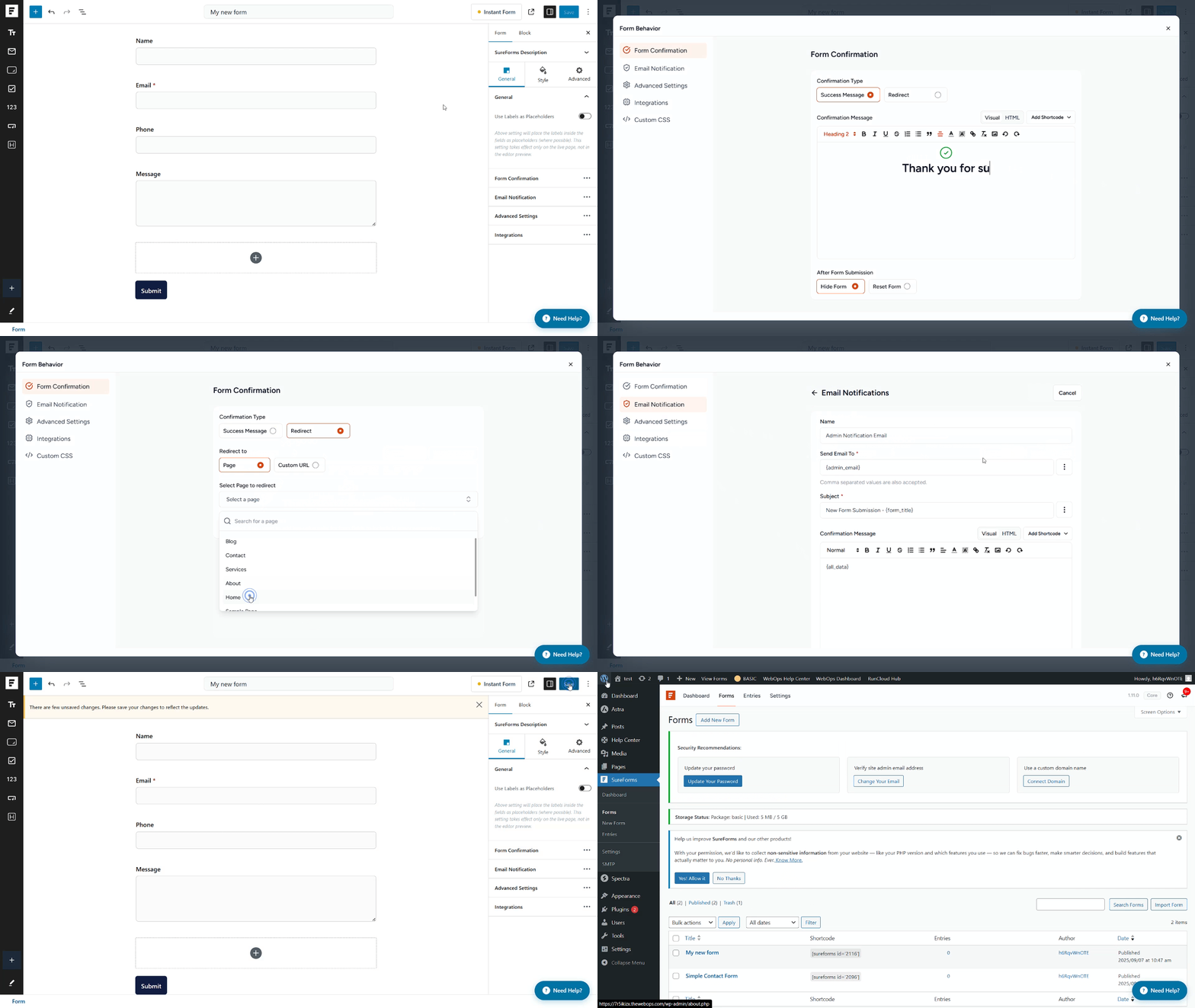
- Go to the Form tab from the form editor.
- Adjust form confirmation message or redirect page after submission.
- Under Email Notifications, set the email address where submissions should be sent.
- Save your changes.
- Navigate to the form dashboard.
3. Add the Form to a Page with Spectra Builder #
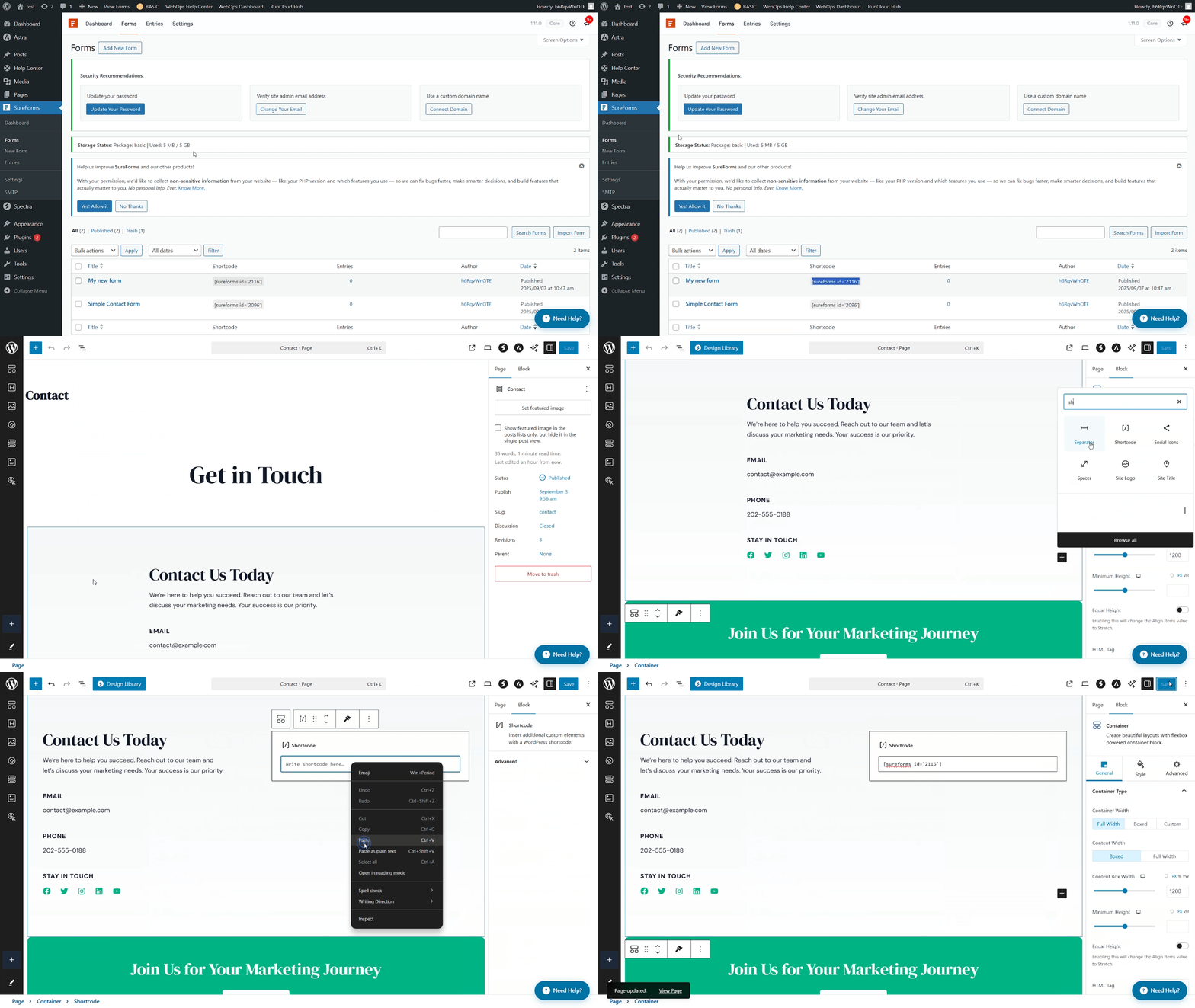
- Copy the shortcode from the form (e.g.,
[sureforms id="123"]).
- Go to Pages, select the page, and click Edit.
- Insert a Shortcode Block.
- Paste your shortcode inside.
- Adjust styling if needed, then click Update or Save.
4. Access Submitted Records #
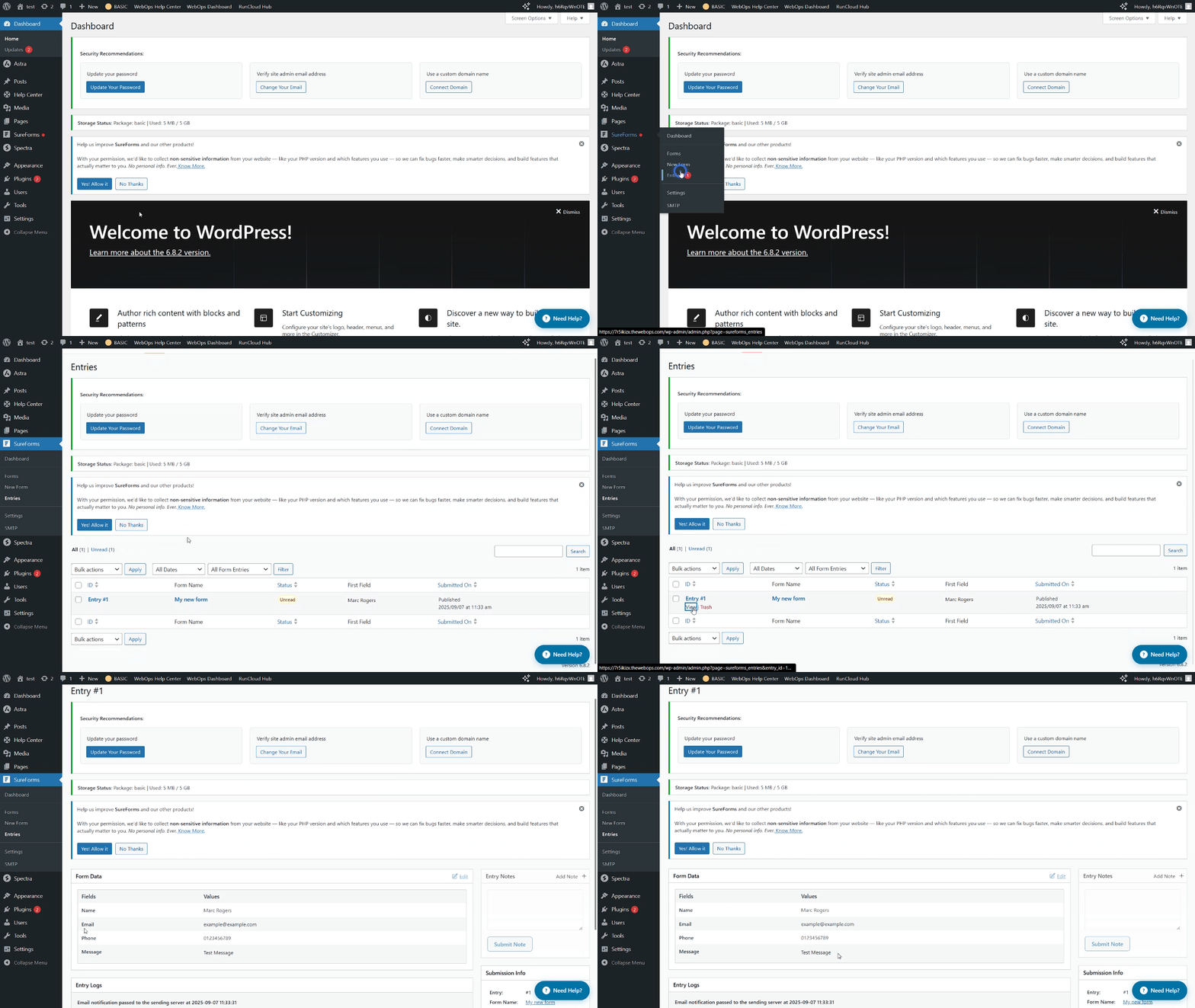
- In your WordPress dashboard, go to SureForms > Entries.
- You’ll see all records with the form name.
- Click View on an entry for details to see the fields and its values.
Quick Recap #
- Step 1: Open SureForms, exit guided setup (first-time only), and create a new form.
- Step 2: Configure form settings and notification emails.
- Step 3: Add the form to a page using Spectra Builder.
- Step 4: View submitted records under Entries.
Pro Tips #
- Test your form after publishing–it’s better to catch broken emails yourself than through an angry customer.
- Clean up your entries regularly if you don’t want WordPress bloated with spam.