
1. Navigate to the WebOps Website #
Go to thewebops.demowebops.com.
Click “Start for Free” or any call-to-action to be redirected to
https://app.thewebops.demowebops.com,
where you can access the dashboard and start building your website.
Select one of the Sign-Up Methods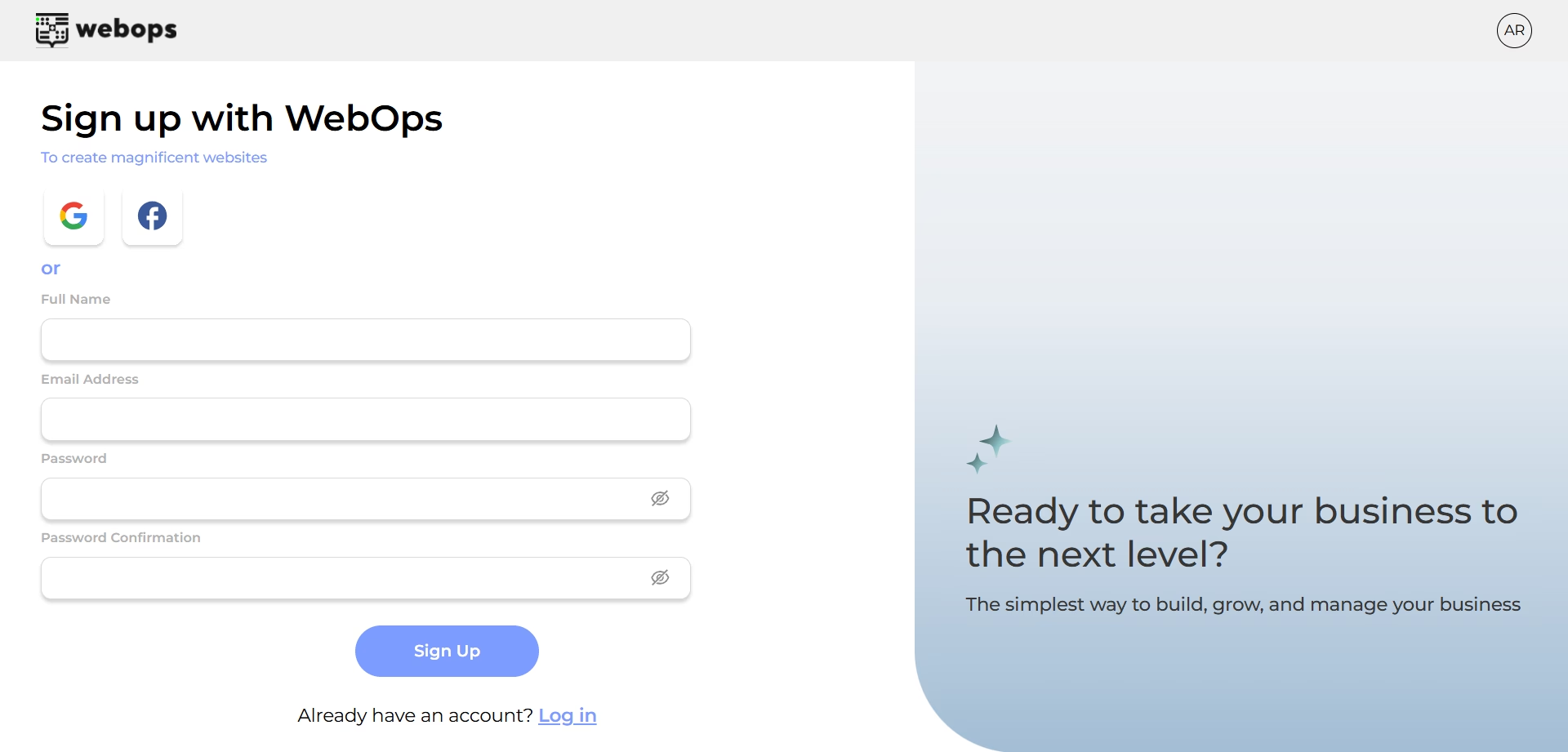 #
#
Below is a breakdown of each option.
A. Sign Up with Google #
- Click the Google Icon: On the sign-up page, select the Google icon.
- Select Your Google Account: If you’re logged into multiple Google accounts, choose the one you want to link.
- Grant Permissions: Review and allow the requested permissions for WebOps to proceed.
- Account Creation Complete: You’ll be redirected to your new WebOps dashboard if everything is successful.
Why Choose This Method?
- Faster login (no need to remember a separate password).
- Secure sign-in managed by Google.
B. Sign Up with Facebook #
- Click the Facebook Icon: Select the Facebook icon on the sign-up page.
- Log into Facebook: If you aren’t already logged in, enter your Facebook credentials.
- Grant Permissions: Approve the access requested by WebOps.
- Account Creation Complete: You’ll be redirected to your WebOps dashboard once the process is confirmed.
Why Choose This Method?
- Quick account creation.
- Convenient if you’re frequently logged into Facebook.
C. Sign Up with Email #
- Enter Your Full Name: Provide your first and last name.
- Type Your Email: Make sure to use a valid, accessible email address.
- Create a Password: Choose a strong password you can remember.
- Click “Sign Up”: After clicking, you will be redirected to a screen where you can enter your WhatsApp or phone number for verification, or choose to skip this step.
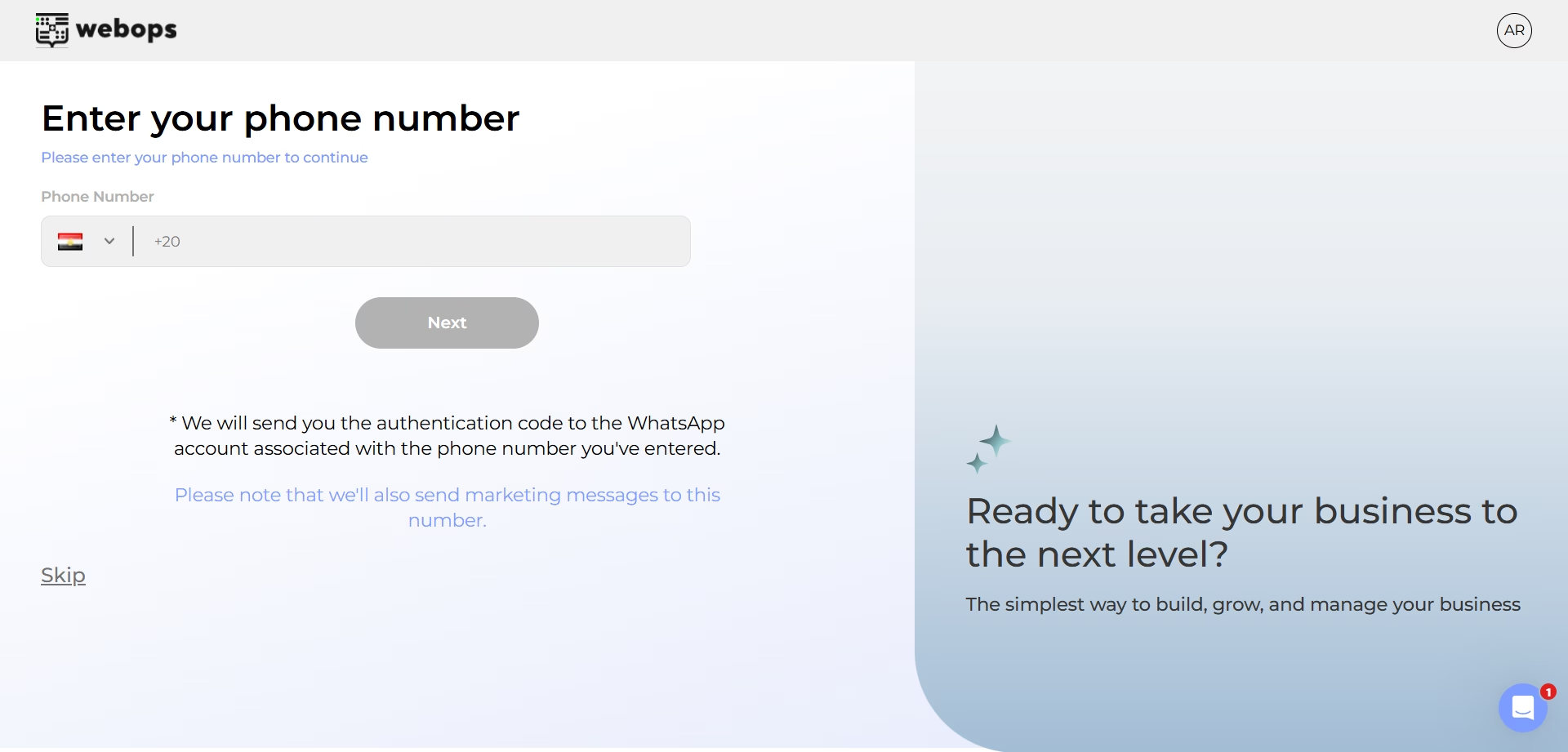
- Verify Your Account: You will receive a One-Time Password (OTP) on your WhatsApp. Enter the OTP to confirm your account.
- You can also choose to receive the One-Time Password (OTP) via SMS.
Why Choose This Method?
- Ideal if you prefer not to link social accounts.
- Keeps all WebOps-related communications in one place.
Pro Tip: Make sure your WhatsApp number is active and accessible during sign-up.
2. After Sign-Up #
No matter which method you choose, you will be redirected to create your first website.
From here, you can:
- Build Your First Website: Use AI to generate a website in minutes.
- Explore Platform Features: Customize pages, set up e-commerce, or get and connect a custom domain.
- Manage Account Settings: Update profile information, change your password, or modify billing preferences.
3. Troubleshooting Tips #
- Didn’t Receive Verification Email? Check your spam folder or click “resend” on the confirmation screen.
- Login Issues: Make sure you’re using the correct social account or email. If you forgot your password, click “Forgot Password?” to reset it.