
The Install Premium Templates for Free option allows you to use a premium website template without installing it yourself. Our team will help you choose, install, and configure the template during a setup session.
This option is ideal if you want a professionally designed website but prefer guided assistance during the setup process.
Before starting this process, make sure you have completed the initial builder setup described in:
How to Build a Website with WebOps Builder
Step 1: Open the Manual Building Options #
After completing onboarding, choosing Build it Yourself, and clicking Start Building, you will see different website building options.
Step 2: Select Install Premium Templates for Free #
From the available options, choose Install Premium Templates for Free.
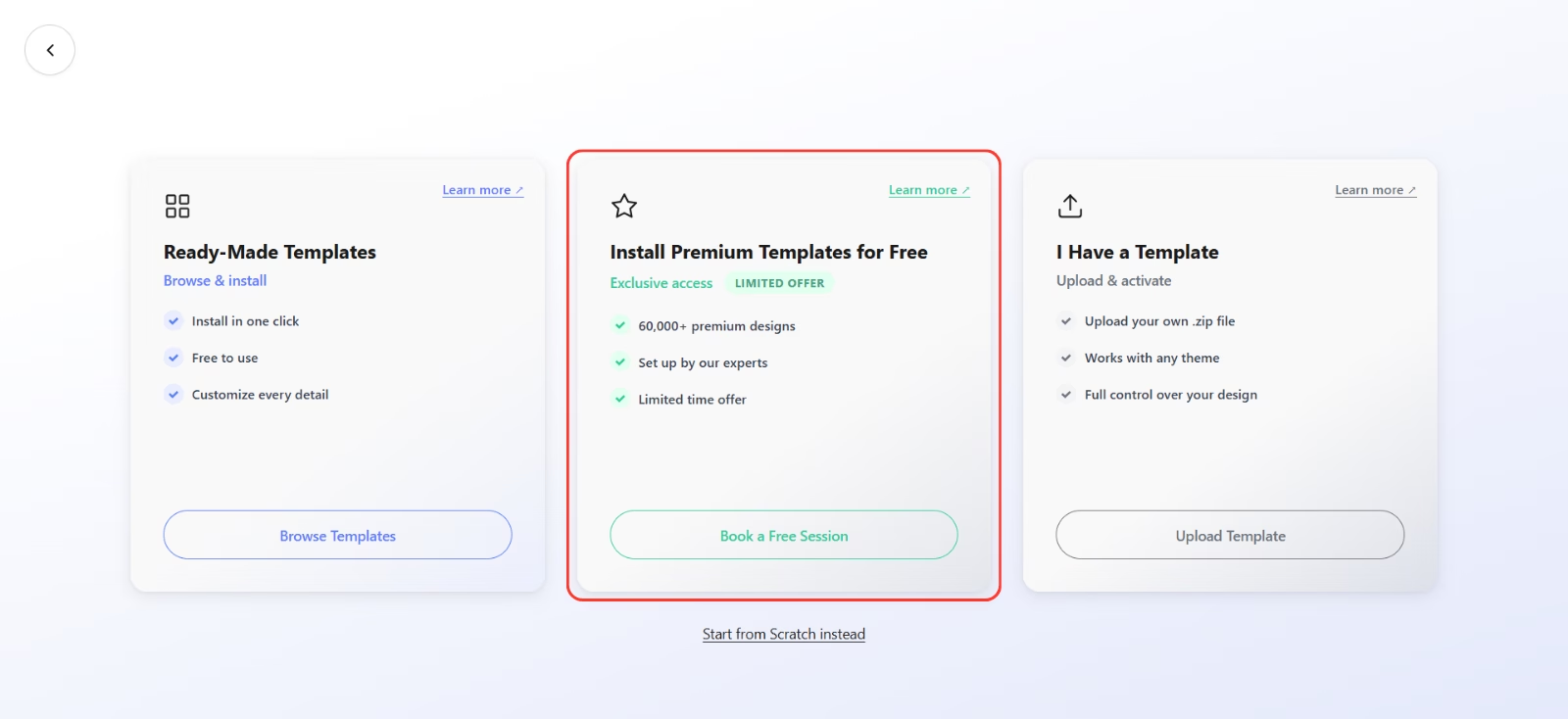
This option connects you with the WebOps team for assisted setup.
Step 3: Choose a Template #
Before the setup session, you can browse premium templates from marketplaces such as:
- ThemeForest
- Envato
Choose a template that matches the style and features you want for your website.
During the setup session, our team will help you install the selected template.
Step 4: Schedule Your Setup Session #
After selecting this option, you will be invited to schedule a setup meeting with our team.
During this session we will:
- review the template you selected
- install the template on your website
- configure the required plugins
- import the template demo content
- prepare your website for customization
This ensures your website is properly installed and ready to use.
Step 5: Customize Your Website #
After the template is installed, you will have full access to your WordPress Dashboard.
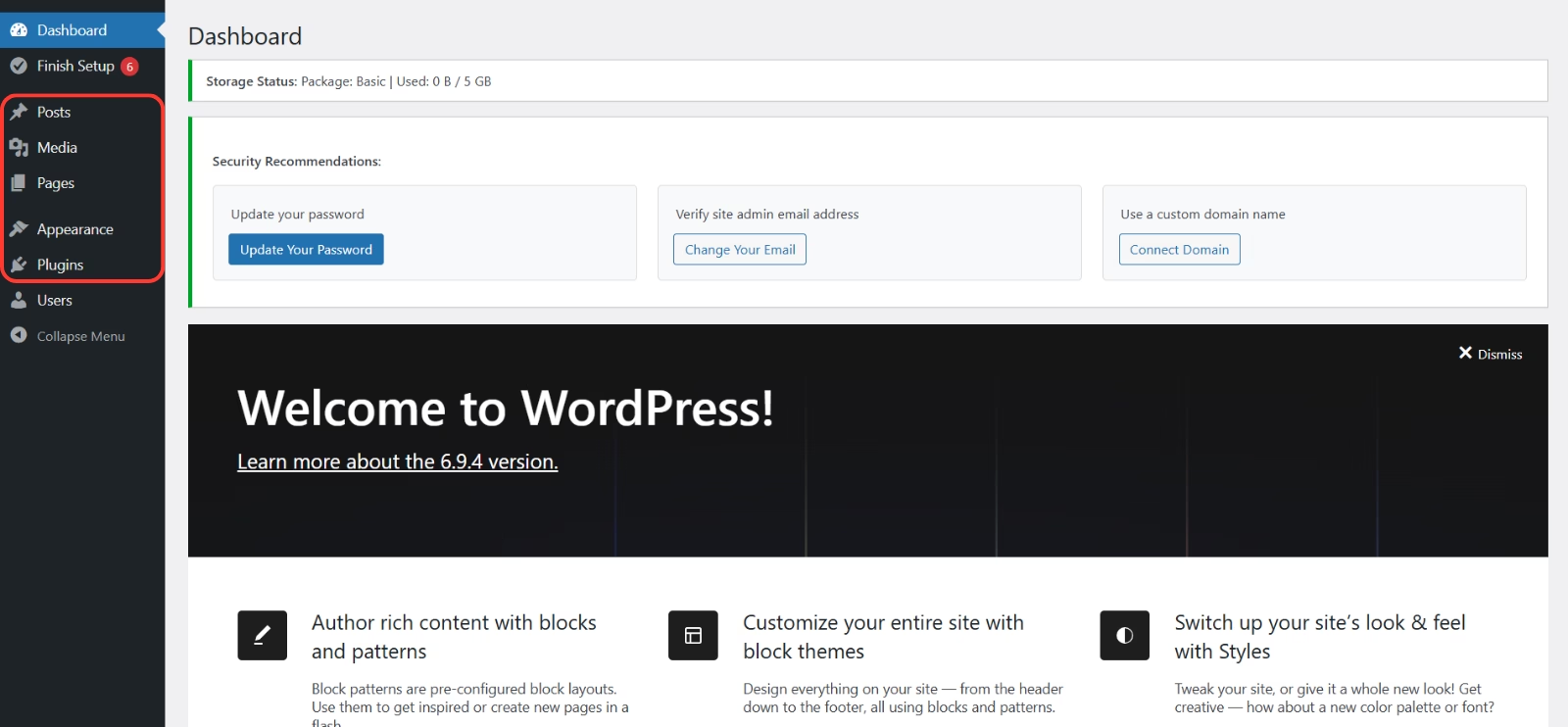
From there you can:
- edit pages
- replace images and text
- customize colors and fonts
- add new pages
- manage menus
- install plugins
Most templates can be edited using Elementor, allowing you to customize your website visually.
What Happens Next? #
Once the template is installed, your website will be ready for customization and publishing.
You will be able to manage your website through your WordPress Dashboard, including:
- Pages
- Posts
- Media
- Menus
- Theme settings
Helpful Tip #
Before your setup session, try to choose a template that closely matches the website you want to build. This helps speed up the installation and customization process.