
From the Payment Method page, you can add new cards, choose a default payment method, or remove existing ones, giving you full control over how your subscriptions are billed.
Accessing Payment Method #
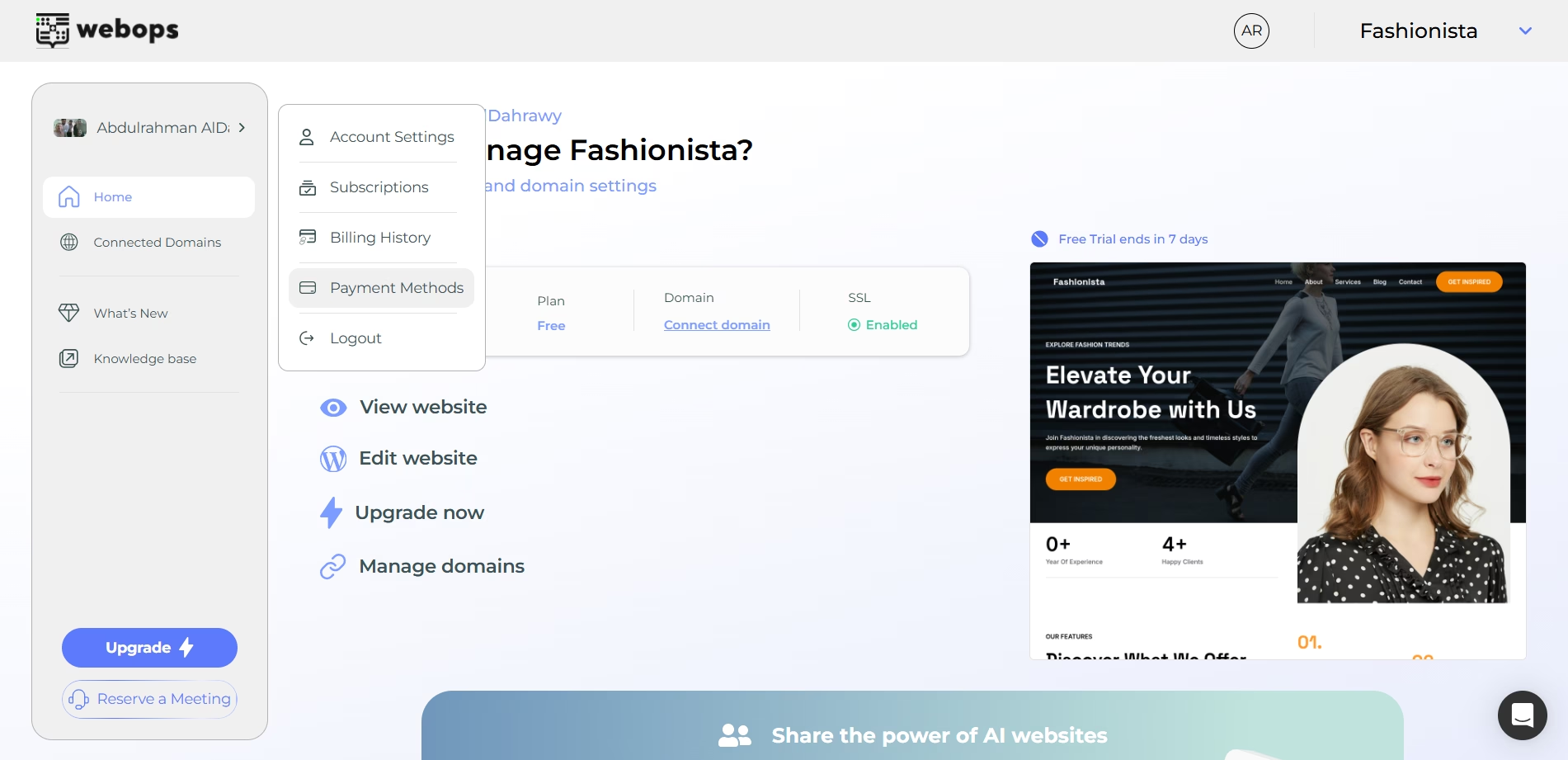
To open your Payment Method page:
- Click on the arrow next to your profile name in the side menu.
- Select Payment Methods
Add a New Card #
- Click Add Card.
- Enter your card details.
- Save the card to make it available for future payments.
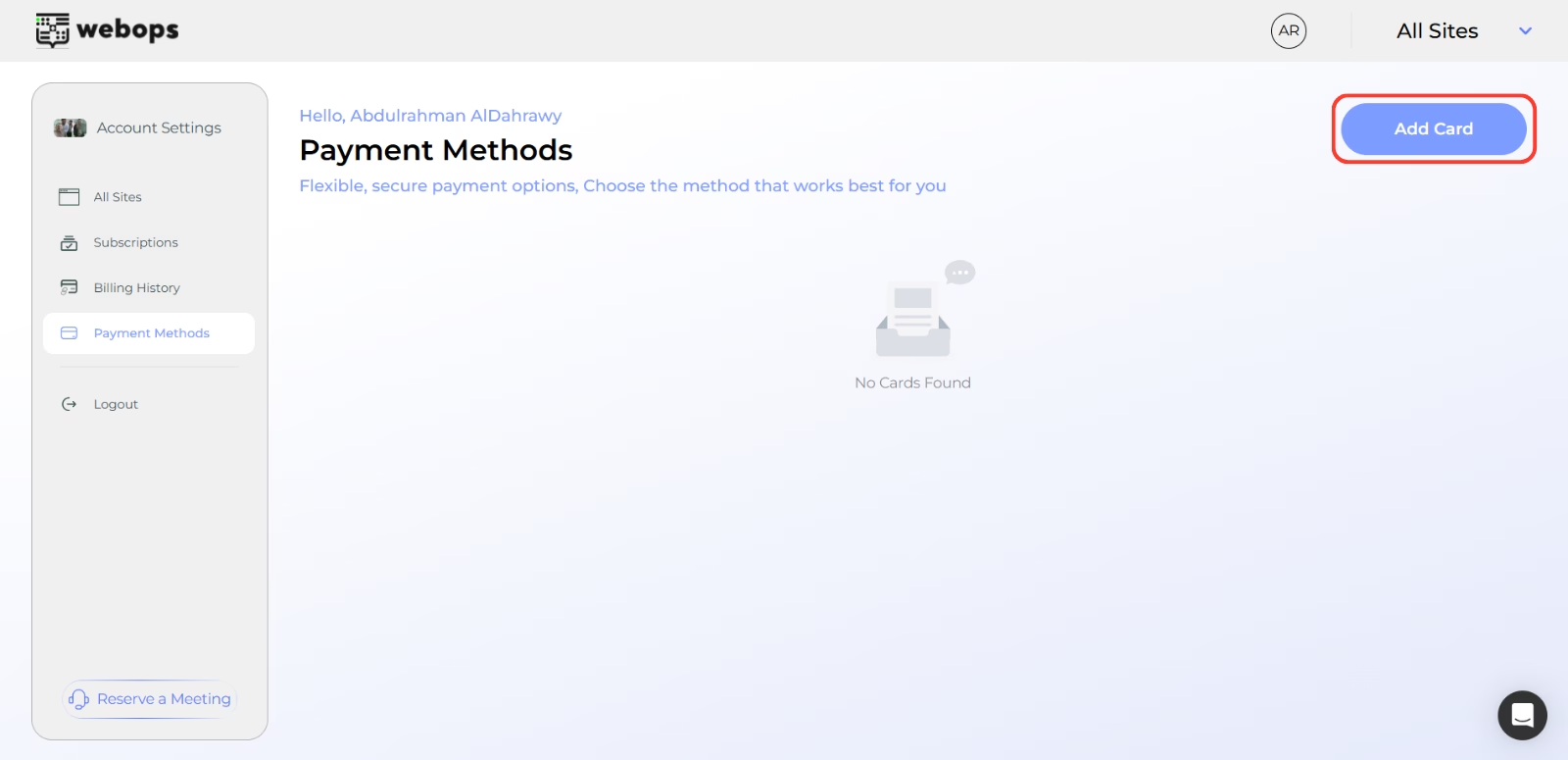
If no cards have been added yet, you’ll see an empty state message: “You haven’t saved any payment methods. Add one to continue.”
Set a Default Card #
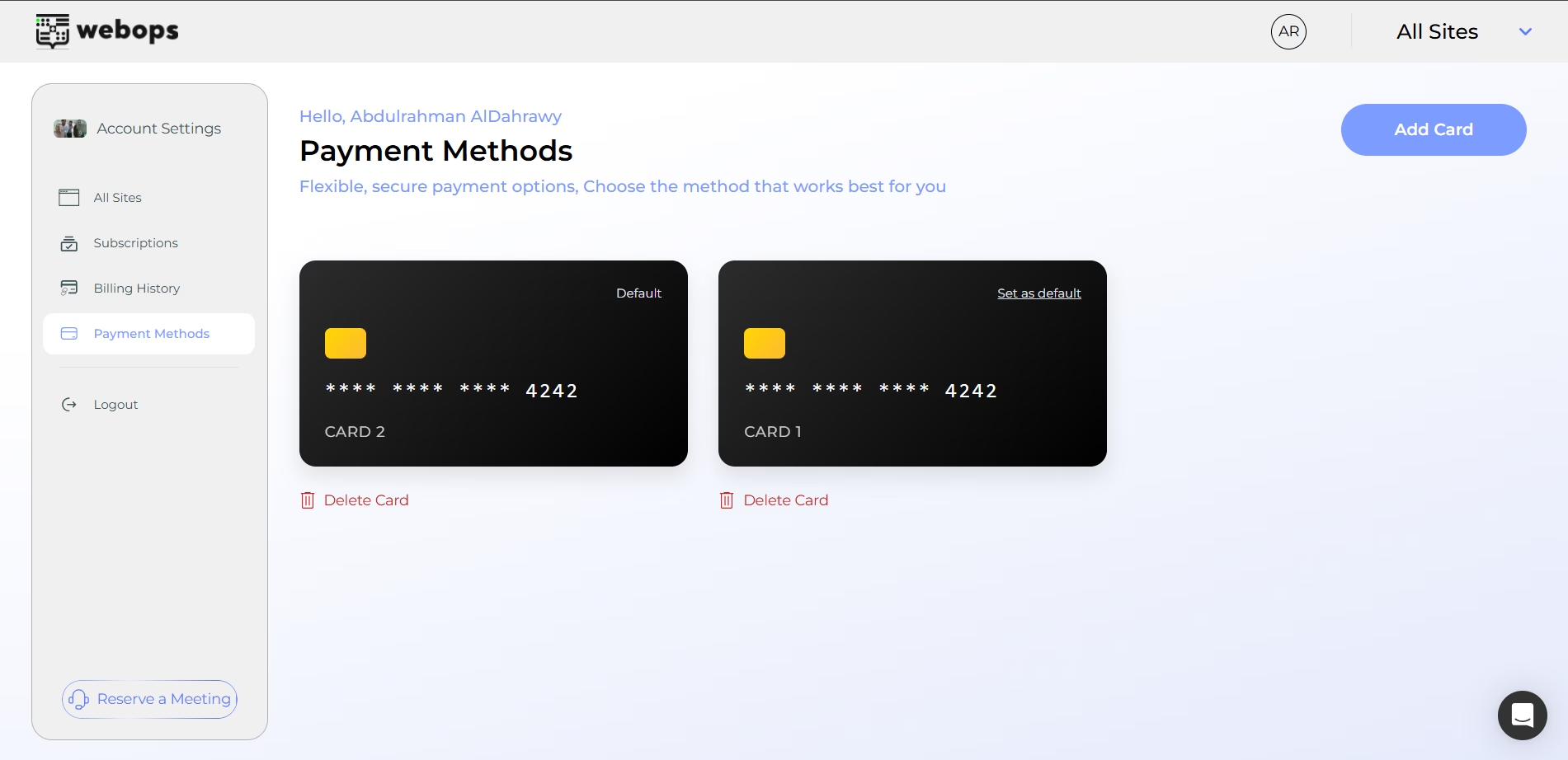
When you have multiple cards, you can choose which card WebOps will automatically use for renewals.
- Click Set as Default on the card you want to prioritize.
A Default label will appear on your primary card.
Delete a Card #
If you no longer want to use a card:
- Click Delete Card under that specific card.
Note: You must have at least one valid payment method on file to keep active subscriptions running without interruption.