
Quick checklist (what we’ll cover) #
- Connect Stripe and Paymob
- Configure payment gateways in WooCommerce
- Manage failed payments
- Process refunds safely
1) Connecting Stripe to WooCommerce #
Stripe is one of the most popular and reliable online payment gateways.
Installation #
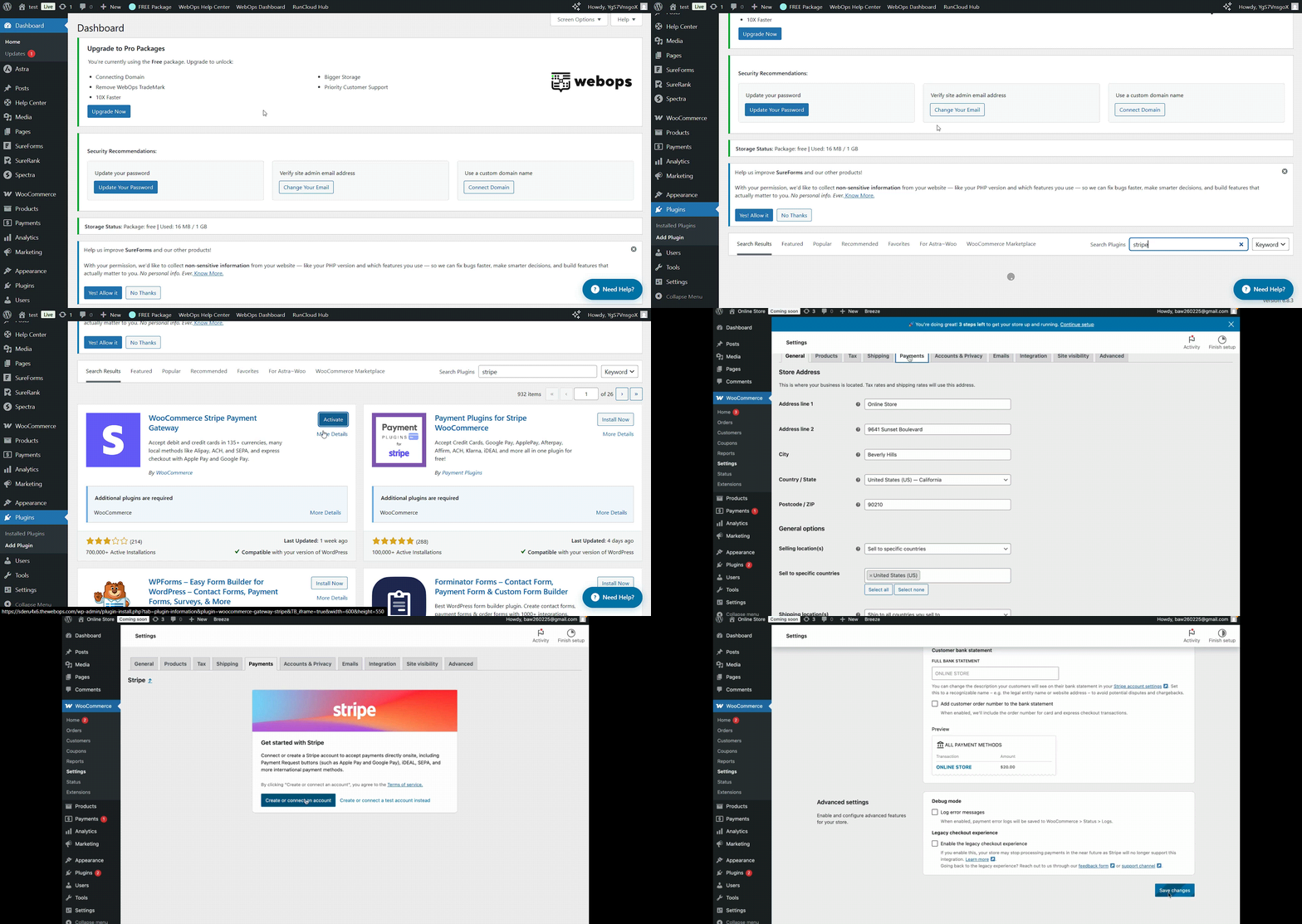
- Go to Plugins → Add New
- Search for “WooCommerce Stripe Payment Gateway”
- Install and activate the plugin
Configuration #
- Go to WooCommerce → Settings → Payments → Stripe
- Enable Stripe and click Setup or Complete Setup
- Click on Create or connect an account
- Sign in to your Stripe account (or create one)
- Copy your Publishable Key and Secret Key from your Stripe Dashboard → Developers → API Keys
- Paste them in WooCommerce and click Save changes
Optional:
- Enable Test Mode first to simulate transactions
- Configure Webhook endpoints (provided in the Stripe setup screen) for real-time payment updates
Pro tip: Always test Stripe payments in test mode before going live.
2) Setting Up Payment Gateways in WooCommerce #
WooCommerce supports multiple payment methods: manual (e.g., Cash on Delivery, Bank Transfer) and online (e.g., Stripe, Paymob, PayPal, etc.).
Access Payment Settings #
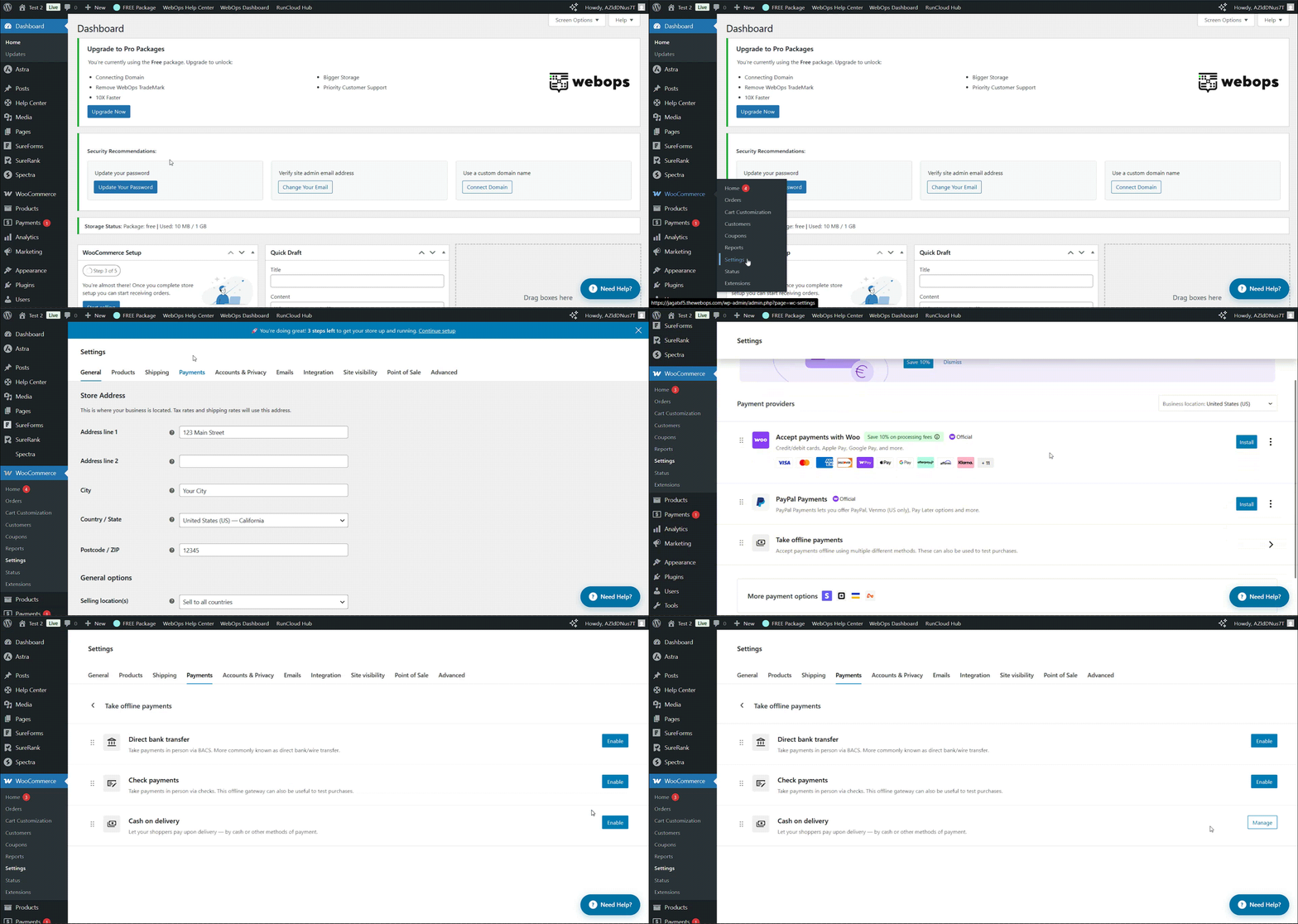
- Go to WooCommerce → Settings → Payments
- You’ll see a list of available gateways
- Toggle each method on/off and click Manage to configure details
Common Built-in Methods #
- Cash on Delivery – a simple offline option for local deliveries
- Direct Bank Transfer (BACS) – shows bank details for manual payments
- Check Payments – rarely used but still available
- PayPal Standard – quick setup with a PayPal email
Tip: Keep at least one online and one offline payment option to offer flexibility.
3) Connecting Paymob to WooCommerce #
Paymob is a popular payment gateway in Egypt and the MENA region.
Installation #
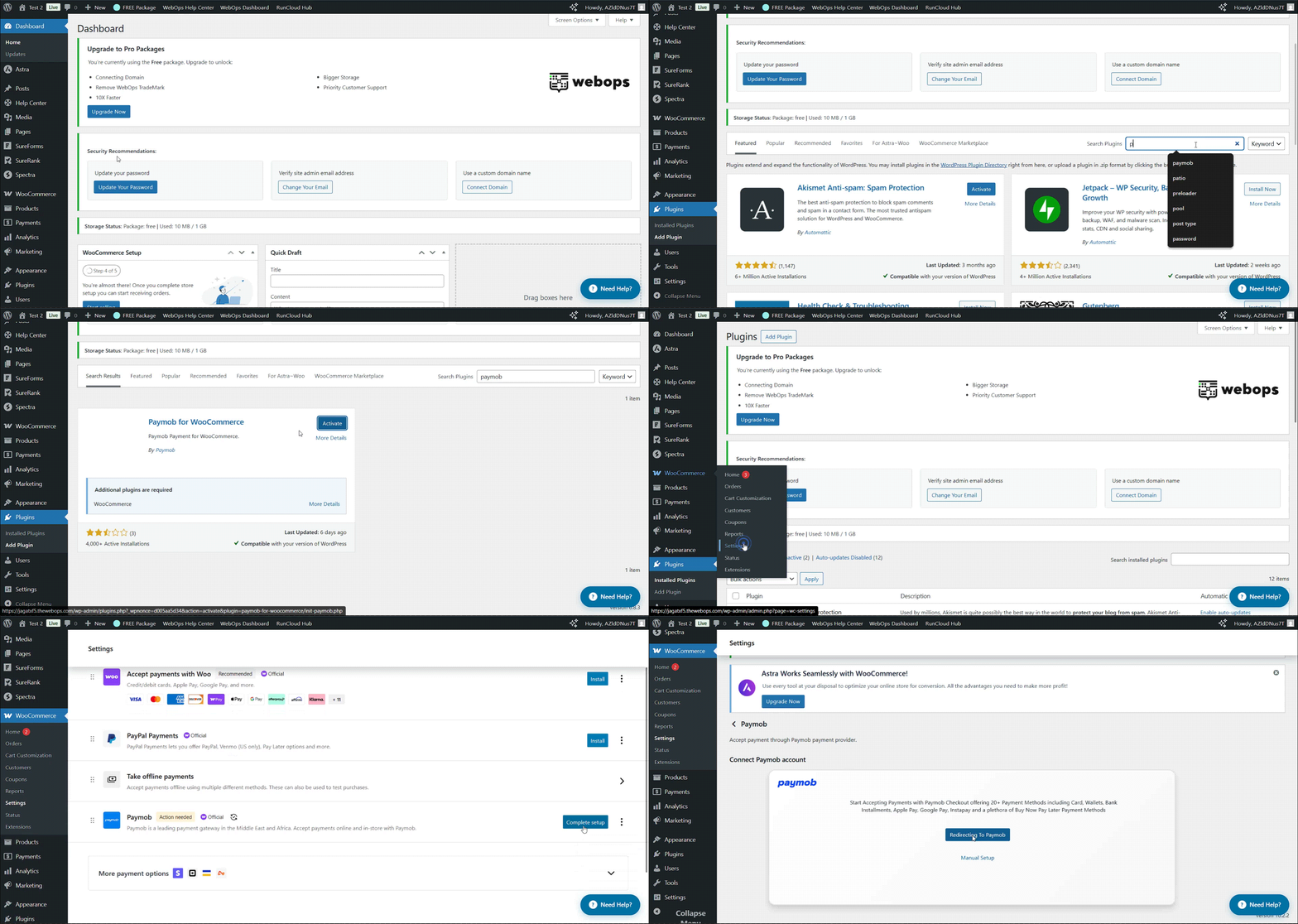
- Go to Plugins → Add New
- Search for “Paymob for WooCommerce” (official plugin or via marketplace)
- Install and activate the plugin
Configuration #
- Go to WooCommerce → Settings → Payments → Paymob
- Enable the gateway and click Manage
- Log in to your Paymob Dashboard
- Copy the following credentials:
- API Key
- Integration ID
- Iframe ID
- HMAC Secret Key
- Paste them into the WooCommerce Paymob settings and click Save changes
Optional:
- Enable test mode for sandbox testing
- Choose accepted card types (Visa, MasterCard, Meeza, etc.)
Tip: Make sure your store’s currency matches Paymob’s supported currencies.
4) Managing Failed Payments #
Payment failures can happen for many reasons — expired cards, gateway downtime, or configuration errors.
Common issues & how to fix them: #
| Problem | Possible Cause | Fix |
| Payment gateway not showing at checkout | Not enabled or restricted by location | Check WooCommerce → Settings → Payments and Allowed countries |
| “Payment failed” error after checkout | Wrong API keys or test mode active | Verify live credentials |
| Payment stuck as “Pending payment” | Gateway didn’t send confirmation | Check webhook configuration |
| Customer charged but order not completed | Webhook delay or timeout | Manually verify in Stripe/Paymob dashboard and update order status |
Always check the WooCommerce System Status → Logs for detailed error messages (WooCommerce → Status → Logs).
5) Processing Refunds in WooCommerce #
Manual Refund (offline) #
- Go to WooCommerce → Orders
- Open the order → click Refund
- Enter refund amount and note
- Click Refund manually
Automatic Refund (via Stripe or Paymob) #
If the gateway supports automatic refunds:
- Go to the order
- Click Refund via [Gateway Name]
- The refund is processed automatically through the payment provider
Note: Refunds may take several business days to appear on the customer’s card or account.
6) Common Troubleshooting & Tips #
- Payment gateway not visible: Check enabled methods and currency compatibility
- Refund failed: Verify the gateway supports automatic refunds
- Payment not updating: Make sure webhooks are configured correctly
- Multiple currencies: Use a multi-currency plugin compatible with your payment gateways
7) Short FAQs #
Q: Can I use more than one payment gateway? A: Yes. WooCommerce supports multiple gateways — users can choose at checkout.
Q: How do I test transactions safely? A: Enable “Test Mode” in Stripe or Paymob and use test card numbers.
Q: Do I need SSL for payments? A: Yes. SSL (HTTPS) is required for all live payment processing.