
Quick checklist (what we’ll cover) #
- Enable and configure stock management
- Update product stock and SKU
- Set up product categories and tags
- Import and export products in bulk
1) Enabling Inventory Management #
WooCommerce allows both global stock management and per-product stock control.
Global stock settings #
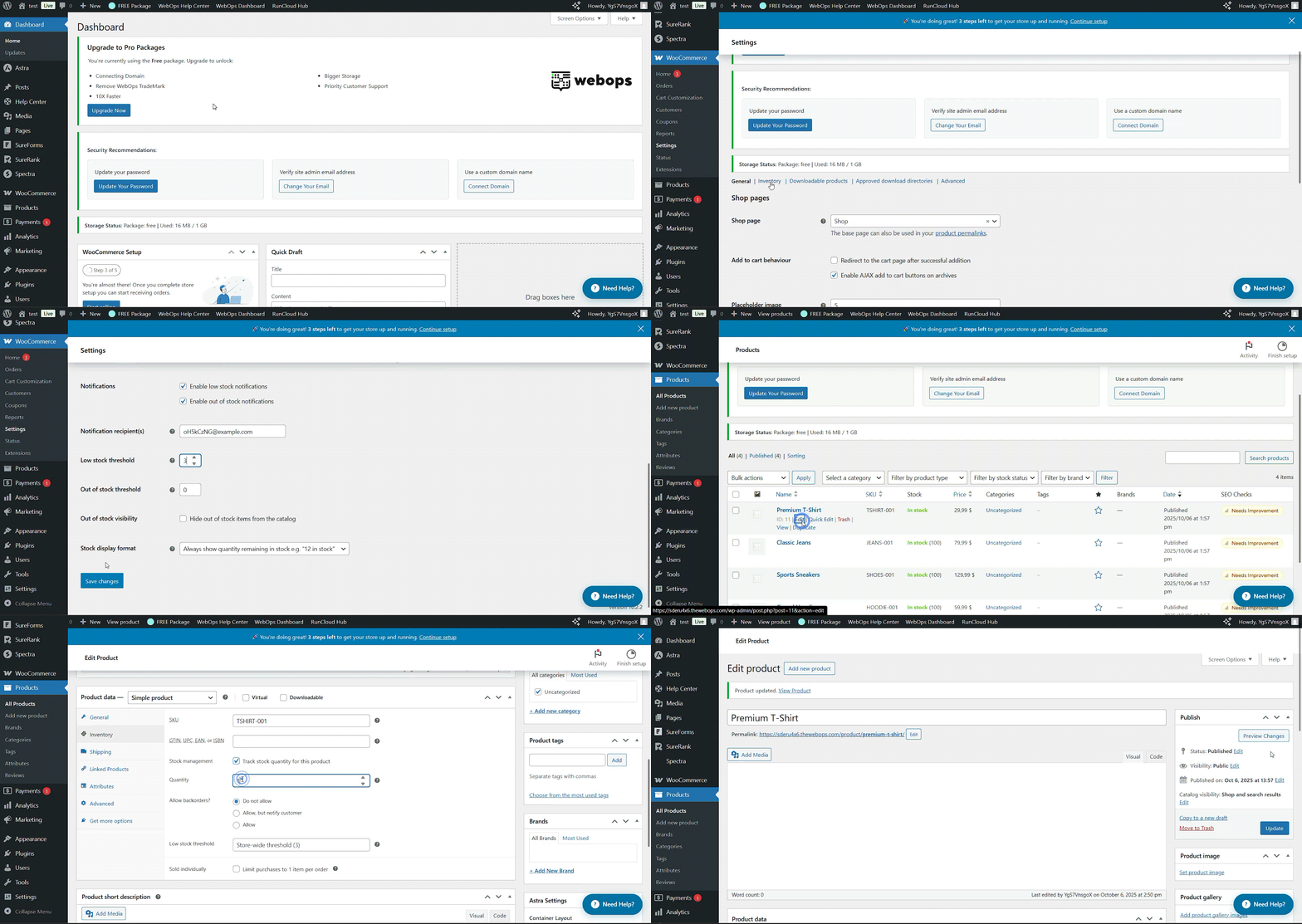
- Go to WooCommerce → Settings → Products → Inventory
- Configure:
- Manage stock: enable automatic stock management
- Hold stock (minutes): how long to reserve stock for unpaid orders
- Low stock threshold / Out of stock threshold
- Notifications: enable stock email alerts for admin
- Out of stock visibility: hide out-of-stock items from the catalog
Click Save changes when done.
Per-product stock settings #
When editing a product:
- Go to Product Data → Inventory
- Options include:
- SKU (Stock Keeping Unit): unique identifier
- Manage stock? toggle on to track quantity
- Stock quantity: current stock number
- Allow backorders: choose if customers can order when stock is 0
- Stock status: In stock / Out of stock / On backorder
Click update or publish to Save changes when done.
Tip: Always use SKUs for easier tracking and syncing with external tools (POS, ERP, etc.).
2) Organizing Products with Categories and Tags #
Well-structured categories and tags make products easier to find — both for customers and for internal management.
Product Categories #
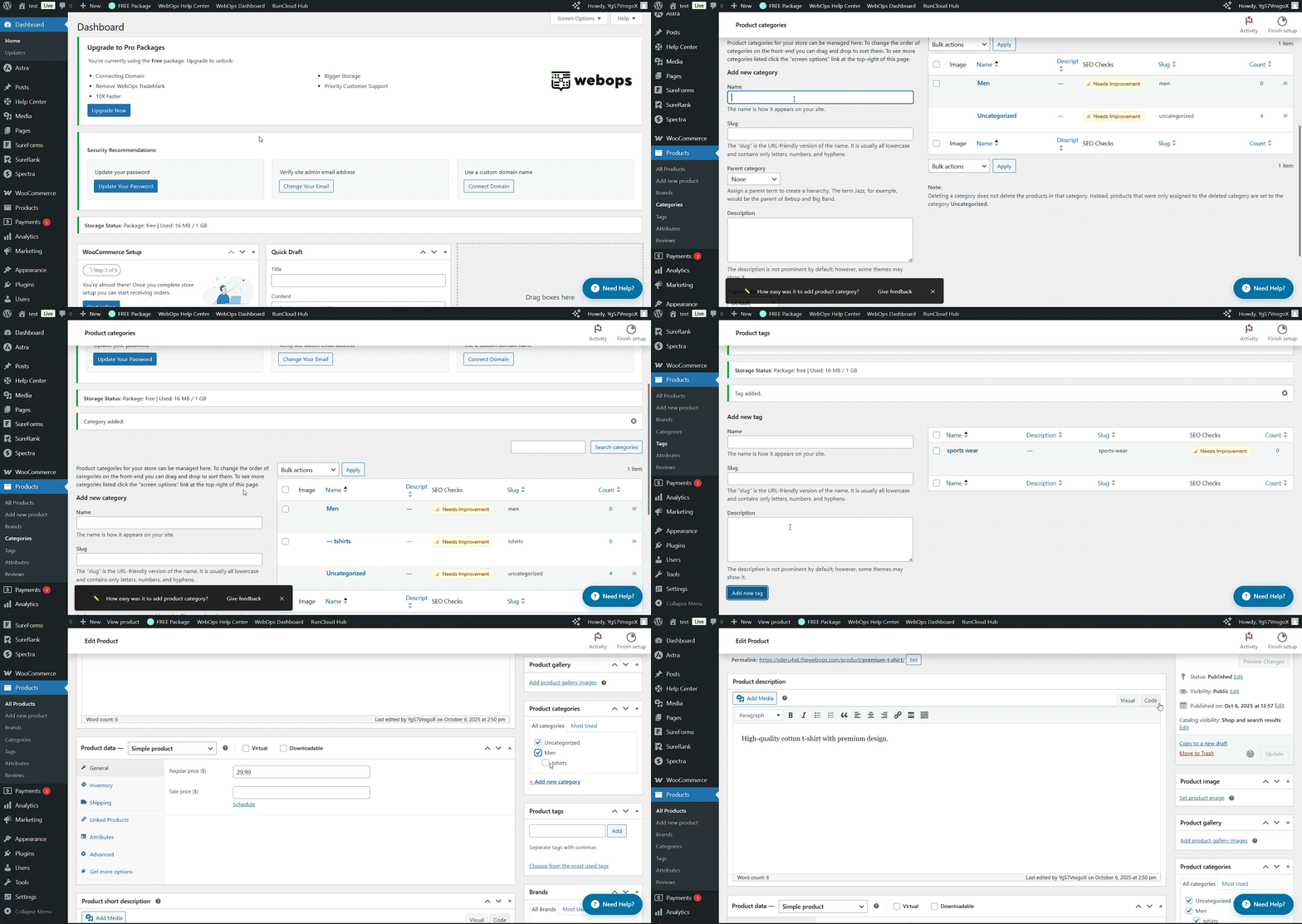
- Go to Products → Categories
- Add category name, slug (URL-friendly name), parent category (if any), and optional image.
- Example:
- Parent: Clothing
- Subcategories: Men, Women, Accessories
Assign categories to products under Product Data → Product Categories or from the right sidebar in the product editor.
Best practice: Use broad parent categories and avoid creating too many subcategories unless truly needed.
Product Tags #
- Tags are optional but useful for grouping similar products or search filters.
- Add or select tags in the right sidebar under Product Tags.
- Example: “summer”, “new arrival”, “cotton”.
Tags are flexible, while categories define your main structure. Use both strategically.
Assigning Categories and Tags to Products #
- Go to Products → All Products → Edit (any product)
- On the right you will find boxes for product categories and product tags.
- Check on the category you want for the product.
- Type the tag you want for the product.
- Click update or publish.
3) Importing and Exporting Products in Bulk #
WooCommerce includes a built-in CSV importer and exporter to manage products quickly.
Exporting Products #
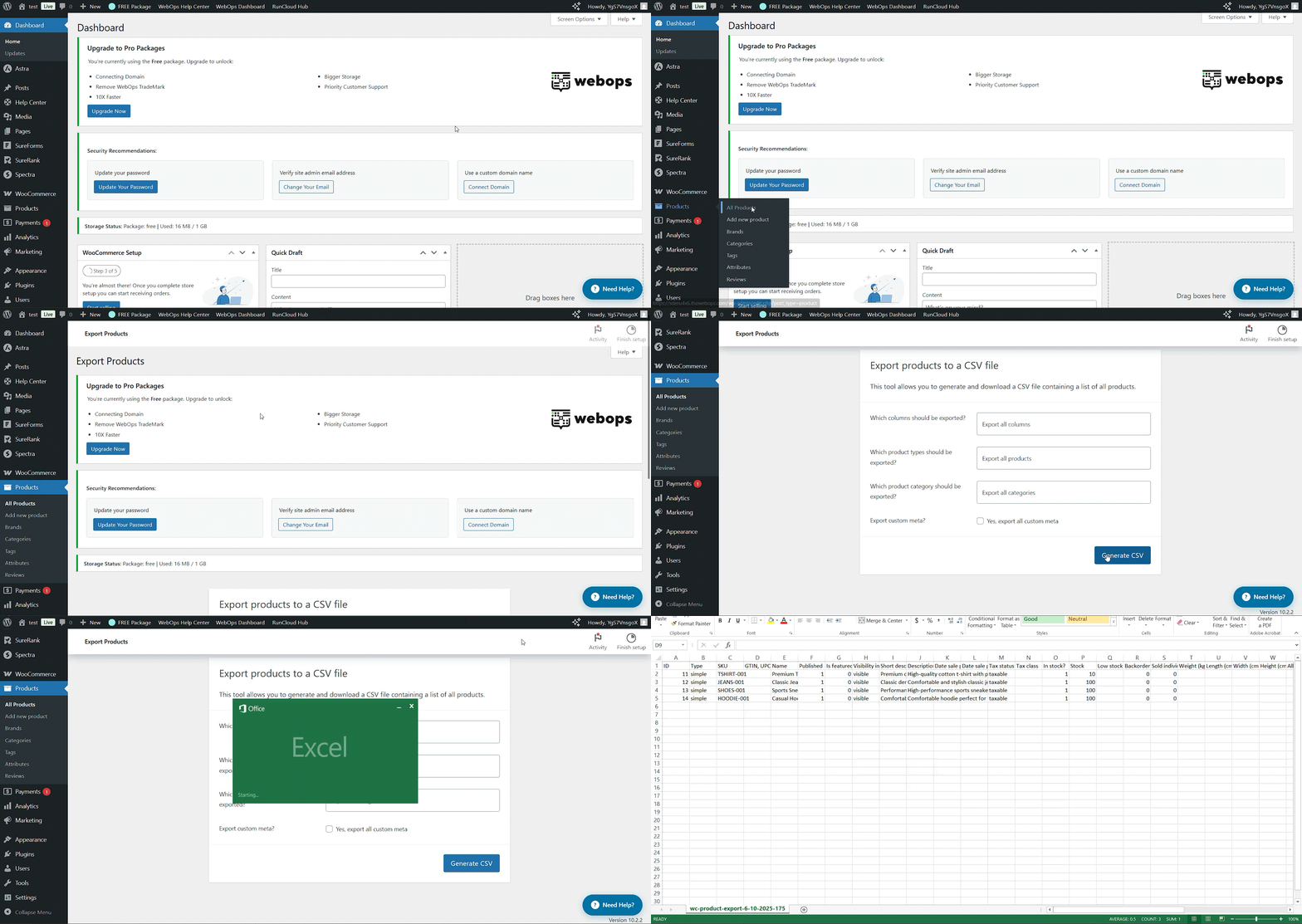
- Go to Products → All Products
- Click the Export button (top of the page)
- Choose which columns to export (e.g., name, SKU, stock, price)
- Download the CSV file
Importing Products #
- Go to Products → All Products → Import
- Upload a CSV file with product data
- Match CSV columns to WooCommerce fields (name, SKU, price, etc.)
- Run the importer
Tip: You can use the exported CSV file as a template for future imports.
Bulk Editing (alternative) #
For small edits:
- In Products → All Products, select multiple items
- Choose Bulk actions → Edit
- Update stock, categories, or prices for multiple products at once
4) Common Troubleshooting & Tips #
- Stock not updating automatically? Ensure “Manage stock” is enabled both globally and per product.
- Duplicate SKUs? Each SKU must be unique — duplicates can cause syncing issues.
- Import errors? Verify the CSV format (UTF-8) and column names match WooCommerce fields.
5) Short FAQs #
Q: Can I manage stock for variable product variations?
A: Yes. Each variation can have its own stock quantity under Product Data → Variations.
Q: Can I bulk import images?
A: Yes, include image URLs in the CSV file under the “Images” column.
Q: Can I disable stock management for certain products?
A: Yes, uncheck “Manage stock?” per product — it’ll always appear as in stock.