
1) Add a Simple Product #
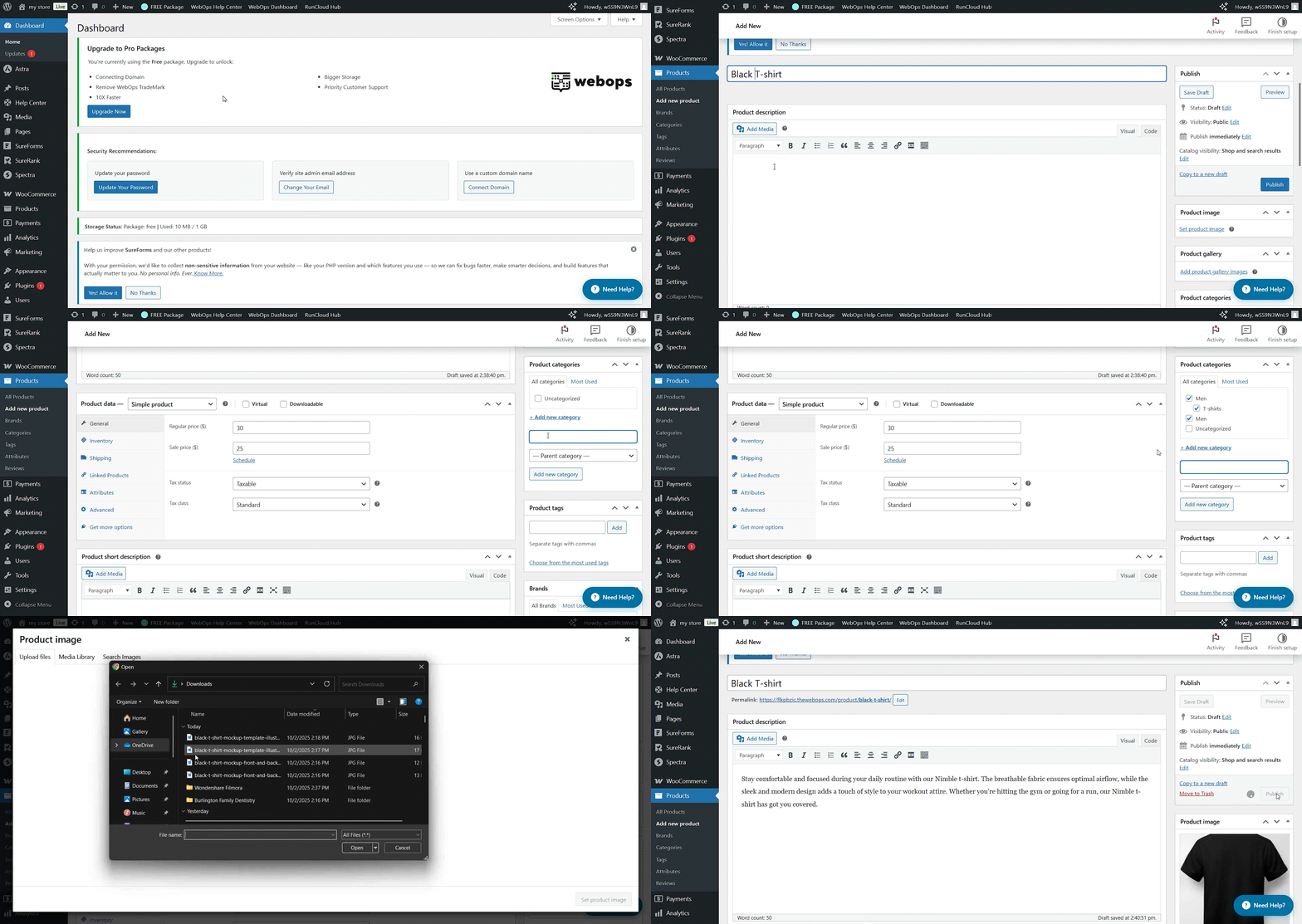
- Go to WordPress Dashboard → Products → Add New
- Enter product details:
- Title: Product name (e.g., “Classic T-Shirt”)
- Description: Main product description (appears on product page)
- Short Description: Appears near the product title and price
- Set product categories and tags in the right sidebar (helps organize products)
- Upload Product Image (main image) and optional Product Gallery images
Product Data → Simple Product #
In the Product Data box:
- General: Set Regular Price (and optional Sale Price)
- Inventory: Manage stock (SKU, stock quantity, stock status)
- Shipping: Add weight, dimensions, shipping class
- Linked Products: Upsells & Cross-sells (optional)
- Attributes: Add product info like material or brand (optional for simple products)
Click Publish or Update to update or to make the product live.
2) Add a Variable Product #
Use variable products when an item has options (size, color, style) with different stock or prices.
- Go to Products → Add New
- Enter product title, description, categories, tags, and images (as the simple product)
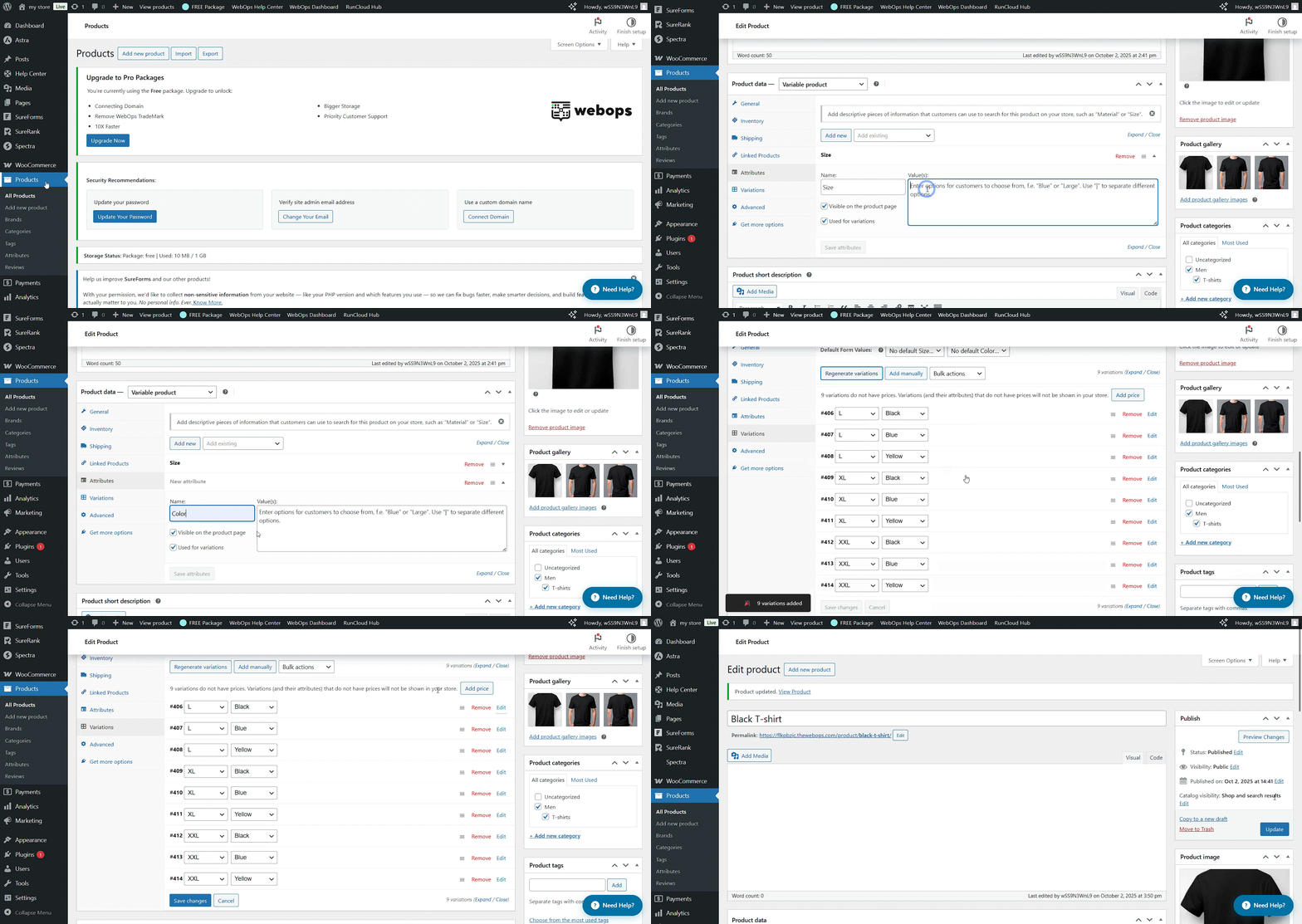
- In the Product Data box, select Variable Product from the dropdown
Step A: Create Attributes #
- Go to Product Data → Attributes
- Add new attribute (e.g., Size, Color)
- Enter values separated by “|” (e.g., Small | Medium | Large)
- Check Used for variations
- Save attributes
Step B: Create Variations #
- Go to Product Data → Variations
- From the dropdown, choose Add variation → Create variations from all attributes
- WooCommerce generates all combinations (e.g., Small–Red, Medium–Red, Large–Red, etc.)
For each variation:
- Set Regular Price (required) and Sale Price (optional)
- Manage Stock (optional per variation)
- Add Variation Image if needed
- Set Shipping details if different per variation
Step C: Save & Publish #
- Click Save Changes
- Click Publish or Update to update or to make the product live.
3) Common Troubleshooting & Tips #
- Variations not showing? Make sure attributes are marked as “Used for variations.”
- Price missing? Each variation needs its own price.
- Image confusion? Assign variation images so customers see the correct option selected.
4) Short FAQs #
Q: Can I convert a Simple Product to a Variable Product later?
A: Yes. Change the Product Data dropdown to Variable Product and set up attributes/variations.
Q: Do I need separate products for colors and sizes?
A: No. Use a Variable Product to manage them under one listing.
Q: Can I bulk-edit prices for variations?
A: Yes. Use the “Bulk actions” menu in the Variations tab.