
With WebOps, editing your website is fast and simple. You can update text, images, sections, and overall layout using the Elementor editor, no technical skills needed.
Step 1: Open Your Website in WebOps #
- Log in to your WebOps account.
- From the Home page, select the website you want to manage.
- Click Edit Website.
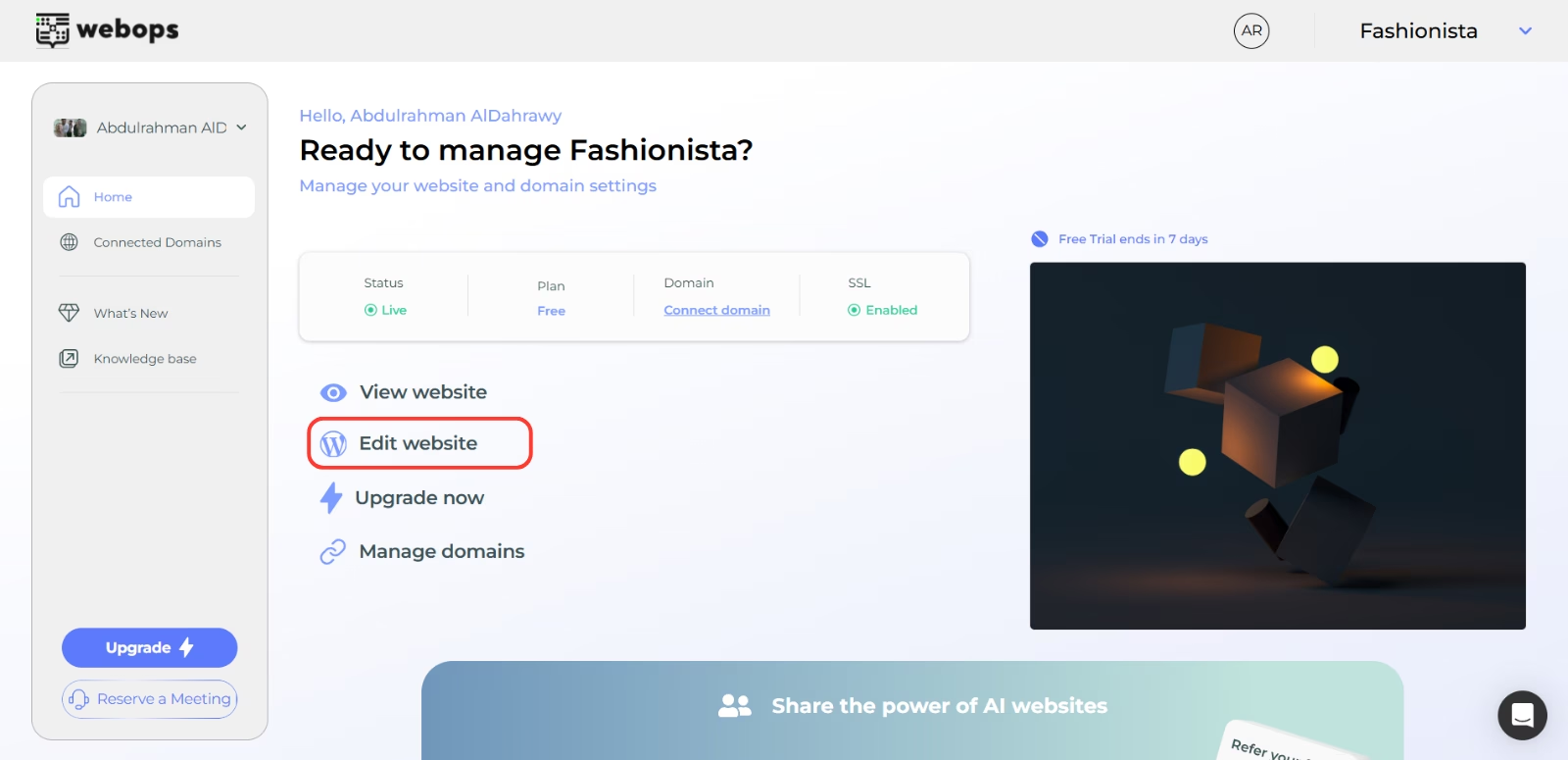
This will open your website’s WordPress admin area.
Step 2: Go to Pages #
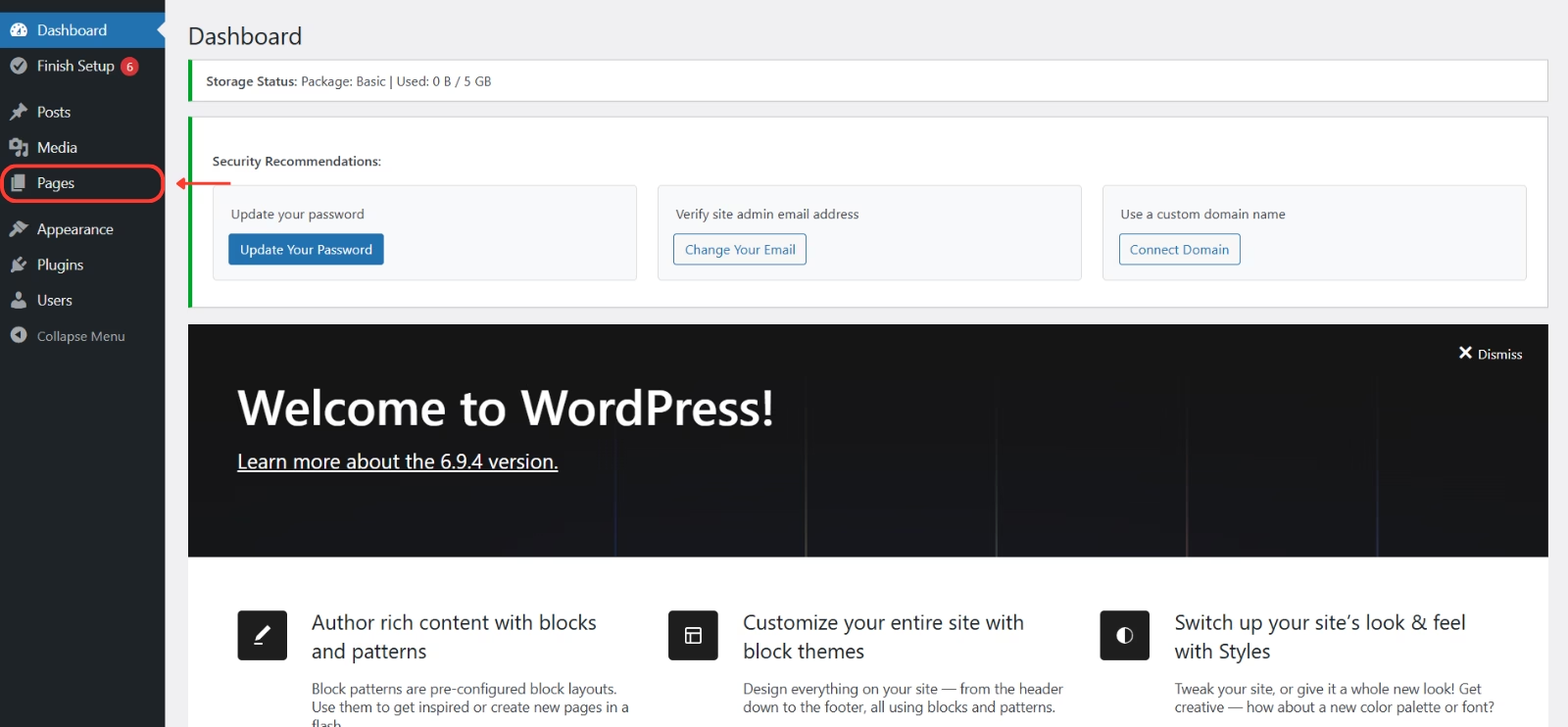
- In the WordPress dashboard, find the left-hand menu.
- Click Pages → All Pages to see all the pages on your site.
Step 3: Open a Page in the Editor #
Find the page you want to edit (for example: Home, About, or Blog).
Depending on your website setup, you will see one of the following options:
- If your website uses Elementor
-
- Click Edit with Elementor.
-
- If your website uses Spectra
- Click Edit to open the WordPress block editor.
Your page will open in the editor, where you can view and modify your content.
Step 4: Edit Your Content #
The way you edit content depends on the editor your website is using.
Editing with Elementor:
Elementor allows you to edit your page visually.
To edit text
- Click on the text you want to update.
- Type your new content.
- Use the left panel to adjust font, size, color, and alignment.
To change an image
- Click on the image.
- In the left panel, click Choose Image.
- Select or upload a new image.
To adjust layout or styles
- Click on a section, column, or element.
- Use the left panel to change spacing, background, colors, or other design settings.
Editing with Spectra:
Spectra uses the WordPress block editor.
To edit text
- Click on the text block.
- Type your new content directly.
- Use the top toolbar or right panel to adjust formatting.
To change an image
- Click on the image block.
- Click Replace or upload a new image.
To adjust layout or blocks
Click on any block or section.
Use the right sidebar to:
- change layout settings
- adjust spacing
- customize styles
You can also add new blocks using the + (Add Block) button.
Step 5: Save Your Changes #
In Elementor:
Click Update in the bottom-left corner.
In Spectra:
Click Update in the top-right corner.
You can also use Preview to check how your page looks before publishing.
Your changes will be saved and visible to visitors.
Switching Between Multiple Websites #
If you have more than one website on your WebOps account, you can easily switch between them:
- Click the site selector menu in the upper-right corner of your dashboard.
- Choose the website you want to manage from the list.
- You will be instantly redirected to the selected website’s dashboard.
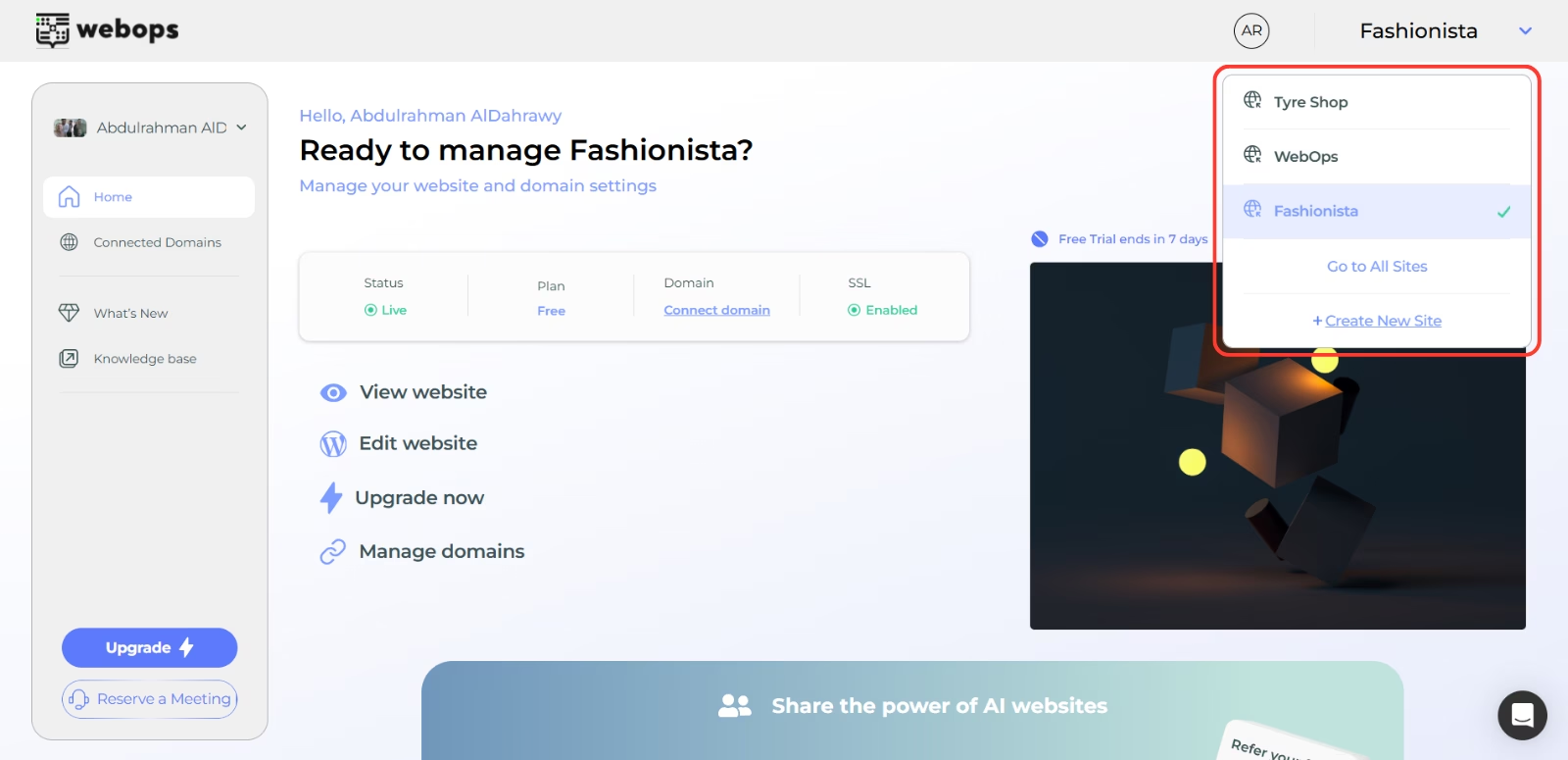
This allows you to quickly edit and manage multiple websites from one account without logging out.
Conclusion #
Editing content in the WebOps App Builder is fast and effortless. With just a few clicks, you can update your website anytime to keep it fresh, accurate, and engaging for your visitors. For advanced customization, you can extend your site using WordPress plugins or contact our support team for assistance.
Happy Editing!