Why Use SureForms + Elementor #
- Forms without code: Create professional forms easily.
- Reusability: Build once, embed anywhere.
- Seamless workflow: Works directly with Elementor pages for quick setup.
1. Open SureForms and Create a New Form #
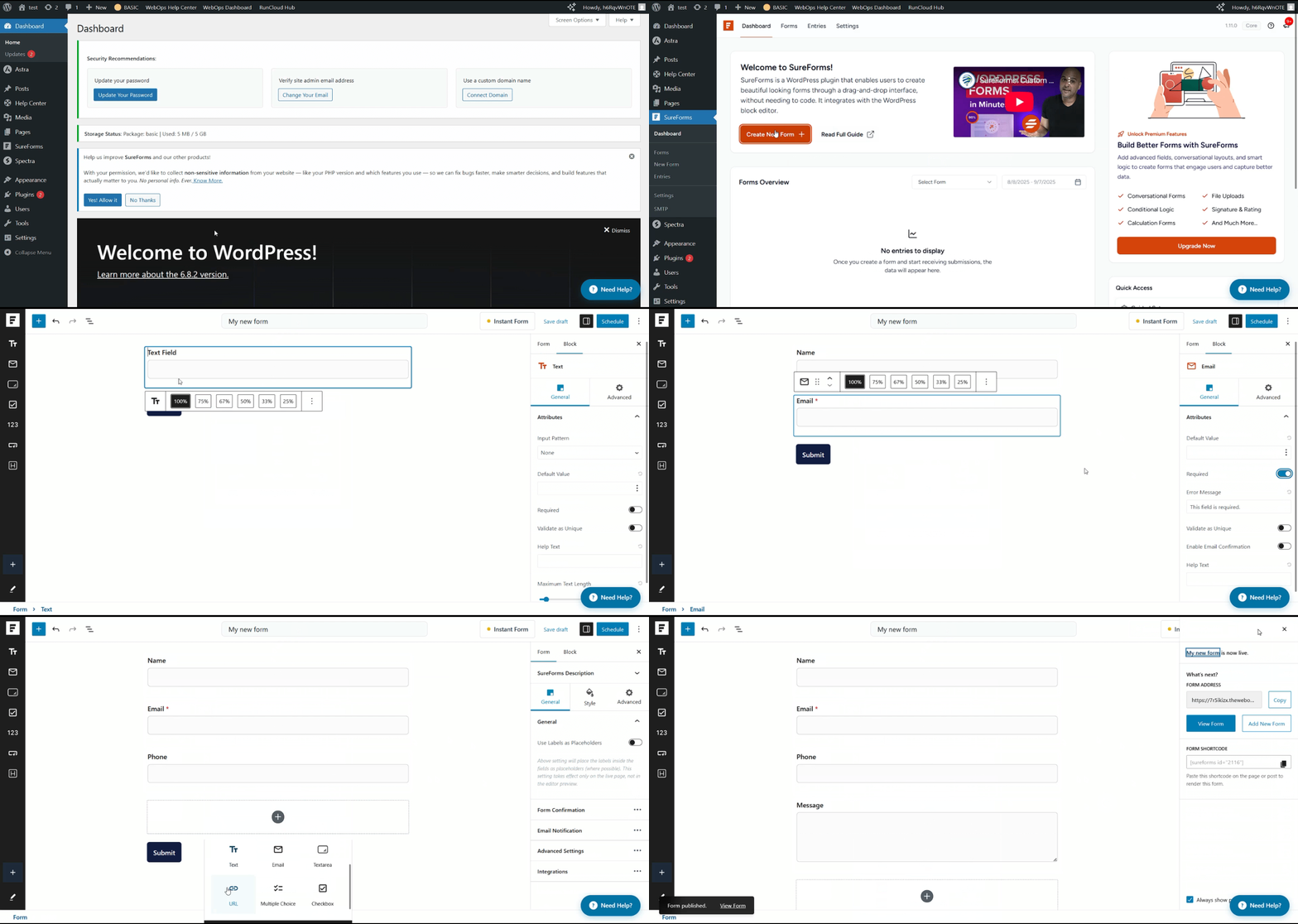
- From your WordPress dashboard, go to SureForms.
- If it’s your first time opening SureForms, you may see the Guided Setup screen. Click Exit Guided Setup to continue.
- In the SureForms dashboard, click Create New Form.
- Choose a template or start with a blank form.
- Add fields like Name, Email, Message, etc.
- For each field, you can mark it as Required (e.g., make “Email” required).
- Give your form a clear title (e.g., Contact Form – Home).
- Click Publish, Schedule, or Save to save your edits.
2. Configure Form Settings and Email Notifications #
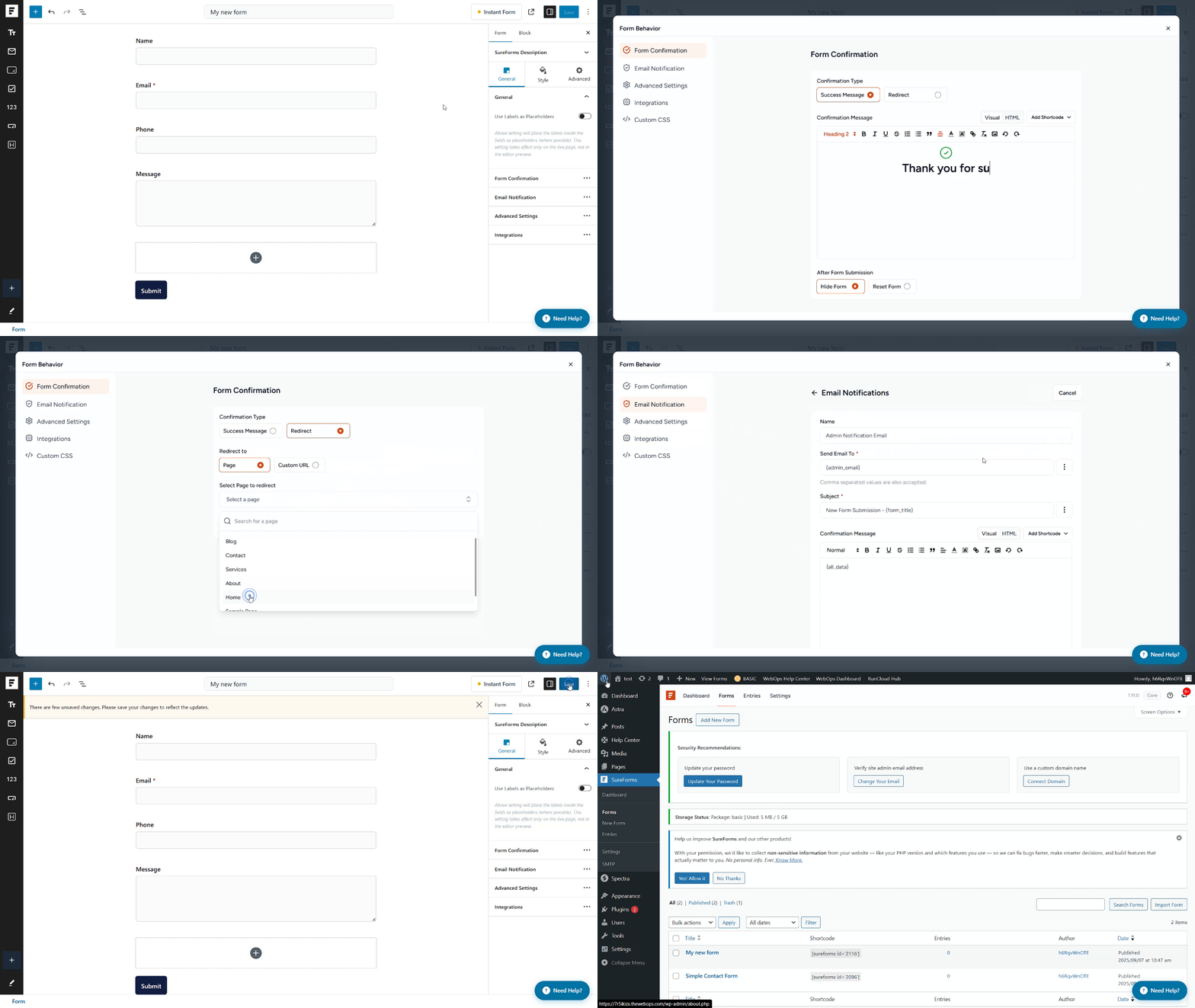
- Open your form and go to the Form tab.
- Set a confirmation message or a redirect page after submission.
- Under Email Notifications, add the email address where form submissions should be sent.
- Optionally, edit the subject line and sender name.
- Save your changes.
- Navigate back to the Form Dashboard to confirm settings.
3. Add the Form to a Page Using Elementor #
- Copy the form shortcode (e.g.,
[sureforms id="123"]).
- Open the page you want to edit and click Edit with Elementor.
- Drag the Shortcode widget from the Elementor panel into the section where you want the form.
- Paste your shortcode into the widget.
- Adjust styling as needed using Elementor settings.
- Click Update to save your page.
4. Access Submitted Records #
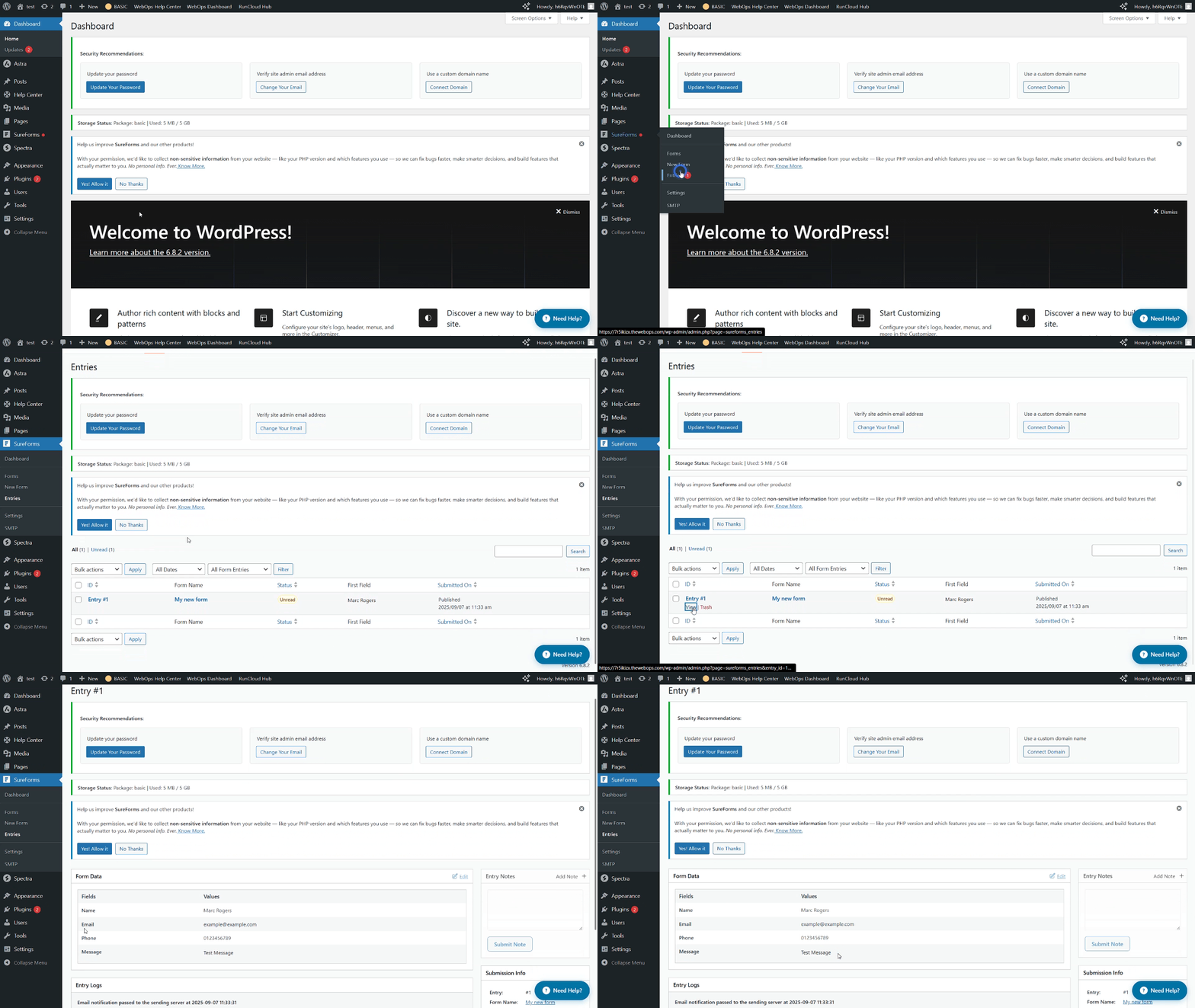
- In the WordPress dashboard, go to SureForms → Entries.
- All form submissions are listed by form name.
- Click View on an entry to see all submitted field values.
Quick Recap #
- Open SureForms, exit guided setup (first-time only), and create a new form.
- Configure form settings and notification emails.
- Embed the form on a page using Elementor’s Shortcode widget.
- Access submitted records under Entries.
Pro Tips #
- Test your form after publishing to ensure emails are sent correctly.
- Clean up entries regularly to avoid spam accumulation in WordPress.
- Use Elementor styling options to make your form visually match your website design.
Updated on April 14, 2026