
In this Article
- Open Events Manager in your Facebook Business account
- Install and activate the Meta Pixel plugin in WordPress
- Connect your WordPress site to your Facebook account
- Complete the setup and confirm the connection
- Test your Pixel
1. Open Events Manager in Your Facebook Business Account #
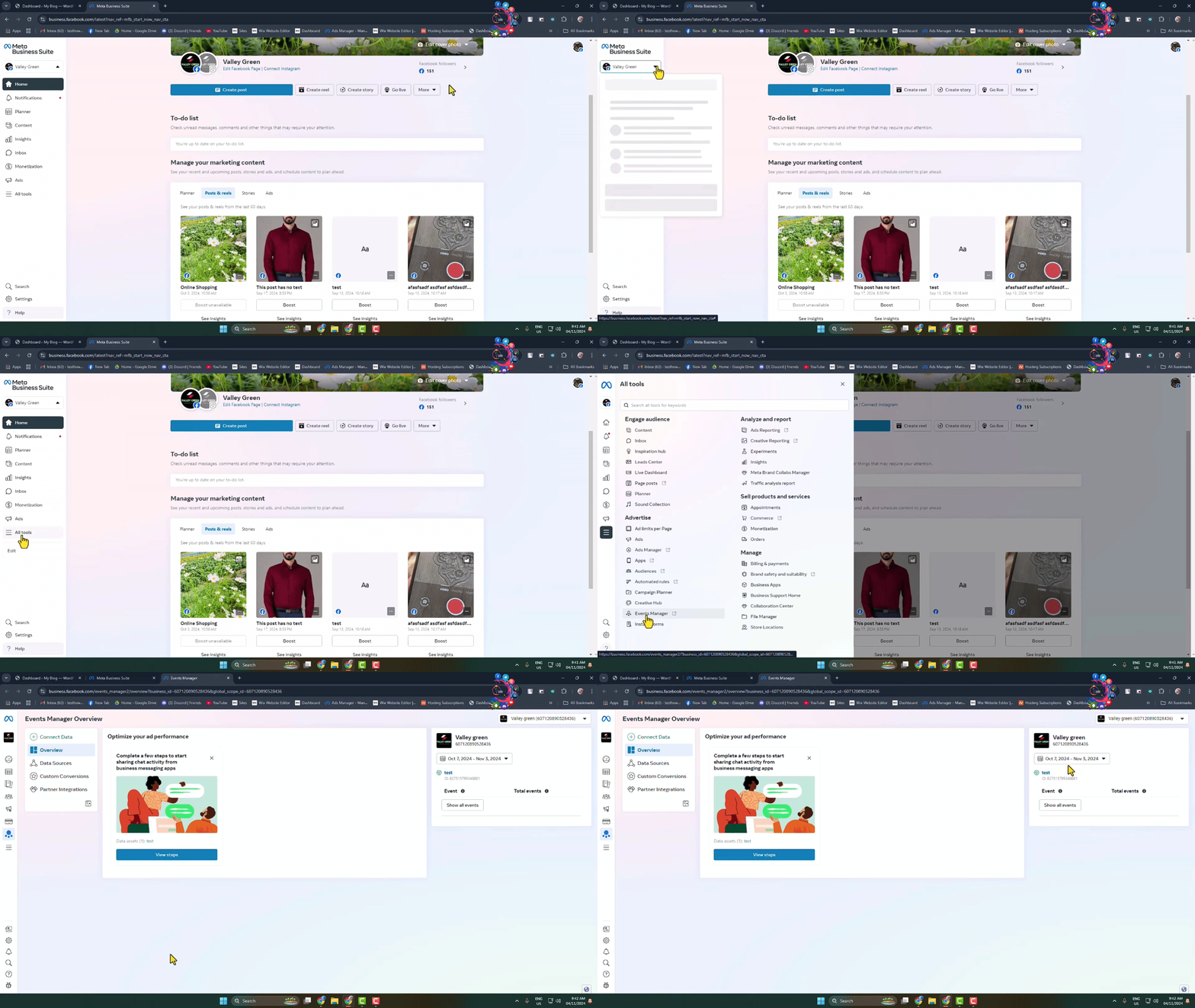
- Go to business.facebook.com.
- Make sure you’re logged in to your Business account (not your personal profile).
- Click All Tools from the left menu.
- Select Events Manager.
- Ensure you already have a Meta Pixel created under your business account.
2. Install and Activate the Meta Pixel for WordPress Plugin #
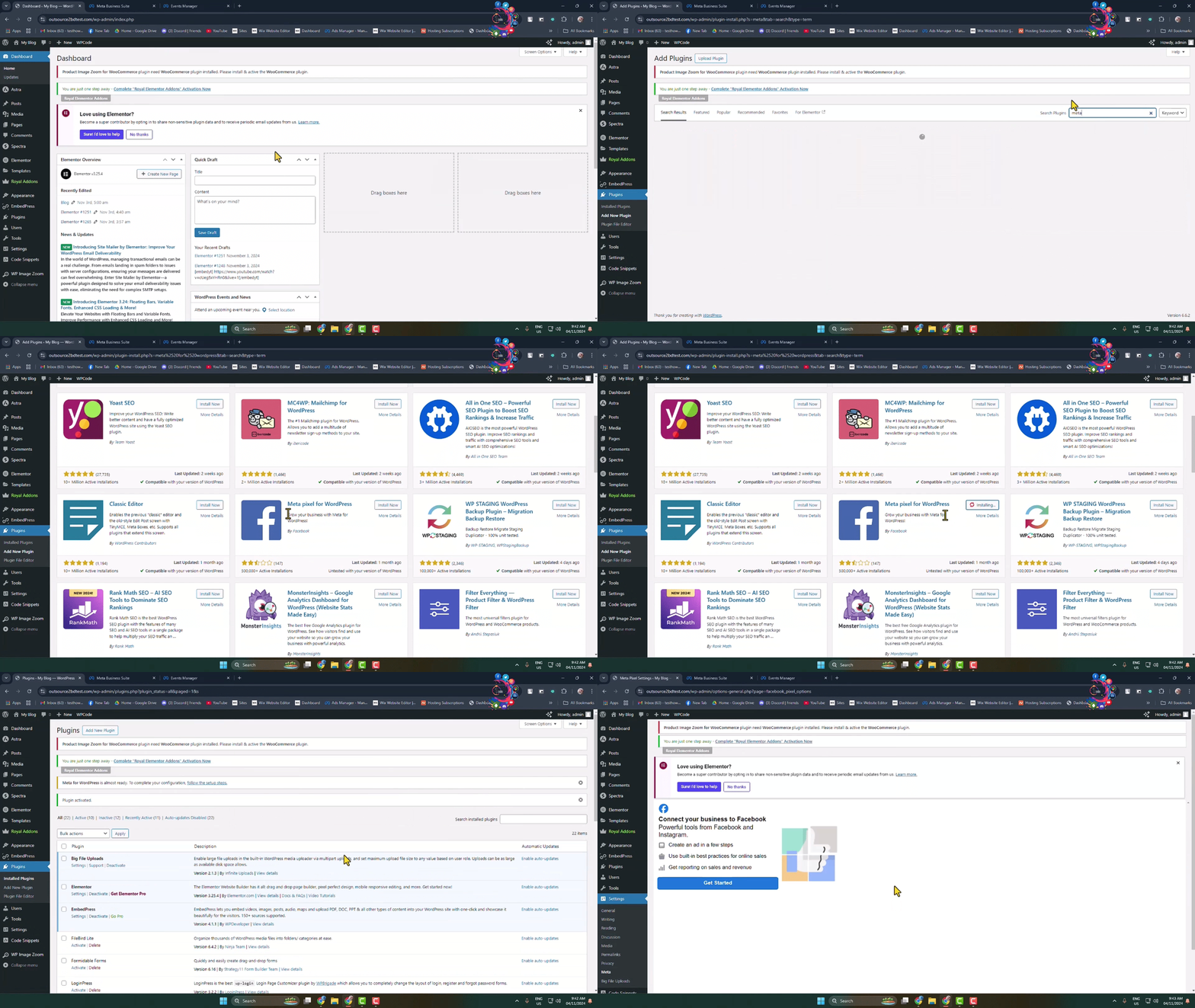
- In your WordPress dashboard, go to Plugins > Add New.
- Search for Meta Pixel for WordPress.
- Click Install Now, then Activate.
- Once activated, go to Settings > Meta in your dashboard.
3. Connect Your WordPress Site to Facebook #
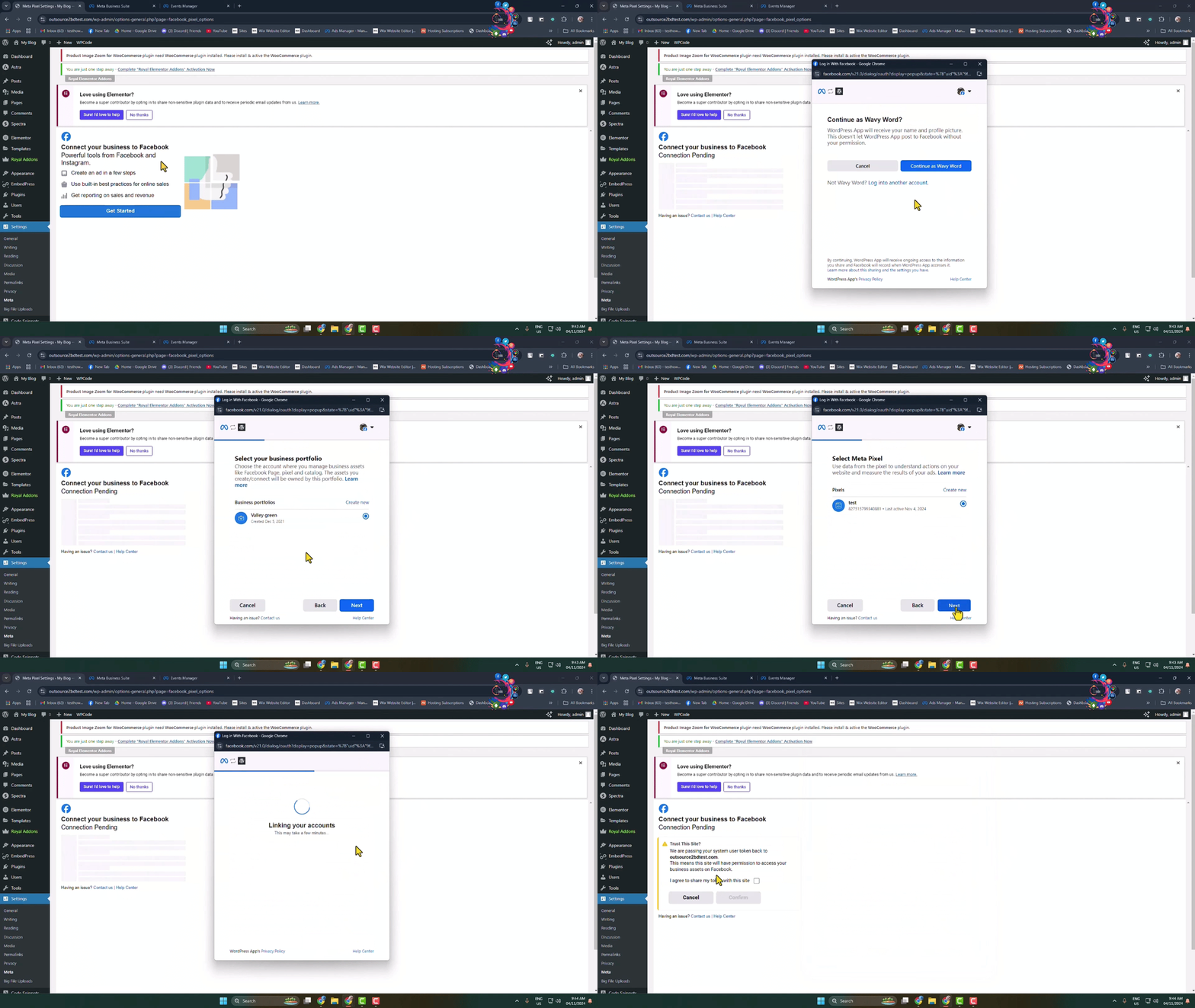
- In the plugin settings, click Get Started.
- Select the correct Facebook account and click Continue as [Your Name].
- Click Next.
- From Business Portfolio, select your business portfolio.
- From Meta Pixel, select the Pixel you created earlier.
- Click Next, then Continue, then Next again.
- Click Done to finish the setup.
4. Confirm Access in WordPress #
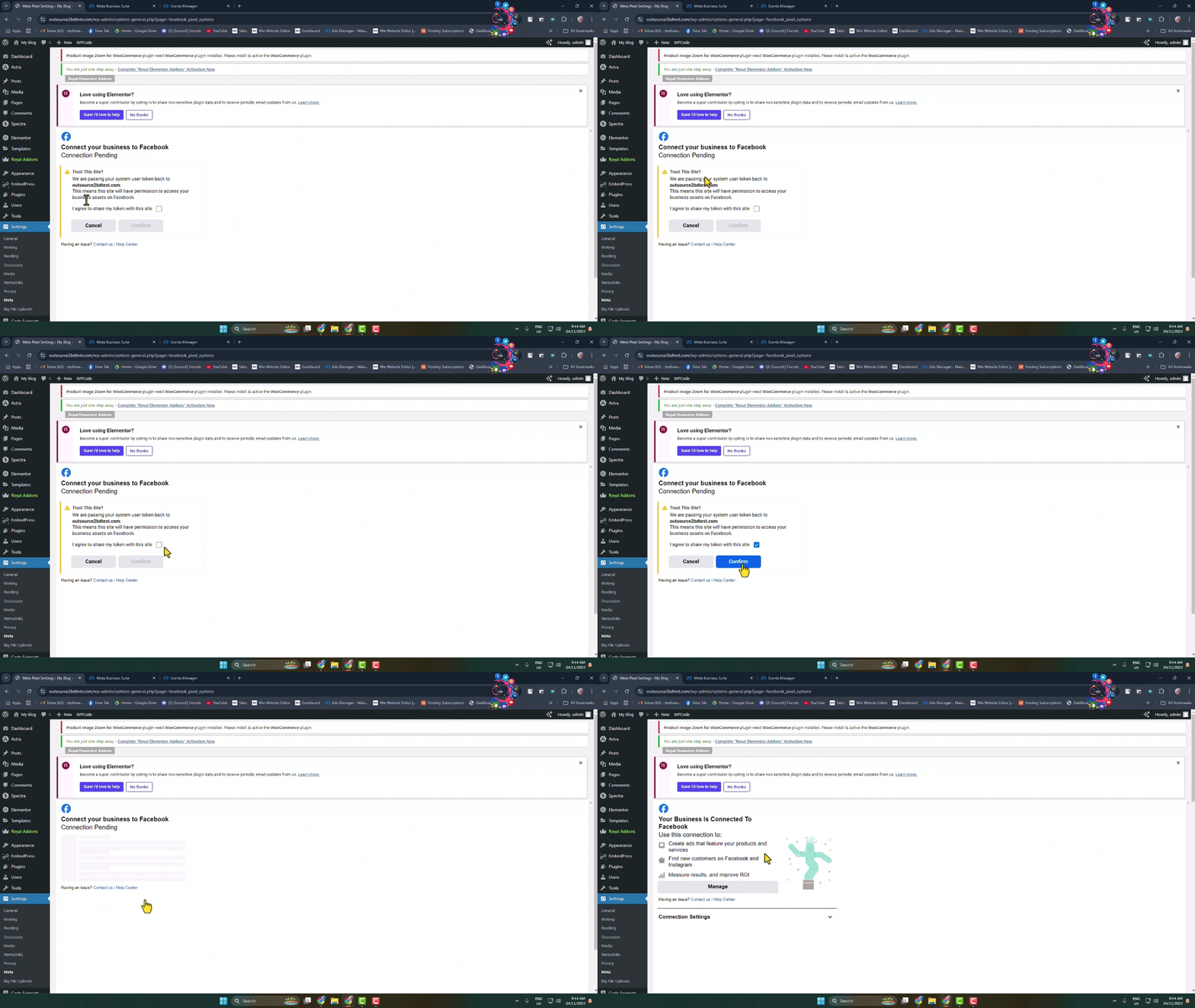
- Back in WordPress, you may see a warning: “Trust this site?”.
- Select I agree to share my token with this site.
- Click Confirm.
5. Test Your Pixel #
- In Events Manager, go to the Test Events section.
- Open your website in another browser tab.
- Perform an action (like visiting a page or clicking a button).
- If everything is connected properly, you’ll see the event appear in real time.
Quick Recap #
- Step 1: Open Events Manager in Facebook Business and confirm you have a Pixel.
- Step 2: Install and activate the Meta Pixel plugin in WordPress.
- Step 3: Connect your site to your Facebook business account and Pixel.
- Step 4: Approve the token confirmation in WordPress.
- Step 5: Test the Pixel in Events Manager.
Pro Tips #
- Make sure you’re logged into the correct Business Manager before starting.
- If you don’t see your Pixel, double-check that it’s created in the same Business Portfolio you selected.
- Use Chrome’s Meta Pixel Helper extension to troubleshoot events firing on your site.